How to Record a Teams Meeting, and Where the Recording Goes
Anyone in the organizer's organization can record a Teams meeting if their license and their admin's policy allow it; guests and people from another organization cannot. The recording lands in the organizer's OneDrive, or in the channel's SharePoint site for a channel meeting, and by default it expires after 120 days (Microsoft Learn and Support, read 2026-11-09). Download it before then. Memory will not do the job: in a lab study, people recalled about 10% of a conversation right after it and 4% a month later.
Who can record
Three things decide it: your license, your admin's policy and your role in the meeting. Microsoft lists the licenses (Office 365 or Microsoft 365 plans such as E1, E3, E5 and A1), says an IT admin has to enable recording, and says only the organizer and people from the same organization can start or stop one (Microsoft Support, read 2026-11-09). Both the organizer and the person who presses Record need recording permission (Microsoft Learn, read 2026-11-09).
When the button is grey, its tooltip names the reason. The common ones, in Microsoft's words: "Only people in this org can start recording", "Unavailable for this meeting due to organization policy" and "Only meeting organizer and co-organizer can start recording for this meeting" (Microsoft Support, read 2026-11-09). The last one means the organizer limited recording in the meeting options; ask them to change it or to make you a co-organizer.
How to record
Sign in with your work or school account, join the meeting, and use the controls (Microsoft Support, read 2026-11-09):
- Select More actions, then Record.
- Choose your spoken language and what to record; Audio only is in the same dropdown.
- Select Confirm.
Everyone in the meeting is notified automatically that recording started. To stop, open More actions again and choose Recording. The recording keeps running if the person who started it leaves, and stops when everyone has left (Microsoft Support, read 2026-11-09). On the mobile app the path is More options, then Start recording.
Where the recording is saved
It goes to the organizer's storage, not to the person who pressed Record, except in calls. Figure 1 is the short version; the table has the details Microsoft documents.
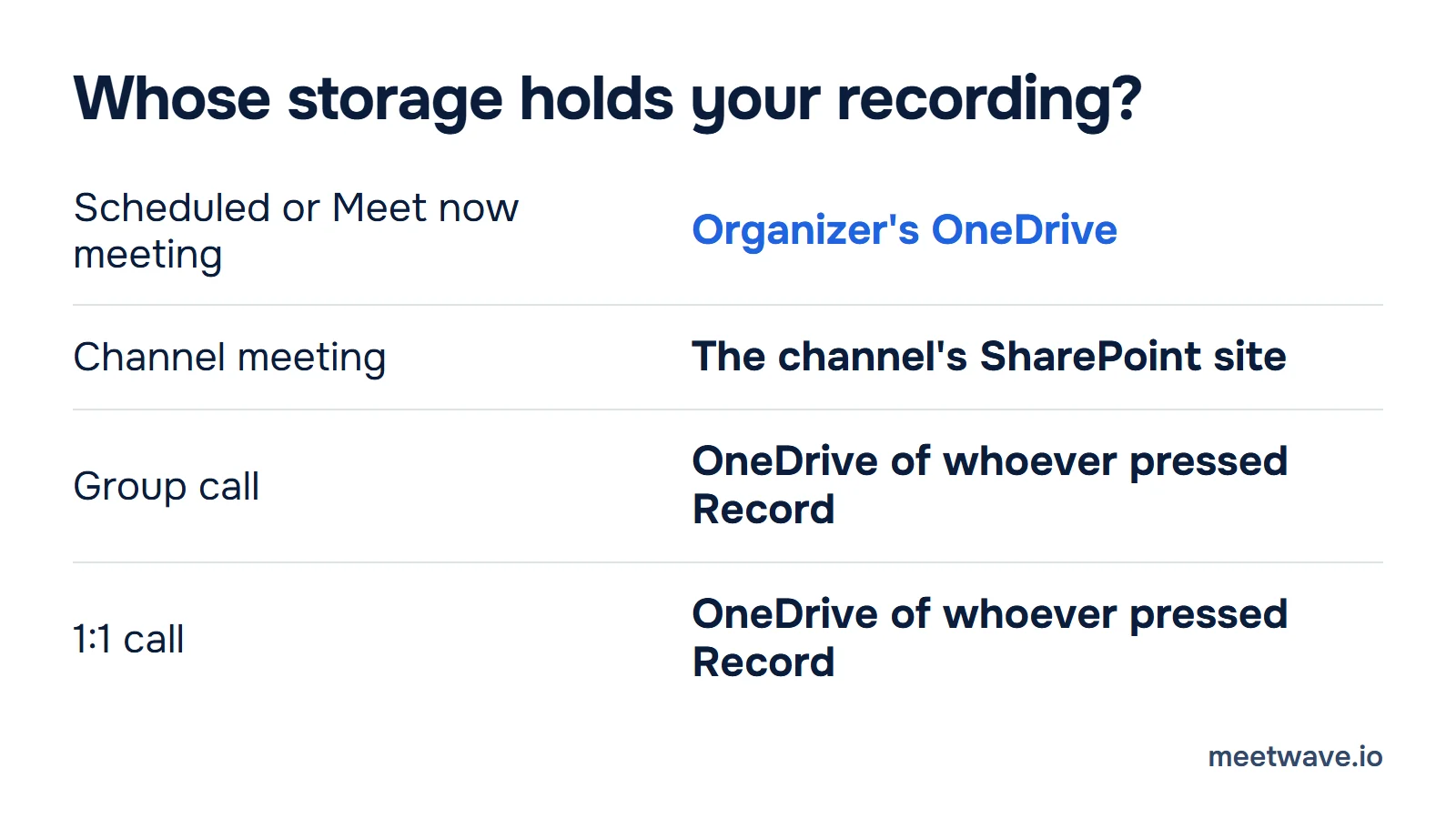
 Figure 1. Whose storage holds a Teams recording, by meeting type. Source: Microsoft Learn, Teams meeting recording and transcript storage and permissions, read 2026-11-09.
| Meeting type | Where the file lands | Who can open it |
|---|---|---|
| Scheduled, Meet now or recurring meeting | The Recordings folder in the organizer's OneDrive, even if the organizer did not attend | Invited people from the organizer's organization can watch; external participants get no access until the organizer shares it |
| Channel meeting | The team site's SharePoint, under Documents, in a folder named Recordings | The channel's own SharePoint permissions |
| Group call | The OneDrive of the member who pressed Record | Members from the same organization can watch; members from another organization have no access |
| 1:1 call | The OneDrive of the person who pressed Record | The other person, if internal, can watch but not download; an external person has no access until shared |
Source: Microsoft Learn, page updated 2026-10-16, read 2026-11-09.
If the organizer has no OneDrive, the file goes to the first co-organizer who has one, then to the person who started the recording (Microsoft Learn, read 2026-11-09). If the upload fails altogether, the recording sits in temporary storage and is deleted after 21 days unless it is downloaded (Microsoft Learn, read 2026-11-09).
To find it, open the meeting chat and its Shared tab, or the past meeting in your Teams calendar and its Recap (Microsoft Support, read 2026-11-09). An hour of recording is about 400 MB, and it counts against the OneDrive or SharePoint quota (Microsoft Learn, read 2026-11-09).
Why a Teams recording expires
Your admin sets a lifetime, and 120 days is the default. Microsoft's expiration policy says meeting recordings and transcripts "have a default expiration time of 120 days"; an admin can set 1 to 99,999 days, or turn expiry off in PowerShell, and the maximum default for A1 users is 30 days (Microsoft Learn, updated 2026-08-31, read 2026-11-09). A changed default affects only new recordings.
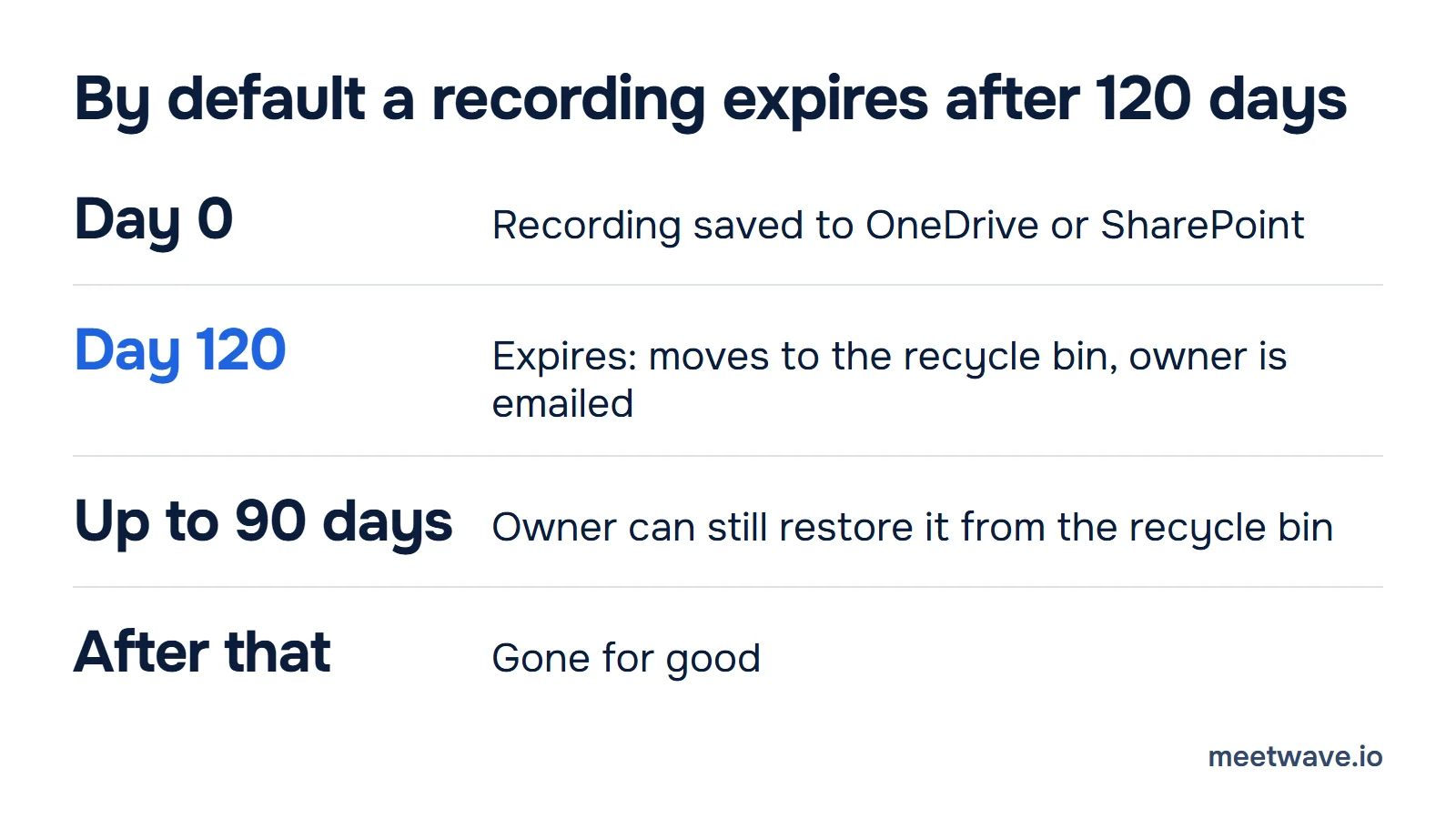
 Figure 2. The default life of a Teams recording. Source: Microsoft Learn, Manage Teams recording expiration policy, and Microsoft Support, Start, stop, and find meeting recordings, read 2026-11-09.
What the reader sees on the expiry day is a banner on the meeting recap: "The recording is currently unavailable. Please check with organizer whether it's still being uploaded, has expired, or has been deleted" (Microsoft Learn, read 2026-11-09). People hit it often enough to ask Microsoft: "I hosted and recorded a meeting on Microsoft Teams less than 90 days ago, but now there is a message that says this recording has expired" (Microsoft Q&A, 2026-05-07). One reason a recording can expire sooner than you expect is a shorter policy on your account, so check the date on the recording, not the default.
What can be recovered, and for how long:
- The owner is emailed when it expires, and has up to 90 days to restore it from the recycle bin (Microsoft Support, read 2026-11-09). Microsoft Learn puts a work or school OneDrive recycle bin at 93 days, unless the administrator changed it, and a personal one at 30 days (Microsoft Learn, read 2026-11-09). Plan on the shorter figure.
- The recycle bin is where the file was saved: the organizer's OneDrive for a meeting, the team site for a channel meeting. Once it is purged from the recycle bin, "they cannot be recovered" (same Learn page).
- Watching it does not extend it: "Watching the recording won't affect the expiration date" (Microsoft Support, read 2026-11-09).
Keep it before it expires
Two moves, and the second is the one that matters: extend it, or take a copy out of Teams.
- Extend or remove the expiry. You need edit permission on the file, and organizers can change the date. Open the recording's player page, select the expiration countdown, and pick a timeframe from the dropdown (Microsoft Support, read 2026-11-09).
- Download it. In the meeting chat or channel, open Shared, select the recording, then More options → Download. Only the organizer can download it unless they share the file (Microsoft Support, read 2026-11-09). If you are not the organizer, ask for the file today, not on day 119.
A file you have downloaded is yours, and it no longer depends on anyone's policy. What Teams' own transcript of it contains is in Teams meeting transcript.
As a guest or from another organization
Microsoft's answer is no: "External participants can't record meetings" except in Microsoft's third-party compliance recording (Microsoft Learn, read 2026-11-09). Guests, people from other organizations and anonymous users see a disabled button with "Only people in this org can start recording" (Microsoft Support, read 2026-11-09). The way out inside Teams: ask the organizer, or someone from their organization, to record and then share the file with you, because external attendees see a recording only when it is shared with them.
If that is not possible, record from your own computer after everyone agrees. MeetWave does this without a bot: on Windows, the desktop app captures the computer's audio from the Teams app; Teams also runs in the browser, which Microsoft lists for Edge, Chrome, Firefox and Safari (Microsoft Learn, read 2026-11-09), and the MeetWave Chrome extension records that tab on Windows, macOS, Linux and ChromeOS. Nothing joins the participant list, so telling people is on you; the extension can post a recording notice in the meeting chat, one switch in its settings. The recording is stored encrypted in your MeetWave account (MeetWave, where recordings are stored). The longer walk-through is in record Zoom or Teams without host permission, and why a Teams meeting may turn bots away is in Teams and meeting bots.
Why a recording is worth keeping
You will not remember it. In a study of natural conversation, participants "could recall only about 10% of their conversations immediately after the conversations", and "one month later this figure had dropped to 4%" (Stafford, Burggraf & Sharkey, 1987, abstract read 2026-11-09). A recording that expires on day 120 and a memory that drops to 4% by day 30 leave the same gap: write the decisions and owners down the same day, or run the file through a note taker. Teams' own AI notes are a separate product; see Teams note taker.
Tell people you're recording
Teams tells everyone when recording starts, but say it out loud as well, and record only when everyone agrees. US federal law lets a party to a conversation record it (18 U.S.C. § 2511(2)(d), read 2026-11-09), but some states require the consent of everyone: Washington makes it unlawful to record a private conversation without "the consent of all the persons engaged in the conversation" (RCW 9.73.030, read 2026-11-09). Other countries have their own rules. This is not legal advice. If someone says no, stop and take notes instead.
Take-away: where is my recording, and the checklist
Copy this into your notes before the meeting, and again 30 days before the date you will need the file.
Who recorded: the organizer, or someone from the organizer's organization. Guests and other organizations cannot.
Where it is: a scheduled or Meet now meeting is in the organizer's OneDrive, in Recordings; a channel meeting is in the channel's SharePoint, in Recordings; a call is in the OneDrive of whoever pressed Record.
How to open it: the meeting chat, Shared tab, or the calendar, past meeting, Recap.
Expiry: default 120 days, set by the admin. Open the recording and read the countdown.
Before it expires: extend the date in the player, or the organizer downloads it (More options, Download).
Already expired: the owner has up to 90 days to restore it from the recycle bin of OneDrive or the team site.
Not in the organization: ask the organizer to record and share it, or record your own computer after everyone agrees.
After the meeting, a file or a transcript turns into notes in the free meeting transcript summarizer, no account needed. For the other platforms, see how to record a Zoom meeting, how to record Google Meet and the guide to recording online meetings, which puts them side by side.
Key numbers
- Teams meeting recordings and transcripts expire after 120 days by default, set by the admin between 1 and 99,999 days (Microsoft Learn, read 2026-11-09).
- After expiry the owner has up to 90 days to restore a Teams recording from the recycle bin (Microsoft Support, read 2026-11-09).
- A recording that fails to upload is kept in temporary storage for 21 days, then deleted (Microsoft Learn, read 2026-11-09).
- One hour of Teams recording is about 400 MB of OneDrive or SharePoint storage (Microsoft Learn, read 2026-11-09).
- Participants in a 1987 study recalled about 10% of a conversation immediately after it, and 4% one month later (Stafford, Burggraf & Sharkey, 1987).
How we calculated
- Microsoft facts are what Microsoft Learn and Microsoft Support state on 2026-11-09; nothing is estimated, and each line carries the date it was read. Microsoft's two pages give the recycle-bin window as "up to 90 days" (Support) and 93 days for a work or school account (Learn); the article uses 90 and names both (Microsoft Learn).
- The 120 days match what meeting platform transcripts states for the Teams default.
- The 10% and 4% are the 1987 paper's own abstract; we read the abstract, not the full paper, and its sample size is not stated there (Stafford, Burggraf & Sharkey, 1987).
FAQ
Where are Teams recordings saved?
A scheduled or Meet now meeting goes to the organizer's OneDrive, a channel meeting to the channel's SharePoint site, and a call to the OneDrive of the person who pressed Record (Microsoft Learn). Open it from the meeting chat's Shared tab or the calendar's Recap.
Why did my Teams recording expire?
Your admin's policy sets a lifetime, 120 days by default, and an expired file moves to the recycle bin where it was saved (Microsoft Learn). The owner can restore it for up to 90 days (Microsoft Support).
Can guests record Teams meetings?
No. Guests, people from other organizations and anonymous users cannot start or stop a recording, and can watch one only if the organizer shares it (Microsoft Support).
Can I extend a Teams recording before it expires?
Yes, if you have edit permission: open the recording's player page, select the expiration countdown and pick a timeframe (Microsoft Support).
Sources
- Microsoft Support — Start, stop, and find meeting recordings in Microsoft Teams (2026). Accessed 2026-11-09.
- Microsoft Support — Play, share, and download meeting recordings in Microsoft Teams (2026). Accessed 2026-11-09.
- Microsoft Support — I can't record a meeting in Microsoft Teams (2026). Accessed 2026-11-09.
- Microsoft Learn — Manage Teams recording expiration policy (2026). Accessed 2026-11-09.
- Microsoft Learn — Manage Teams recording policies for meetings and events (2026). Accessed 2026-11-09.
- Microsoft Learn — Teams meeting recording and transcript storage and permissions in OneDrive and SharePoint (2026). Accessed 2026-11-09.
- Microsoft Learn — Overview of the Microsoft Teams client (2026). Accessed 2026-11-09.
- Stafford, L., Burggraf, C. S., & Sharkey, W. F. — Conversational memory: the effects of time, recall mode, and memory expectancies on remembrances of natural conversations, Human Communication Research 14(2), 203–229 (1987). Accessed 2026-11-09.
- United States Code — 18 U.S.C. § 2511 (2026). Accessed 2026-11-09.
- Revised Code of Washington — RCW 9.73.030 (2026). Accessed 2026-11-09.
- Microsoft Q&A — How to find an expired recording (2026-05-07). Accessed 2026-11-09.
Still comparing tools?
See how MeetWave stacks up against the tools most teams evaluate alongside it.
- MeetWave vs GranolaSee how MeetWave compares to Granola for bot-free meeting notes
- MeetWave vs TactiqSee how MeetWave compares to Tactiq for meeting transcripts
- MeetWave vs NottaSee how MeetWave compares to Notta for meeting transcription
More on this: Meeting transcripts by platform