
AI notetaker bots in your meeting: who they are and how to remove them
AI notetaker bots join a call as an extra participant, usually named after the person who sent them — “Anna’s Notetaker (Otter.ai)”, “Fireflies.ai Notetaker”, “Notta Bot”. The host can remove one from the participant list like any guest; to keep it out next time, use the platform settings below. Checked 25 Sep 2026.
Looking for one bot? Fred from Fireflies · Notta Bot
Which AI notetaker bots join meetings, and what are they called?
Six vendors’ bots as each vendor’s own help pages describe them. Every cell links to the page it was read on.
| Bot | Default name in the participant list | Can it be renamed? | How it joins | Emails notes to attendees? | How the vendor says to stop it | Records without a bot? |
|---|---|---|---|---|---|---|
| Otter.ai | "[Your Name]'s Notetaker (Otter.ai)"; in some workspaces "[Workspace Name]'s Notetaker (Otter.ai)"checked 25 Sep 2026 | Only the first-name part, from the profile; the full name only for an Enterprise workspacechecked 25 Sep 2026 | Auto-joins Zoom, Google Meet and Teams events from a synced calendar, or is added to a meeting by hand; it joins as a guest and cannot join anonymouslychecked 25 Sep 2026 | Not stated in Otter.ai’s help pages | Any participant, even without an Otter account, can type "stop otter" in the meeting chat; the owner can stop it in Otter or switch auto-join to "Meetings I manually select"checked 25 Sep 2026 | Bot (OtterPilot), or bot-free desktop app for Mac and Windows (Zoom, Google Meet, Slack Huddles, in person)checked 25 Sep 2026 |
| Fireflies.ai | "Fireflies.ai Notetaker", invited through the address fred@fireflies.aichecked 25 Sep 2026 | Paid add-on on Pro and Business, included on Enterprise; up to 30 characters, shown only in meetings the renaming user hosts or invites it tochecked 25 Sep 2026 | Auto-joins calendar meetings (all with a web-conferencing link, only ones you own, only with teammates, or only when fred@fireflies.ai is invited), or is added to a live meeting from the dashboardchecked 25 Sep 2026 | Yes — the recap email goes to "Everyone on the invite", internal and external, by defaultchecked 25 Sep 2026 | Remove it from the participant list, stop it from the live-meeting banner in the Fireflies dashboard, or take fred@fireflies.ai off the invitation; removed within 3 minutes, it creates no transcriptchecked 25 Sep 2026 | Bot for Zoom and Teams; bot-free Chrome extension for Google Meet in Chrome onlychecked 25 Sep 2026 |
| Fathom | "(NAME)'s Fathom Notetaker"checked 25 Sep 2026 | Yes; a team admin can set one name for everyone, with {name} for each user's first namechecked 25 Sep 2026 | Auto-captures calendar meetings by rule (all, external, internal or none) and records only while its user is on the callchecked 25 Sep 2026 | Optional: a setting shares the summary, or summary and recording, with attendees; its default is not statedchecked 25 Sep 2026 | Cancel or stop the recording, or remove it from the meeting like any participantchecked 25 Sep 2026 | Bot-free capture is Mac-only and in beta; on Windows, Fathom records through its bot todaychecked 25 Sep 2026 |
| Read AI | "read.ai meeting notes"checked 25 Sep 2026 | Free plan: preset names such as "[your name]'s Notetaker"; Pro and Enterprise workspaces: a custom namechecked 25 Sep 2026 | Auto-joins calendar meetings (all, or only ones you host) and can auto-join unscheduled Google Meet and Zoom callschecked 25 Sep 2026 | Not stated in Read AI’s help pages | Any participant can type "Read Stop" (it leaves and keeps a report) or "Opt Out" (it leaves and deletes the data) in the meeting chat; the host does not have tochecked 25 Sep 2026 | Desktop and mobile apps capture audio on the user's device; in those modes Read AI does not join as a participantchecked 25 Sep 2026 |
| tl;dv | "[First name]'s AI Notetaker" — "Grace's AI Notetaker" for Grace Joneschecked 25 Sep 2026 | Follows the first name in the user's profilechecked 25 Sep 2026 | Auto-records calendar events on Google Meet, Zoom and Teams — all, internal or external meetingschecked 25 Sep 2026 | Optional: "Auto-send email with meeting notes" emails the invitees after each meeting; its default is not statedchecked 25 Sep 2026 | Deny it entry or remove it like any participant; turn off auto-recording in preferences — uninstalling the extension or desktop app does not stop auto-joinschecked 25 Sep 2026 | Bot, or bot-free desktop app for Mac and Windows — records system audio, no meeting bot requiredchecked 25 Sep 2026 |
| Notta | "Notta Bot"checked 25 Sep 2026 | Paid plans, for Zoom, Teams and Webex; in Google Meet it may still show as "Notta Bot"checked 25 Sep 2026 | Invited by pasting the meeting link into Notta, or auto-joins Google or Outlook calendar events (all, internal-only or external-only, with keyword allow and block lists)checked 25 Sep 2026 | Not stated in Notta’s help pages | End the recording in Notta, or remove it from the participant list; if the host does not admit it within 5 minutes, it is removed automaticallychecked 25 Sep 2026 | Notta Bot for Zoom, Google Meet, Teams and Webex, or bot-free Notta Desktop on Windows 10 (1903+) and macOS 13+checked 25 Sep 2026 |
Read on each vendor’s own help pages; the dates show when. Names can be changed by the person who sends the bot, so treat them as defaults. Found something out of date? Tell us.
How do you remove a notetaker bot from a meeting?
In the call, a bot is a participant: whoever the platform lets remove participants can remove it. To stop it coming back, the host or an admin changes who gets in without being admitted.
Remove the bot in Zoom
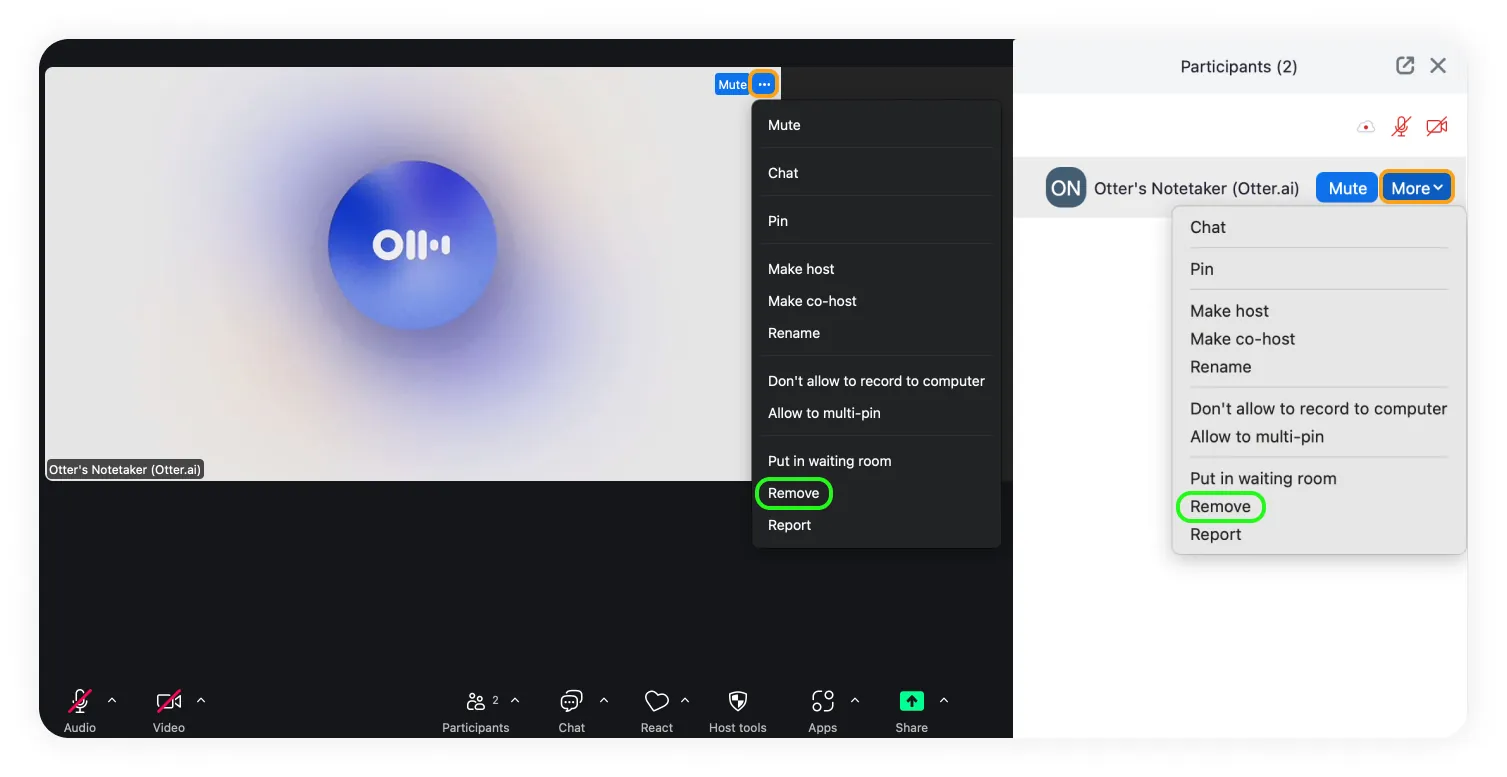
- Host or co-host: open Participants, hover over the bot, click More and choose Remove. A removed participant can't rejoin unless you allow participants to rejoin. Zoom support
- Or choose Put in waiting room from the same menu to hold it outside the call. Zoom support
Keep the bot out of the next Zoom meeting
- Turn on the waiting room for "Users not in your account" or "Users not on the meeting invite", and admit people one by one. Zoom support
- Turn on "Only authenticated users can join meetings" (Settings › Meeting › Security), or "Require authentication to join" for one meeting. Zoom support
- Account owners and admins can block users authenticated with specific domains from joining meetings the account hosts. Zoom support
These settings filter by account, invitation and domain. None of the Zoom pages above describes recognising a bot as a bot, so a bot that is on the invite can still pass them.
Remove the bot in Google Meet
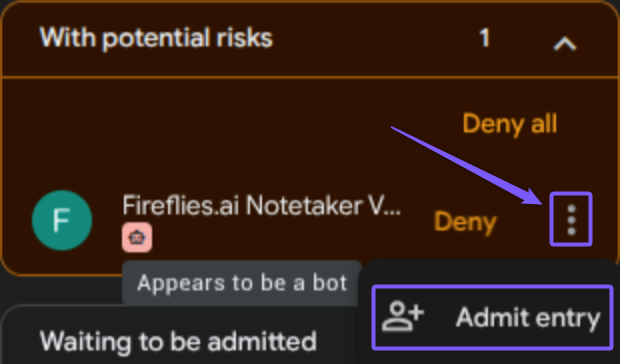
- Open People, click More options next to the bot and choose Remove from the call. While it is still asking to join, choose Deny. Google Meet Help
Keep the bot out of the next Google Meet meeting
- Set the meeting access type to Restricted and turn off "Anyone can ask to join": "third-party bots, like note takers, that attempt to use 'Ask to join' are automatically denied". Google Workspace Learning Center
Restricted still lets in anyone invited through the Google Calendar event, so a bot whose address is on the invitation is not stopped by it. Take that address off the invite first.
Remove the bot in Microsoft Teams
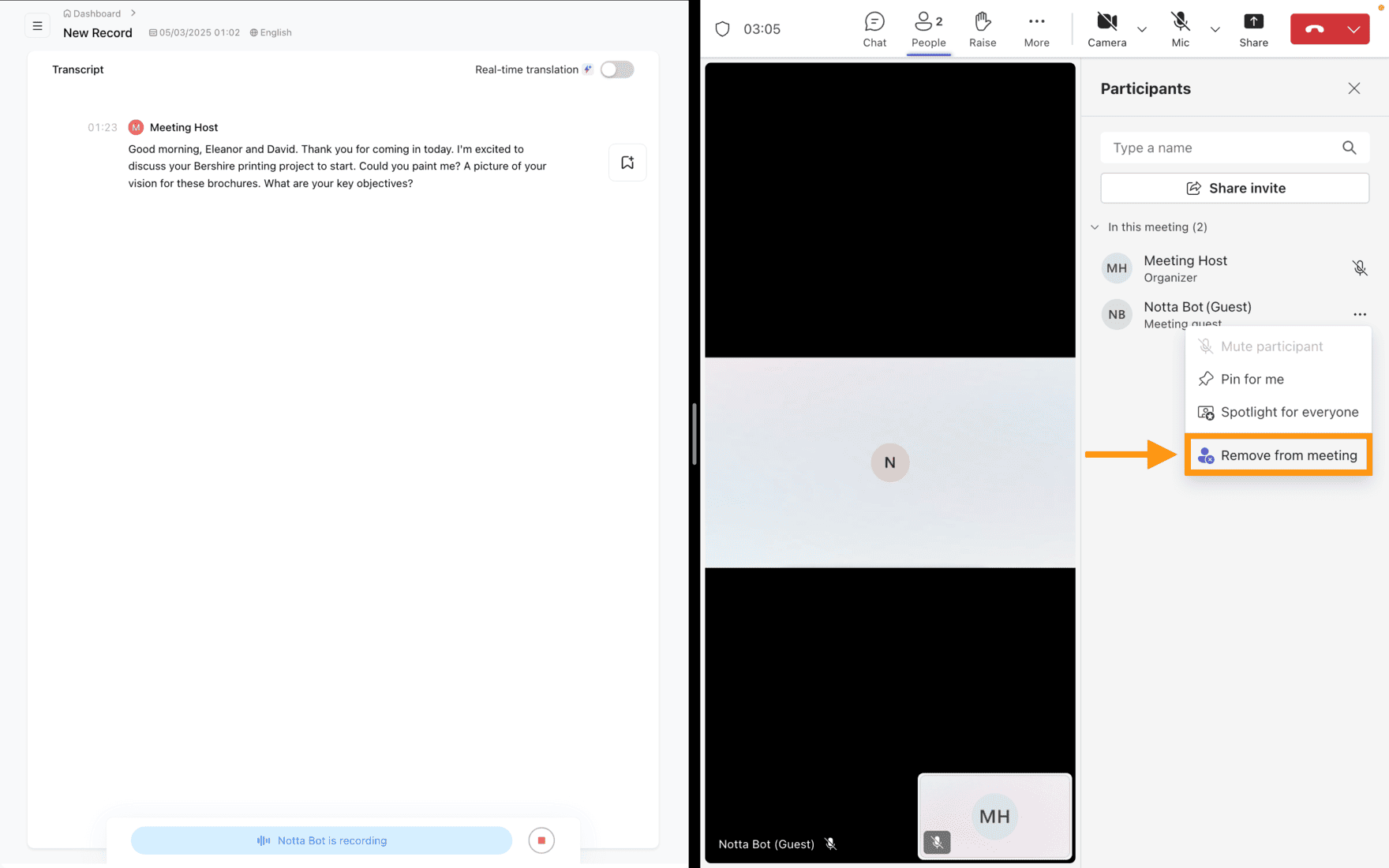
- Organizer or presenter: open Participants, click More options next to the bot and choose Remove from meeting. Otter help center
Keep the bot out of the next Microsoft Teams meeting
- Teams detects many external bots and holds them in the lobby until someone admits them — whatever the lobby setting. This is the default ("When detected, require approval before joining"); admins set it with ExternalBotAccessMode. Microsoft Learn
- Let only organizers and co-organizers admit people from the lobby, so a presenter can't let a bot in by mistake. Microsoft Learn
Microsoft says some external bots may not be detected, and a detected bot still gets in once someone admits it: the documented default holds bots in the lobby, it does not block them.
Platform steps checked 25 Sep 2026.
Can you remove someone else’s notetaker if you’re not the host?
Sometimes. Otter’s bot leaves when any participant types “stop otter” in the meeting chat, even someone without an Otter account. Read AI’s bot leaves when any participant types “Read Stop” (it keeps what it recorded) or “Opt Out” (it deletes it); the host does not have to. For the other bots in the table, the vendors document removal from the participant list. Who may do that is set by the platform: in Zoom the host or co-host, in Teams the organizer and presenters, in Google Meet it depends on the meeting’s permissions. If the option isn’t there for you, ask the host. The sources are in the “How the vendor says to stop it” column above.
How do you spot a bot that was renamed?
Most bots can be renamed by the person who sends them, so the table shows defaults. What still gives a bot away:
- A person's name with "'s" in front of a tool word: "Anna's Notetaker (Otter.ai)", "Anna's Fathom Notetaker", "Anna's AI Notetaker". The default names of Otter, Fathom and tl;dv are built this way.
- The words Notetaker, Assistant, Bot or "meeting notes" in the name, or a vendor in brackets such as "(Otter.ai)".
- An address like fred@fireflies.ai on the calendar invitation: that is how a Fireflies bot is invited.
- Google Meet and Microsoft Teams label some bots for you: Meet can list one under "With potential risks" as "Appears to be a bot", and Teams holds detected bots in the lobby.
- A chat message when it joins. Read AI posts who invited it and how to remove it; Otter's notetaker can post a link to its notes.
What you can’t see: someone recording from their own computer. A tool that captures the browser tab or the computer’s audio adds nothing to the participant list.
What is a bot-free note taker?
A bot-free note taker is an AI meeting assistant that records and transcribes a call from your own device — the browser tab or the computer's audio — instead of sending a bot into the meeting. Nothing is added to the participant list, it does not need the meeting link to record, and you decide when it records.
- It does not appear in the participant list — nothing joins the meeting.
- It does not need to be invited: no meeting link or calendar invitation is required to capture audio.
- The person using it controls when it records: they start it, or they turned automatic recording on themselves.
Bot-free describes how audio is captured, not whether people were told. Letting the other participants know is still up to the person recording. Want everyone on the call to know? The Chrome extension can post a recording notice in the meeting chat — one switch in its settings.
Tools that don’t join the call
| Tool | How it records |
|---|---|
| Granola | Bot-free desktop app for Mac and Windows, using your computer audio; the Chrome extension "Granola Companion" works with the desktop app checked 25 Sep 2026 |
| Jamie | Bot-free: runs on your device, no meeting bot joins the call checked 25 Sep 2026 |
| tactiq | Live capture via Chrome/Edge browser extension, no bot; native macOS app in beta for Zoom desktop calls checked 24 Sep 2026 |
| MeetWave | No bot joins your calls: the Chrome extension records web calls on macOS, Windows, Linux and ChromeOS, and the Windows desktop app also captures system audio from any app. How MeetWave records |
Most of the bot vendors above now have a bot-free mode of their own — see the “Records without a bot?” column. Not having a bot is no longer rare; what differs is where each one works.
Take meeting notes without adding a bot
No bot joins your calls: the Chrome extension records web calls on macOS, Windows, Linux and ChromeOS, and the Windows desktop app also captures system audio from any app.
FAQ
Why is there a bot called Fred in my meeting?
Fred is Fireflies’ notetaker. It is invited through the address fred@fireflies.ai, and in the call it appears as “Fireflies.ai Notetaker”. What Fred is and how to remove it.
Does removing the bot stop the recording?
It stops that bot’s recording. It does not stop anyone recording from their own device, and another participant’s bot can still be invited — Read AI, for one, notes that someone else in the meeting may have it switched on from their own account.
Do AI note takers show up in the participant list?
In bot mode, yes. Tools that record from your own device don’t. The tool-by-tool answer is in do AI note takers show in participants.
Is MeetWave a bot?
No bot joins your calls: the Chrome extension records web calls on macOS, Windows, Linux and ChromeOS, and the Windows desktop app also captures system audio from any app.