
How to Get a Microsoft Teams Meeting Transcript (and What's in the File)
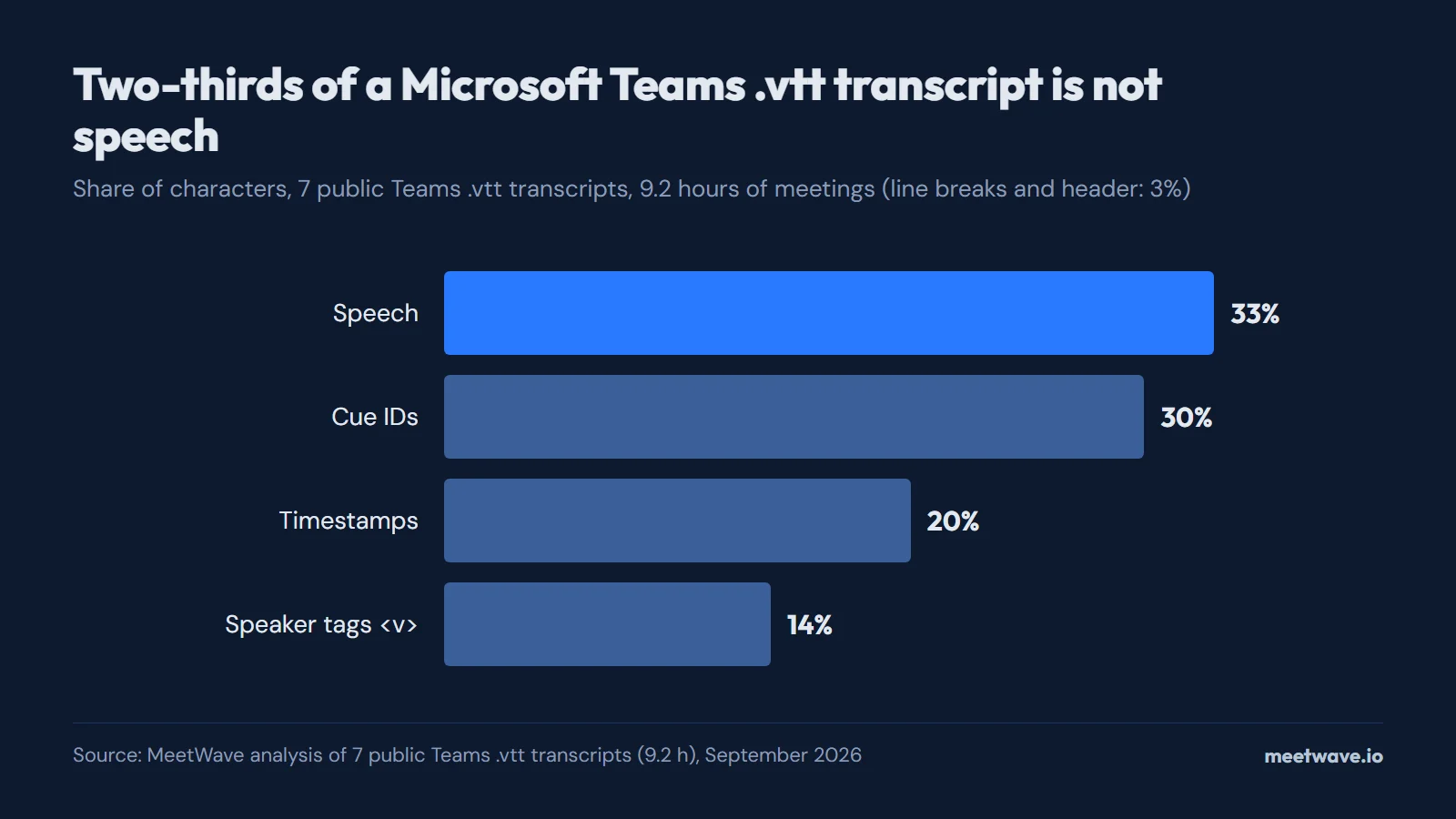
To get a Microsoft Teams meeting transcript, someone in the meeting selects More actions, Record and transcribe, then Start transcription. After the call, the organizer or a co-organizer downloads it from the meeting's Recap as a .docx or .vtt file; other people from the organization can only view it. Microsoft lists meeting transcripts in every business plan it compares, from Teams Essentials at $4 per user a month. The .vtt is mostly markup: in 9.2 hours of public Teams transcripts we measured, 67% of the characters were cue IDs, timestamps and speaker tags.
Key numbers
- 67% of the characters in a Microsoft Teams .vtt transcript are not speech: cue IDs take 30%, timestamps 20% and speaker tags 14% (MeetWave analysis of 7 public Teams transcripts, 9.2 hours, September 2026; method).
- Merging a Teams .vtt into "Speaker: text" paragraphs leaves 35% of the file: about 43 KB of text per meeting hour instead of 123 KB (MeetWave analysis, September 2026; method).
- Teams writes 876 captions per meeting hour, 8.7 words each, and 42% of them stop mid-sentence (MeetWave analysis, September 2026; method).
- Microsoft Teams Essentials, $4 per user a month in 2026, includes "team meeting recordings with transcripts" with live captions in English only (Microsoft, Compare Teams business options).
- By default only the meeting organizer and co-organizers can download a Teams transcript as .docx or .vtt (Microsoft Support, 2026).
- A one-hour Teams meeting recording takes 400 MB of OneDrive or SharePoint storage (Microsoft Learn, updated 2026).
How to get a Teams meeting transcript
A transcript exists only if someone starts transcription during the meeting. Teams cannot make one afterwards: "If recording is turned on, but transcription is turned off, the recording doesn't have a transcript file stored next to it" (Microsoft Learn).
- Start it in the meeting. Select More actions in the meeting controls, then Record and transcribe → Start transcription, and confirm the language everyone is speaking (Microsoft Support).
- Check who can start it. Guests and people from another organization cannot; depending on the meeting options, only organizers and presenters, or only organizers and co-organizers, can (Microsoft Support).
- Find it after the call. Open Chat, open the past meeting's chat, select Recap, then Transcript (Microsoft Support).
- Download it. Use the arrow next to Download and choose .docx or .vtt; organizers and co-organizers see this button by default.
- Know where the file lives. A meeting's recording lands in the organizer's OneDrive, in the Recordings folder; a channel meeting's goes to that channel's SharePoint site, and the transcript is stored with it (Microsoft Learn).
Zoom and Google Meet work differently: see where Zoom saves its transcript and how Google Meet transcription works.
Which Microsoft 365 plans include Teams transcription
Every paid business plan on Microsoft's Teams comparison page includes meeting transcripts, starting with Teams Essentials at $4 per user a month (Microsoft). Teams Premium and Copilot add translation and AI recaps on top; they are not what makes the transcript. For the free Teams app, Microsoft documents recording but says nothing about transcripts.
| Plan | Meeting transcript | What else you get | Price, US, paid yearly |
|---|---|---|---|
| Teams (free), personal account | Not documented; recording only for Microsoft 365 Personal, Family or Premium subscribers, kept 30 days | — | — |
| Microsoft Teams Essentials | Yes, "Team meeting recordings with transcripts" | Live captions in English only | $4.00 per user a month |
| Microsoft 365 Business Basic | Yes | Live captions in over 30 languages | $7.00 per user a month |
| Microsoft 365 Business Standard with Copilot | Yes | Copilot in Teams; captions in over 30 languages | $23.50 per user a month |
| Teams Premium add-on | Not needed for a transcript | Live translated transcripts and captions, organizer control of who can record and transcribe, blocking copies of the transcript | Add-on |
Source: Microsoft, Compare Microsoft Teams business options, Microsoft Learn, Teams Premium licensing, Microsoft Support, Teams Free recordings. Prices are US list prices, annual commitment, checked 2026-09-23.
Enterprise, Frontline and Education plans are not on that comparison page, so this table does not list them; check your plan's own service description. Since 1 April 2026 some features that used to need Teams Premium come with Teams Enterprise (Microsoft Learn).
Why "Start transcription" is greyed out
When the option is greyed out, the cause is almost never the license. Microsoft lists 12 messages Teams shows when transcription is unavailable, and none of them mentions a plan: 5 are about your role or organization, 5 about a policy or the organizer's settings, 1 about Copilot being turned off and 1 about Location-Based Routing (Microsoft Support). Figure 1 groups them.
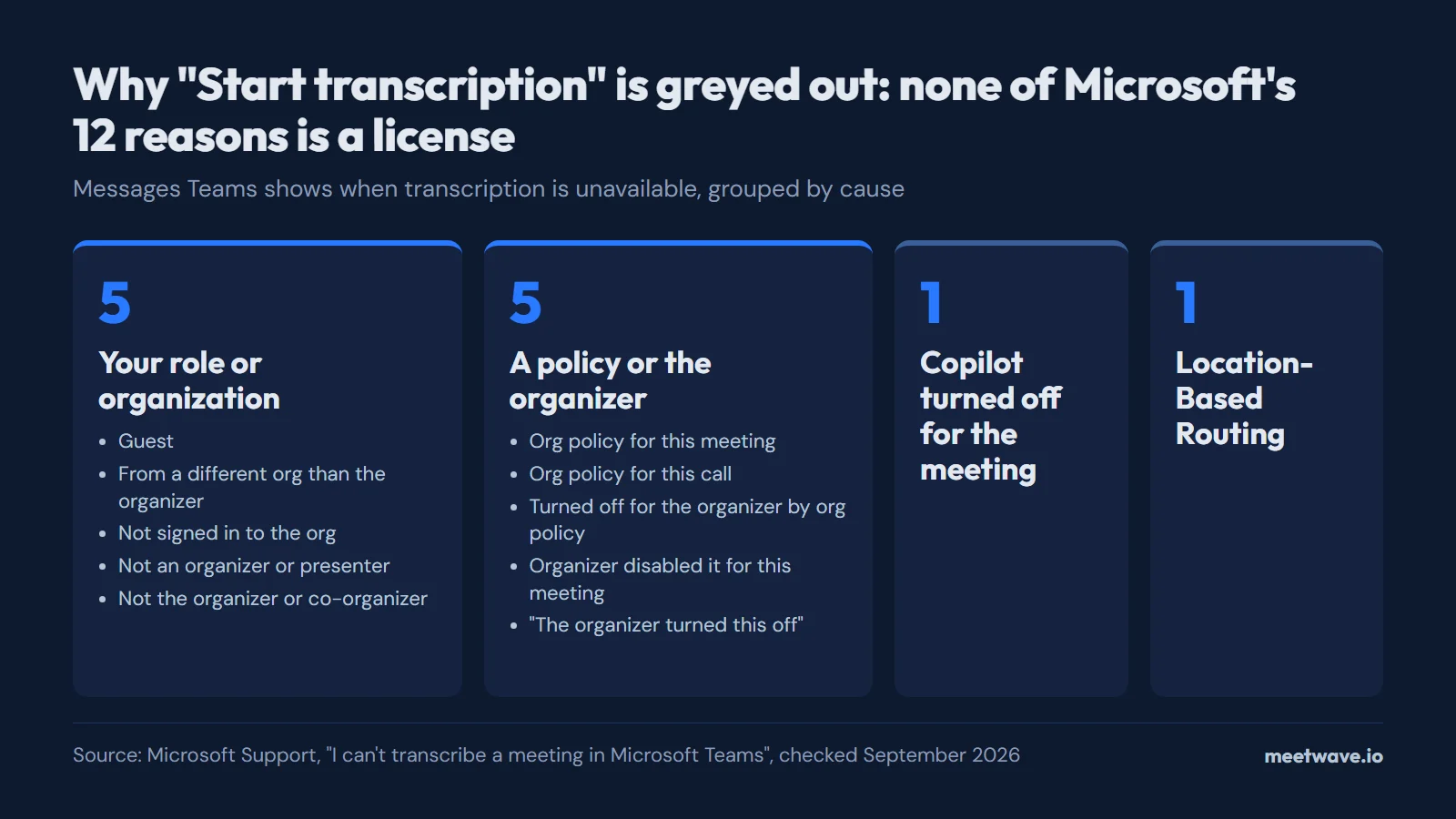 Figure 1. None of the 12 reasons Teams gives for unavailable transcription is a license. Source: Microsoft Support, I can't transcribe a meeting in Microsoft Teams, 2026.
Transcription is both a per-organizer and a per-user policy: the organizer must have it on, and so must the person who starts it (Microsoft Learn). An admin sets it in the Teams admin center under Meetings → Meeting policies → Transcription, which is On by default for new policies, or with Set-CsTeamsMeetingPolicy -AllowTranscription $true in PowerShell. The Microsoft 365 admin center also runs a transcripts diagnostic for a given user and meeting link.
If the organizer turned Copilot off for the meeting, recording and transcription go off with it (Microsoft Learn).
Who can download the transcript, and what to do if you can't
By default only the meeting organizer and co-organizers can download the transcript. Other people from the same organization can view it after the meeting but have no Download button, and guests and external participants cannot open it afterwards (Microsoft Support). The same split holds for the recording: organizer and co-organizers can edit and share it, other members of the organizer's organization get read access without download, and external participants get nothing until the organizer shares it (Microsoft Learn).
If you are a participant, you have two routes:
- Ask the organizer to share the file from OneDrive or to allow downloads for you in Stream.
- Copy the text yourself. Open the Transcript panel, select all and copy; the Teams transcript converter reads that pasted text too, from an English-language Teams client.
The change caught people out: a Microsoft Q&A thread titled "Lost the ability to download .vtt and .docx transcripts", opened in June 2024, is still collecting "same question" votes.
What is inside the .docx and .vtt
The two files carry the same words in very different wrappers. The .docx has a short header (the meeting or recording name, the date, sometimes the duration), lines such as "Alex Kim started transcription", and then one block per turn: the speaker's name, a start time like 0:43, and the text. Microsoft's API no longer serves it: "The docx format for transcripts is deprecated as of May 31, 2023" (Microsoft Graph), so the .docx comes only from the Teams interface.
The .vtt is a subtitle file, and most of it is subtitle machinery. Every short caption gets its own ID line, a timestamp line and a <v Name> speaker tag:
WEBVTT

3f2a9c10-51d2-4c8e-9b7a-0d6e1f2a3b4c/18-0
00:04:12.310 --> 00:04:15.870
<v Alex Kim>So the budget review moves to Thursday,</v>

3f2a9c10-51d2-4c8e-9b7a-0d6e1f2a3b4c/18-1
00:04:15.870 --> 00:04:18.020
<v Alex Kim>and Priya sends the numbers before that.</v>
In 9.2 hours of real Teams .vtt transcripts, 67% of the characters were that machinery: cue IDs 30%, timestamps 20%, speaker tags 14%, and speech only 33% (method). The share ranged from 64% to 69% across the 7 files. Figure 2 shows the split.
Figure 2. Two-thirds of a Teams .vtt transcript is not speech. Source: MeetWave analysis of 7 public Teams .vtt transcripts (9.2 h), September 2026.
The captions are short and cut sentences in half. Teams wrote 876 captions per meeting hour, 8.7 words each, and 42% of them ended mid-sentence; one uninterrupted turn by one speaker took 11.9 captions on average (method). Figure 3 puts the three numbers side by side.
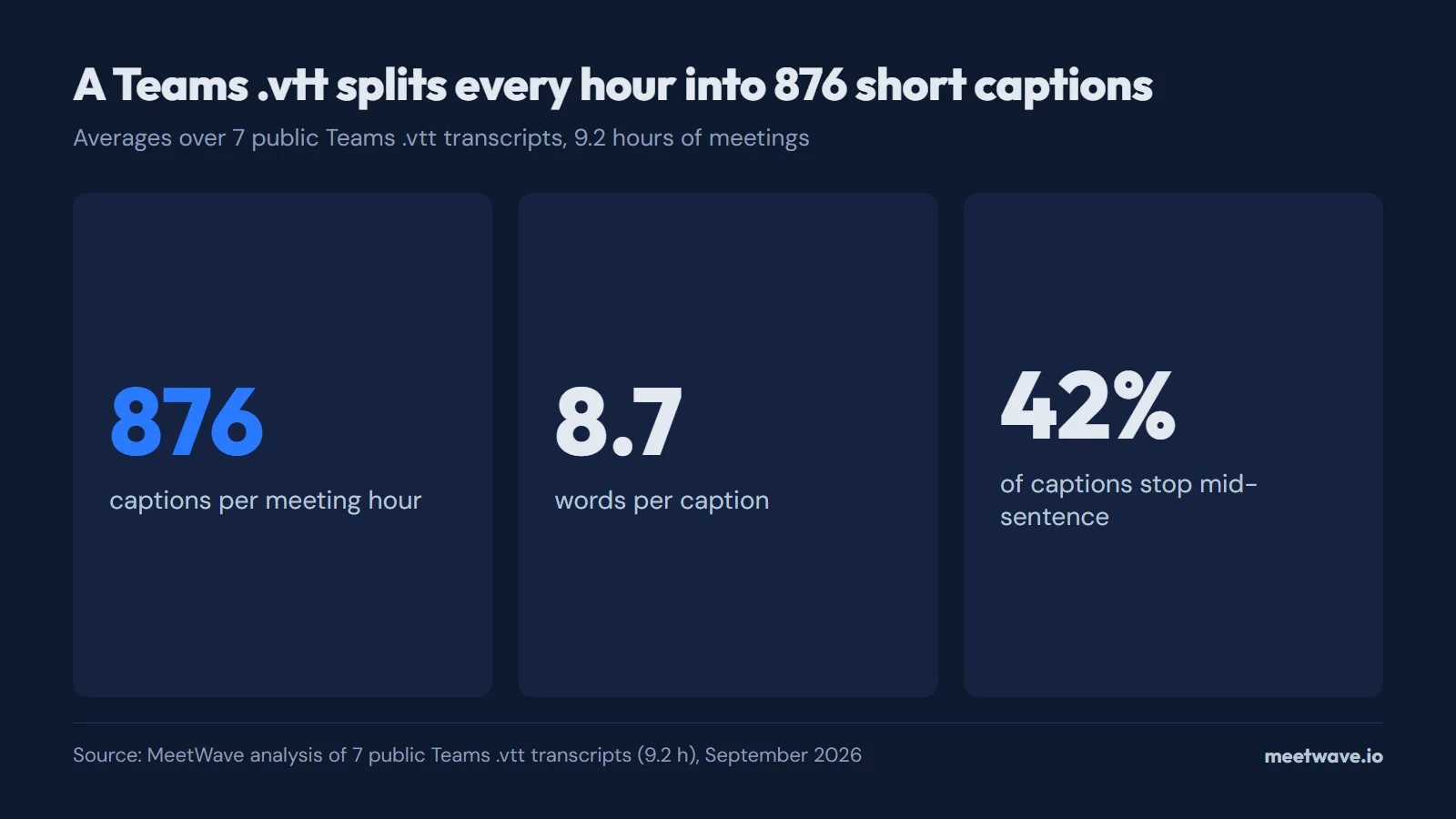 Figure 3. A Teams .vtt splits every hour into 876 short captions. Source: MeetWave analysis of 7 public Teams .vtt transcripts (9.2 h), September 2026.
That is why a 123 KB .vtt per meeting hour shrinks to about 43 KB, 35% of the file, once consecutive captions by one speaker are merged into "Speaker: text" paragraphs (method). The words stay; the wrapping goes.
Convert a Teams transcript to clean text or subtitles
The converter below takes the .docx or the .vtt, or text pasted from the Transcript panel, and merges each speaker's captions into one paragraph. Timestamps are optional, and the output can be plain text, Markdown, SRT, VTT or a CSV for Excel. The file is read in your browser and never uploaded. A .docx has only start times, so SRT cues run from one turn to the next; the times are the real ones from the file, not estimates. For the full set of options, convert a Teams transcript (.docx or .vtt) to text on its own page.
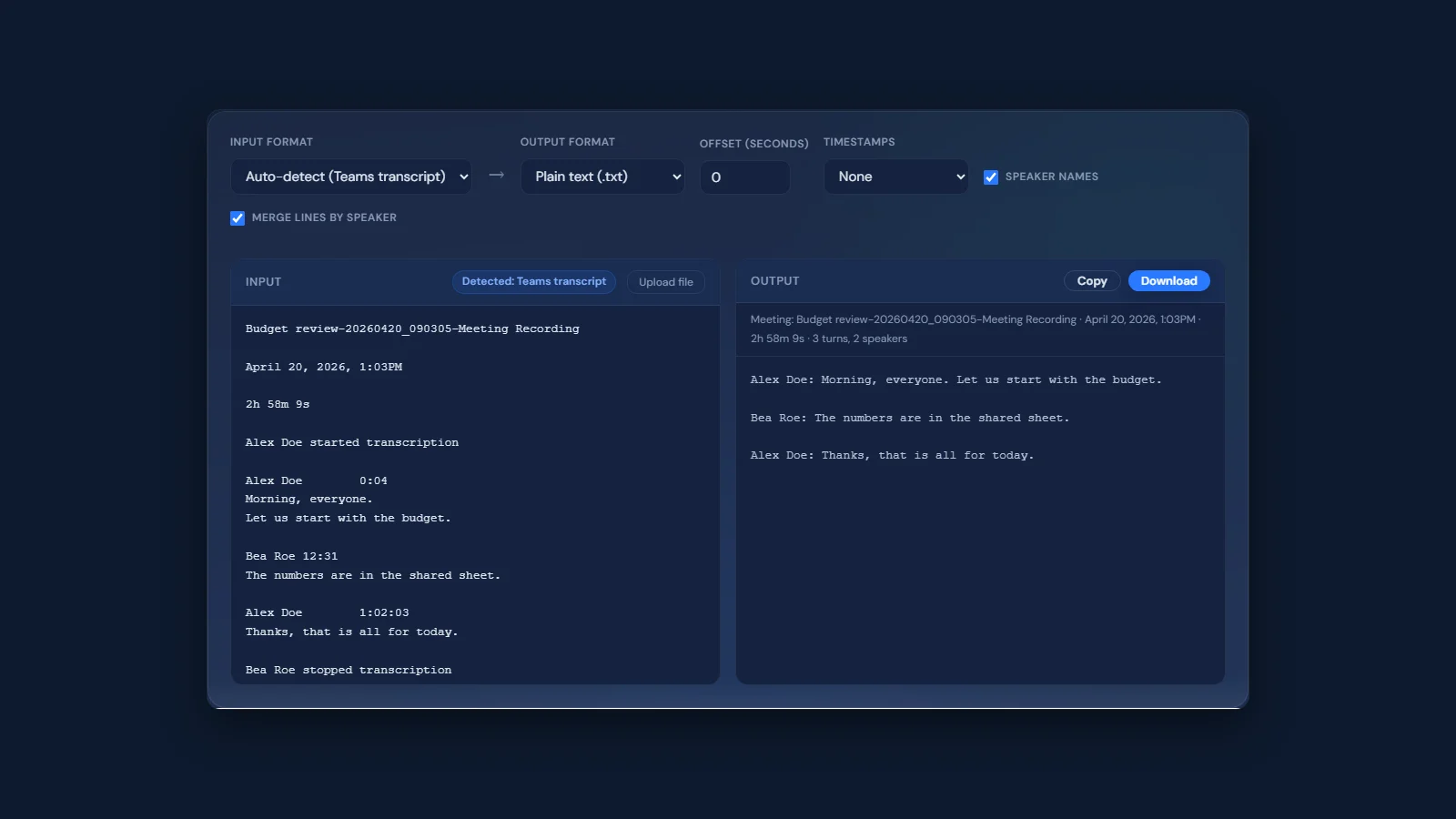 Figure 4. A Teams .docx with invented names converted to plain text, one paragraph per speaker. Source: meetwave.io/tools/teams-transcript-converter, September 2026.
When transcription is off: record the audio yourself
If the organizer or your admin turned transcription off, nothing inside Teams gets it back, and live captions do not help: "Teams doesn't save captions" (Microsoft Learn). What remains is recording the sound on your own computer and transcribing that; MeetWave's meeting recorder does it without a bot in the call. Tell the other people in the meeting that you are recording, and check the consent rules where you are (how to record online meetings).
If what you want is notes rather than a transcript, the Teams note taker comparison covers Copilot and the other options.
How we calculated
We counted what each character of a Teams .vtt file is, in 7 public transcripts: 9.16 hours, 1,155,156 characters and 8,031 captions, taken from 4 public GitHub repositories in September 2026. A file counted as a Teams export only if its first 2,000 characters contained a caption ID of the form <guid>/<n>-<n>, the form Microsoft's own Graph example shows.
- Method. An ID line counts as "cue ID", a line with
-->as "timestamp",<v …>and</v>tags as "speaker tags", the rest of the text lines as "speech"; line breaks and the header make up the remaining 3% (Figure 2). Duration is the end of the last caption. - Clean text. Consecutive captions by one speaker are joined into one
Name: textparagraph with a blank line between paragraphs, as the converter does; that text was 35.1% of the .vtt size (32.5% to 38.3% by file). - Mid-sentence. A caption counts as cut when its text does not end in
.,?,!or…, optionally followed by a closing quote or bracket; the share ranged from 22% to 72% by file, higher in the Italian calls (Figure 3). - Words. The files held 7,640 words per meeting hour on average (Figure 3).
Limits: 7 files from 4 sources, three of them lectures by one teacher and two in Italian; .vtt only, because public Teams .docx exports are too rare to sample (Microsoft Graph serves transcripts only as .vtt or text). We published only totals: no file content, names or quotes from the sample; the example lines above are invented.
FAQ
Does Microsoft Teams have a transcription feature?
Yes. Every paid business plan on Microsoft's comparison page, from Teams Essentials up, includes meeting recordings with transcripts (Microsoft). Someone in the meeting has to start it.
What license do I need for Teams transcription?
Any of the business plans Microsoft compares: Teams Essentials, Microsoft 365 Business Basic or Business Standard, from $4 per user a month (Microsoft). Teams Premium is needed only for live translated transcripts, not for the transcript itself (Microsoft Learn).
Can I create a transcript from a Teams recording afterwards?
Not in Teams. A recording made with transcription off has no transcript file, and Teams does not create one later (Microsoft Learn). You can download the recording and run it through a separate transcription service.
Why can't I download the transcript from a Teams meeting?
Because by default only the organizer and co-organizers can (Microsoft Support). Ask the organizer to share it, or copy the text from the Transcript panel and paste it into the Teams transcript converter.
What does "A meeting recap cannot be generated without the meeting transcript" mean?
Nobody transcribed or recorded that meeting, so Teams has nothing to build the recap from: "Recaps are available after Teams events … that were recorded or transcribed" (Microsoft Support). Start transcription at the next meeting, or check whether a policy blocks it.
Are Teams live captions saved?
No. "Live captions provide real-time subtitles during the meeting, but Teams doesn't save captions"; only the transcript is kept (Microsoft Learn).
Sources
- Microsoft Support — Start, stop, and download live transcripts in Microsoft Teams meetings (2026). Accessed 2026-09-23.
- Microsoft Learn — Admins: Manage transcription and captions for Teams meetings (2026-07-06). Accessed 2026-09-23.
- Microsoft — Compare Microsoft Teams business options (2026). Accessed 2026-09-23.
- Microsoft Learn — Microsoft Teams Premium licensing (2026-04-01). Accessed 2026-09-23.
- Microsoft Support — Manage meeting and call recordings in Microsoft Teams (free) (2026). Accessed 2026-09-23.
- Microsoft Support — I can't transcribe a meeting in Microsoft Teams (2026). Accessed 2026-09-23.
- Microsoft Learn — Teams meeting recording and transcript storage and permissions in OneDrive and SharePoint (2026-08-07). Accessed 2026-09-23.
- Microsoft Graph — Get callTranscript (2025-12-02). Accessed 2026-09-23.
- Microsoft Support — Recap in Microsoft Teams (2026). Accessed 2026-09-23.
- Microsoft Q&A — Lost the ability to download .vtt and .docx transcripts (2024). Accessed 2026-09-23.
Got the file. Next call, get the notes too.
Free plan: 600 minutes a month. No card.
Still comparing tools?
See how MeetWave stacks up against the tools most teams evaluate alongside it.
- MeetWave vs Fireflies.aiSee how MeetWave compares to Fireflies.ai for meeting intelligence
- MeetWave vs tl;dvSee how MeetWave compares to tl;dv for meeting intelligence
- MeetWave vs FathomFree AI meeting assistant and note taker focused on sales teams