
Zoom Transcript: How to Find, Download or Fix a Missing One
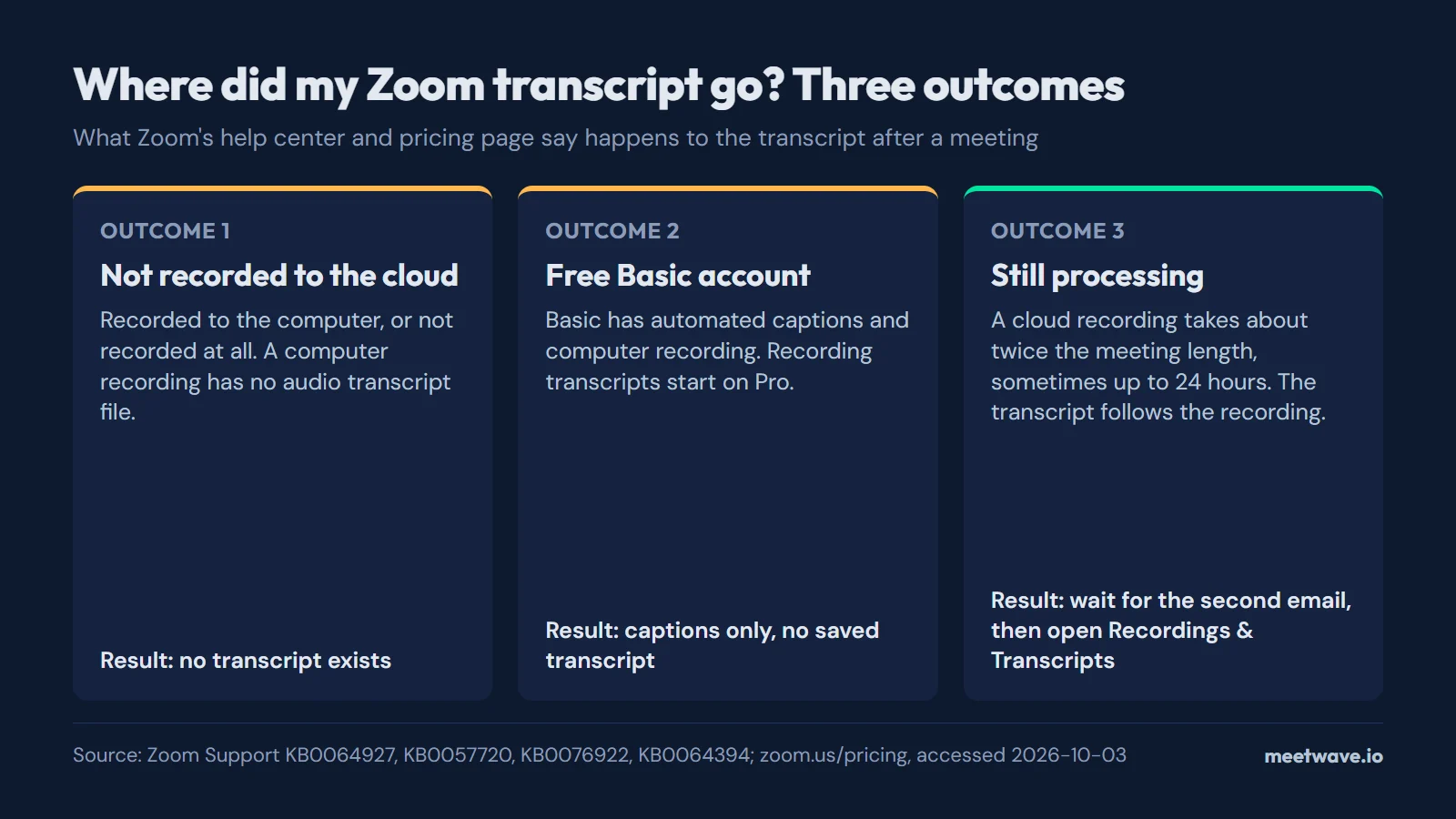
Your Zoom transcript is a .vtt file next to the cloud recording on the Recordings & Transcripts page of the Zoom web portal, and it exists only if the meeting was recorded to the cloud on a paid plan with audio transcription turned on (checked 2026-10-03). If it is missing, one of three things happened: the meeting was recorded to the computer or not at all, it ran on a free Basic account, which has captions but no recording transcripts, or the recording is still processing.
Key numbers
- Zoom lists 4 account types that can save an audio transcript of a cloud recording — Pro, Business, Education and Enterprise — and both cloud recording and audio transcription must be turned on, as of October 2026 (Zoom Support, Using audio transcription for cloud recordings).
- A free Zoom Basic meeting is limited to 40 minutes and 100 participants; Basic includes automated captions, but recording transcripts start on the Pro plan, as of October 2026 (Zoom pricing).
- Zoom Pro costs $16.99 per user a month billed monthly, or $14.16 billed annually, and includes 10 GB of cloud storage per user, as of October 2026 (Zoom pricing).
- Zoom Business costs $21.99 per user a month billed monthly, or $18.33 billed annually, as of October 2026 (Zoom pricing).
- Zoom says a cloud recording typically takes about twice the recorded duration to process and occasionally up to 24 hours, checked 2026-10-03 (Zoom Support, Troubleshooting cloud recordings still processing).
- A cloud recording shorter than 2 seconds is deleted automatically, and cloud recordings are available only to the host of the session, checked 2026-10-03 (Zoom Support, Troubleshooting missing cloud recordings).
Where did my Zoom transcript go?
A missing Zoom transcript comes down to three outcomes, and only the third one ends with a file. Zoom creates the transcript from a cloud recording, on a paid account, with audio transcription turned on (Zoom KB0064927). Figure 1 puts the three side by side.
1. The meeting was not recorded to the cloud
No cloud recording means no transcript. The .vtt audio transcript and the .cc.vtt captions file are listed only among cloud recording files, so a computer (local) recording never has one (Zoom KB0064394). If nobody started a recording at all, there is nothing to find either (Zoom KB0058550). A computer recording sits in the Documents/Zoom folder; the guide to where Zoom saves recordings gives the path on Windows, Mac and a Chromebook.
2. It was a free Basic meeting: captions only, no saved transcript
The free Basic plan includes automated captions and computer recording, while "Recording transcripts" start on Pro, according to Zoom's pricing page on 2026-10-03 (Zoom pricing). Cloud recording itself is for paid Pro, Business, Education and Enterprise subscribers (Zoom KB0059856). So the captions you saw during a free meeting do not become a transcript file afterwards. An account downgraded to free also loses its cloud recordings: Zoom sets them to be deleted after 30 days (Zoom KB0058550).
3. It is still processing
The transcript comes after the recording. Zoom sends one email when the cloud recording is available and a second one when the audio transcript is ready (Zoom KB0064927). The recording alone typically takes about twice the recorded duration to process and occasionally up to 24 hours (Zoom KB0057720), as Figure 2 shows.
Figure 1. Only a processed cloud recording on a paid account ends with a transcript file. Source: Zoom Support KB0064927, KB0057720, KB0076922, KB0064394 and zoom.us/pricing, accessed 2026-10-03.
Not the host? Then the transcript may exist and still be out of your reach: cloud recordings are available only to the host of the session (Zoom KB0058550). Ask the host to share the recording, transcript included.
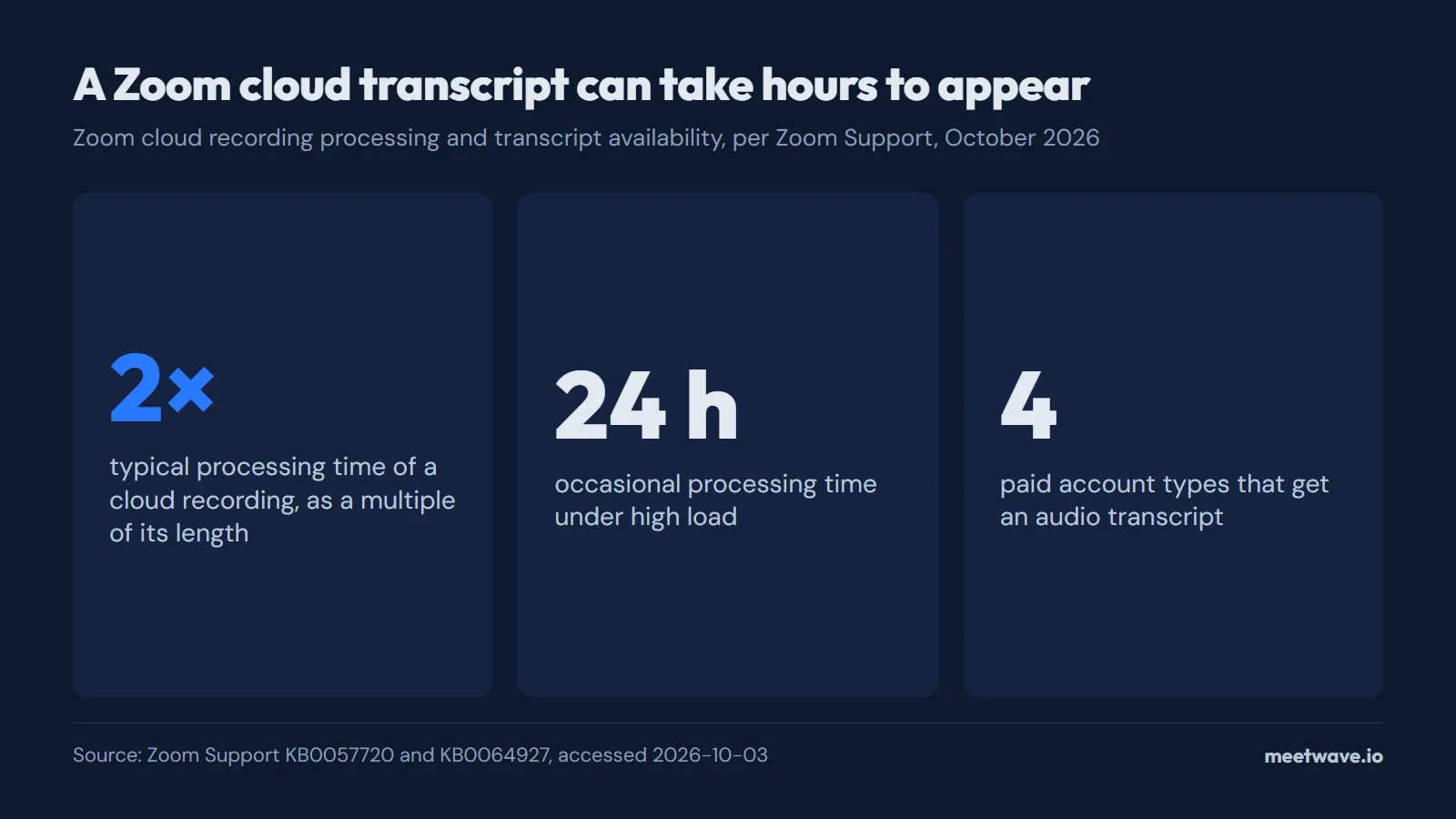 Figure 2. Processing time decides when the transcript shows up. Source: Zoom Support KB0057720 and KB0064927, accessed 2026-10-03.
How to find your Zoom transcript after the meeting
The transcript lives in the Zoom web portal, not in the meeting folder on your computer. Zoom's steps (Zoom KB0064927):
- Sign in to the Zoom web portal.
- In the navigation menu, click Recordings & Transcripts.
- Click the Cloud recordings tab.
- Click the name of the recorded meeting.
- Click the thumbnail of the recording. The audio transcript shows on the right side of the page, and you can download it as a
.vttfile.
Account owners and admins see every recording of the account under Recording and Transcript Management instead, and a deleted cloud recording can be recovered from the trash within 30 days (Zoom KB0058006).
Once you have the .vtt, Zoom Transcript to Text turns it into readable paragraphs with the speaker names, and gives you the summary and action items of the meeting from the same text.
Record the next one yourself
If the next call is on a free Zoom account, or you are not the host, the transcript has to come from your side of the call. With MeetWave, no bot joins your calls: the Chrome extension records web calls on macOS, Windows, Linux and ChromeOS, and the Windows desktop app also captures system audio from any app. On a Mac, Linux or a Chromebook that means joining Zoom in Chrome rather than in the Zoom desktop app; recording a Zoom meeting on a Chromebook walks through it. The Free plan gives the summary and action items, not the transcript, for up to 600 minutes a month (pricing). Rules on recording apply to the act of recording itself, so check the law where you and the others are and tell people you are recording; whether note takers show up in the participant list covers what others see. Every option, by system and app, is in how to record online meetings.
How to enable Zoom transcription for future meetings
On a paid plan, two switches have to be on before the meeting: cloud recording and audio transcription (Zoom KB0064927). Cloud recording is turned on in the web portal (Zoom KB0063923):
- Sign in to the Zoom web portal.
- In the navigation menu, click Settings.
- Click the Recording tab.
- Click the Cloud Recording toggle, and confirm with Enable if a dialog appears.
If you meet the prerequisites but do not see the audio transcription option, Zoom says to contact Zoom Support to enable it (Zoom KB0064927). In the meeting itself, record to the cloud, not to the computer: only the cloud copy gets a transcript.
Zoom's transcript system: three separate things
People mix up three Zoom features that produce text, and only one of them leaves a transcript file:
1. Cloud recording transcription — a .vtt file next to a cloud recording, on Pro, Business, Education and Enterprise accounts (Zoom KB0064927).
2. Automated captions — text on screen during the meeting. Zoom's pricing page lists them on every plan, Basic included (Zoom pricing).
3. AI Companion meeting summaries — a summary after the meeting. Basic gets meeting summaries for 3 hosted meetings per month, and Pro gets them without a limit (Zoom pricing).
They work independently: captions without a recording, a recording without a summary. Knowing which one you had tells you whether there is a file to look for.
One more file gets mistaken for a transcript: meeting_saved_chat.txt holds the messages people typed, not what they said — the Zoom meeting chat transcript guide covers where each copy of the chat is kept, and the Zoom chat converter turns the file into clean text or a CSV.
Free vs paid: what Zoom's plans actually provide
The line between "no transcript" and "transcript" is the Pro plan. Here is what each tier delivers, from Zoom's pricing page as of October 2026:
Zoom Basic (free, October 2026):
- Meetings: up to 40 minutes (Zoom pricing)
- Automated captions: available
- Recording: to the computer only
- Recording transcripts: not available
- AI Companion meeting summaries: 3 hosted meetings per month
Zoom Pro ($16.99/month per user billed monthly, $14.16 billed annually; Zoom pricing, October 2026):
- Cloud recording: available (10 GB storage per user)
- Recording transcripts: available when cloud recording and audio transcription are on
- AI Companion meeting summaries: unlimited
- Automated captions: available
Zoom Business ($21.99/month per user billed monthly, $18.33 billed annually; Zoom pricing, October 2026):
- Recording transcripts: available, as on Pro
The practical takeaway: on Basic, Zoom saves no transcript. On any paid plan the transcript is possible, but only for meetings recorded to the cloud with audio transcription switched on.
Local recording vs cloud recording: a critical difference
The two recording modes differ in exactly the thing you are looking for. Computer recording works on a Basic (free) account and up, in the Zoom desktop app for Windows, macOS or Linux (Zoom KB0076922). Cloud recording needs a paid account (Zoom KB0059856).
| Cloud recording | Computer (local) recording | |
|---|---|---|
| Where it is saved | Zoom cloud, Recordings & Transcripts page | Documents/Zoom on your computer |
| Plans | Pro, Business, Education, Enterprise | All accounts, Basic included |
Audio transcript .vtt | Yes, if audio transcription is on | No |
| Phone and tablet apps | Yes, the only option | No |
Source: Zoom KB0059856, Zoom KB0064394, Zoom KB0061246, accessed 2026-10-03.
A team that records locally to save cloud storage gets no Zoom transcript at all. The guide to where local recordings are saved lists the folder and the files Zoom writes.
What Zoom Transcripts Actually Look Like
When Zoom's cloud transcript works correctly, you get a .vtt (WebVTT) file with timestamped text. It looks like this:
00:01:23.000 --> 00:01:31.000
Sarah Chen: Let's talk about the Q3 roadmap. I want to make sure we align on priorities before the end of the quarter.

00:01:31.000 --> 00:01:45.000
Marcus Webb: Right, so from engineering's side, the two things we need to nail down are the API migration timeline and the capacity planning for the new infrastructure.
Zoom saved the transcript as a .vtt? Convert the Zoom VTT to plain text — speaker names included.
What you won't get from this file: a summary, action items, decisions, or any structure beyond timestamped text. It's a record of what was said, not an analysis of what happened.
Already have a downloaded recording instead?
Everything above covers a transcript that Zoom generates for you, which only happens for meetings recorded to the cloud with transcription enabled. If you already have a Zoom recording downloaded as an MP4 or M4A file — whether it came from local recording or you exported it from the cloud portal — there is no transcript attached to that file, and none of the settings above will retroactively add one. See our guide on how to transcribe a Zoom recording for the three practical ways to turn an existing recording file into text.
If you need to transcribe video content instead of a live call, the free YouTube transcript generator works the same way for any YouTube video, no account required.
Not on Zoom? Where each meeting platform saves its transcript compares 9 platforms in one table, with the plan, file and folder for each. The same question per platform: Google Meet transcripts, Microsoft Teams transcripts, Webex meeting transcripts, Slack huddle transcripts, Discord call transcripts, Loom video transcripts, Vimeo transcripts and Riverside transcripts. For choosing between Zoom's own features, bots and capture on your side of the call, see the AI note taker for Zoom guide and how to record meetings without a bot.
Getting Zoom transcripts via the API
For developers, the Cloud Recording API returns the same file and nothing more. The Get meeting recordings endpoint (GET /meetings/{meetingId}/recordings) lists the meeting's recording_files, and the transcript is the entry whose file_type is TRANSCRIPT, described as the "transcription file of the recording in VTT format"; the request needs the recording:read scope (Zoom API reference).
- Confirm the meeting qualifies: paid account, recorded to the cloud, audio transcription on. The API returns only a transcript Zoom already made.
- Get an OAuth access token for an app with the recording read scope.
- Call the endpoint with the meeting ID.
- Pick the
recording_filesentry whosefile_typeisTRANSCRIPT; the other entries are the video, audio and chat files. - Download its file and parse the WebVTT yourself.
The API removes none of the prerequisites: if the meeting was on a free account, recorded to the computer, or had audio transcription off, there is no TRANSCRIPT entry to fetch. For a single meeting, downloading the .vtt from Recordings & Transcripts is faster than building an integration.
FAQ
Where did my Zoom transcript go?
If the meeting was recorded to the cloud on a paid account with audio transcription on, it is on the Recordings & Transcripts page of the Zoom web portal, next to the recording (Zoom KB0064927). If it is not there, the meeting was recorded to the computer or not at all, ran on a free Basic account, or is still processing.
How long does a Zoom transcript take after the meeting ends?
The cloud recording typically takes about twice the recorded duration to process and occasionally up to 24 hours (Zoom KB0057720). The transcript may take additional time after that, and Zoom emails the host when it is ready (Zoom KB0064927).
Does Zoom transcription work on the free plan?
No. Basic includes automated captions during the meeting, but recording transcripts start on Pro (Zoom pricing), and cloud recording is for paid accounts only (Zoom KB0059856).
Why can't I see the transcript of a meeting I attended?
Cloud recordings are available only to the host of the session (Zoom KB0058550). Ask the host to share the recording and its transcript.
Does a local Zoom recording have a transcript?
No. The .vtt audio transcript is listed only among cloud recording files (Zoom KB0064394). A local recording has to be transcribed separately, as described in how to transcribe a Zoom recording.
Does the Zoom API create transcripts?
No. It returns the TRANSCRIPT file Zoom already made for a cloud recording, in VTT format (Zoom API reference).
Sources
- Zoom Support — Using audio transcription for cloud recordings (KB0064927) (undated). Accessed 2026-10-03.
- Zoom — Zoom Workplace pricing (undated). Accessed 2026-10-03.
- Zoom Support — Troubleshooting cloud recordings still processing issues (KB0057720) (undated). Accessed 2026-10-03.
- Zoom Support — Troubleshooting missing cloud recordings (KB0058550) (undated). Accessed 2026-10-03.
- Zoom Support — Understanding recording file formats (KB0064394) (undated). Accessed 2026-10-03.
- Zoom Support — Getting started with computer and cloud recording (KB0059856) (undated). Accessed 2026-10-03.
- Zoom Support — Starting a computer recording (KB0076922) (undated). Accessed 2026-10-03.
- Zoom Support — Finding your computer and cloud recordings (KB0058006) (undated). Accessed 2026-10-03.
- Zoom Support — Enabling cloud recording (KB0063923) (undated). Accessed 2026-10-03.
- Zoom Support — Frequently asked questions about Zoom recording (KB0061246) (undated). Accessed 2026-10-03.
- Zoom Developer Platform — Meetings API reference: Get meeting recordings (undated). Accessed 2026-10-03.
Next time, the notes are waiting when the call ends.
Includes 14 days of Pro. No card.
Still comparing tools?
See how MeetWave stacks up against the tools most teams evaluate alongside it.
- MeetWave vs Fireflies.aiSee how MeetWave compares to Fireflies.ai for meeting intelligence
- MeetWave vs tl;dvSee how MeetWave compares to tl;dv for meeting intelligence
- MeetWave vs FathomFree AI meeting assistant and note taker focused on sales teams