Live Transcription: Real-Time Captions for Zoom, Teams and Meet (2026)
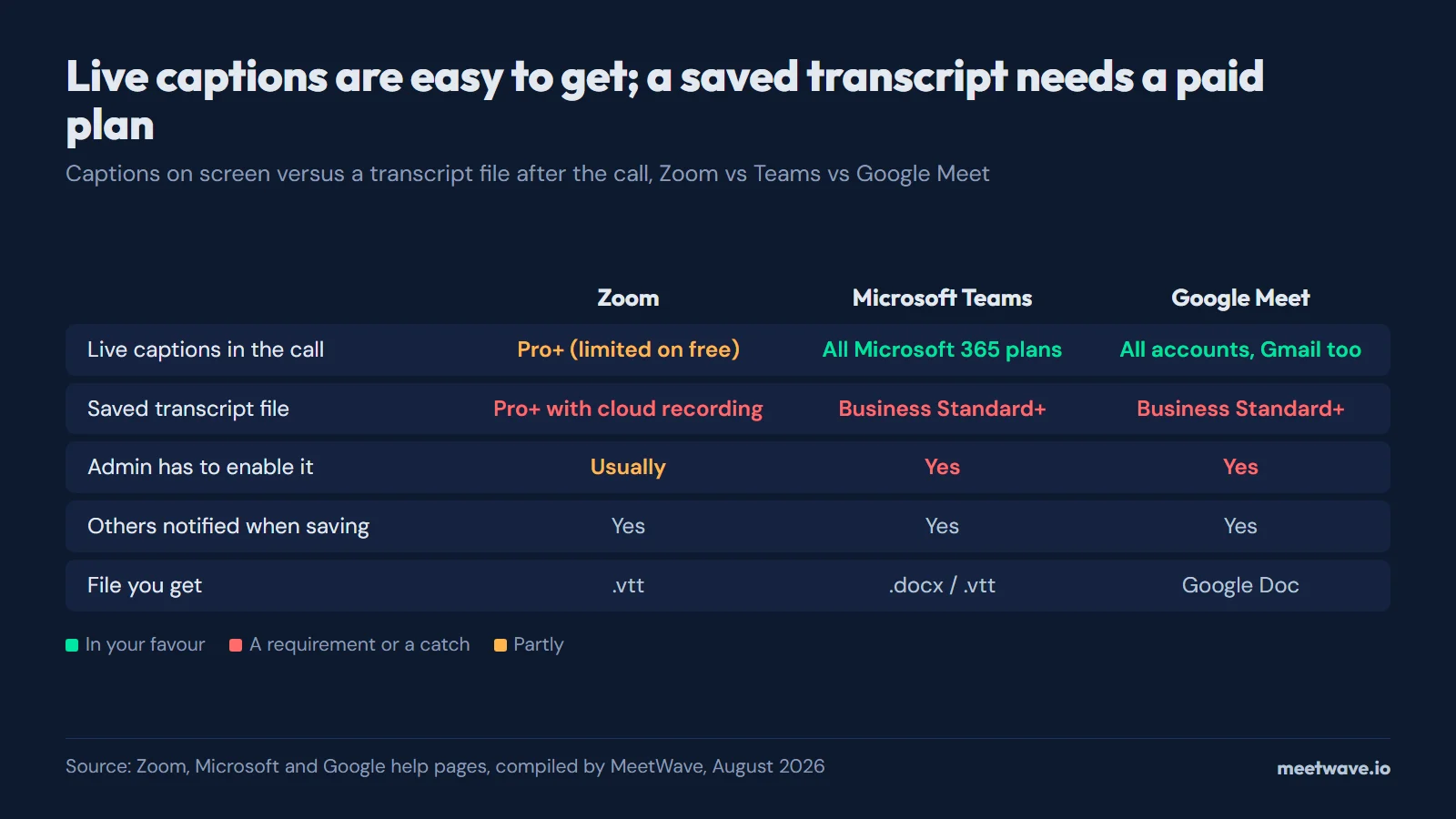
Live transcription converts speech to text in real time during a meeting, appearing as captions or a running transcript alongside the call. Every major video platform offers some version of it in 2026, but the on-screen captions you see during a call and the saved, editable transcript you want afterward are two different things — usually gated behind different settings and plan tiers.
How to Enable Live Transcription
- Turn on captions in your account settings. On Zoom this means enabling Automated Captions under Settings → In Meeting (Advanced); on Teams and Google Meet, live captions are available to any account without extra setup.
- Start captions during the call. Click the Live Transcript / Captions button in the meeting controls — on Zoom and Google Meet this shows only on your own screen unless others turn it on too.
- Turn on transcription separately if you need a saved file. Zoom's Full Transcript, Teams' "Start transcription," and Google Meet's "Start Transcript" are distinct from captions and require a qualifying paid plan with admin approval.
- Expect a notification to fire. Every platform notifies other participants once a saved transcript, not just captions, starts recording.
- Download the file after the meeting. Zoom saves a
.vttfile to the web portal, Teams saves a.docx/.vttfile to the recording location, and Google Meet saves a Google Doc to Drive.
What Live Transcription Actually Delivers
Before getting into platform specifics, it helps to separate what live transcription provides from what people assume it provides.
What you get:
- Real-time text display during the meeting, typically showing the last few seconds of speech
- A captions stream visible to participants on screen
- On most paid plans, a saved transcript file after the meeting ends
What you do not get:
- A meeting summary
- Action items extracted from the conversation
- Decisions highlighted separately from general discussion
- Any structured output you can send to a stakeholder who missed the call
Live transcription is a documentation starting point, not a finished document. The platforms have improved accuracy significantly, but the transcript output is still a raw chronological text log. If you want useful meeting notes rather than a verbatim dump, you need a processing step on top of the transcript.
Live Transcription on Zoom
How to Enable Zoom Live Transcription
Zoom calls its live transcription feature "Automated Captions." Here is how to turn it on:
Account-level (host must enable):
- Sign in to your Zoom web portal at zoom.us
- Go to Settings then In Meeting (Advanced)
- Find Automated captions and toggle it on
- Optionally enable Full transcript to allow saving the transcript after the meeting
During the meeting:
- Click the Live Transcript button in the meeting controls (or go to More then Captions)
- Select Enable Auto-Transcription
- Captions appear for all participants who have them enabled in their own settings
Zoom participants can choose whether to view captions on their screen. The host does not control whether individual participants see captions, only whether the feature is available.
Plan requirements: Zoom's automated captions are available on Pro, Business, Business Plus, and Enterprise plans. Free Zoom accounts had access in some periods, but availability has changed. Check your current plan settings.
What Zoom Live Transcription Produces
During the meeting: a live caption stream showing the current speaker's words with a short delay.
After the meeting: a .vtt file accessible from the Zoom web portal under Recordings (if cloud recording is enabled) or a text download from the transcript section of your account. The file contains timestamped lines of speech with speaker labels.
Zoom also offers its AI Companion on Business and higher plans, which generates a brief meeting summary separate from the raw transcript. The summary is useful but generic, not configurable for specific meeting types.
For a detailed breakdown of everything Zoom's transcription includes, see Zoom meeting transcripts.
Live Transcription on Microsoft Teams
How to Enable Teams Live Captions
Teams separates live captions from meeting transcription. Captions are the display feature. Transcription is the recorded document.
For live captions during the meeting:
- In the meeting, click More (the three-dot menu) in the meeting controls
- Select Language and speech then Turn on live captions
- Captions appear on your screen. Other participants control their own captions separately.
Live captions in Teams are available to all Microsoft 365 subscribers including personal plans. They appear only on your screen unless others also turn them on.
For meeting transcription (the saved document):
- In the meeting, click More then Record and transcribe then Start transcription
- All participants see a notification that transcription has started
- After the meeting, the transcript saves to the recording in your meeting chat or Teams channel
Meeting transcription (the saved record) is included from Teams Essentials up — see which Microsoft 365 plans include Teams transcription — with transcription allowed by your Teams admin. Live captions for your own viewing have a lower barrier.
What Teams Transcription Produces
A .docx or .vtt file saved to SharePoint or the meeting recording location. Speaker-attributed lines of text with timestamps.
Microsoft 365 Copilot (a paid add-on) takes the transcript further, generating a meeting recap with key discussion points and action items. Copilot requires an additional license beyond the base Microsoft 365 plan.
For the complete Teams transcription guide, see Microsoft Teams meeting transcript.
Live Transcription on Google Meet
How to Enable Google Meet Live Captions
Google Meet has two relevant features: closed captions and transcription. They are different.
Closed captions (display only, no file saved):
- In the meeting, click Closed captions (the CC icon) in the meeting controls
- Captions appear on your screen. They are not saved or shared with others by default.
Closed captions are available in Google Meet to all users including personal Gmail accounts. They display on your screen during the call and are not recorded.
Transcription (saves a document):
- In the meeting, click Activities (the three-symbol icon)
- Select Transcripts then Start Transcript
- All participants see a notification that transcription is active
- After the meeting, a Google Doc is saved to the organizer's Google Drive and linked from the Calendar event
Transcription in Google Meet requires Google Workspace Business Standard or higher. Not available on personal Gmail or lower-tier Workspace plans.
Gemini-generated notes: On Business Plus and above with Gemini enabled, Meet can generate AI meeting notes after the call. Similar plan and admin requirements apply.
For more on what each Google Workspace tier provides, see Google Meet transcripts.
Platform Comparison: Live Transcription Features
| Feature | Zoom | Microsoft Teams | Google Meet |
|---|---|---|---|
| Live captions during call | Pro+ (limited for free) | All M365 plans | All accounts (personal Gmail too) |
| Saved transcript file | Pro+ with cloud recording | Business Standard+ | Business Standard+ |
| Admin enablement required | Usually | Yes | Yes |
| Participant notification when saving | Yes | Yes | Yes |
| AI meeting summary | Business+ (Copilot add-on) | M365 Copilot add-on | Business Plus+ (Gemini) |
| Output format | .vtt file | .docx / .vtt | Google Doc |
The Gap Between Live Captions and Useful Meeting Notes
Here is the honest situation in 2026: every platform's live transcription delivers a real-time caption stream and a raw text file. None of them automatically produces structured meeting notes you would share with a stakeholder.
The typical workflow after downloading a platform transcript:
- Open a large .vtt or .docx file with speaker labels and timestamps
- Scroll through looking for the decisions that were made
- Manually extract action items and who owns them
- Write a summary from memory and cross-reference the transcript
That process takes 15-30 minutes for a typical one-hour meeting. For frequent meeting attendees, this is a significant ongoing cost.
Getting an Editable, Structured Transcript After the Meeting
There are two main paths to turning a raw live transcript into something useful.
Option 1: Process the platform transcript through an AI tool. Export your transcript file and paste it into a large language model prompt asking for a summary and action items. This works but requires manual steps after every meeting.
Option 2: Use bot-free recording with built-in AI processing. MeetWave records meeting audio on your own device during the call — the MeetWave Chrome extension for browser calls on any OS, or the Windows desktop app — then uploads it and runs both transcription and AI summarization automatically after the meeting ends.
Because MeetWave captures system audio directly, it works across platforms. The same workflow applies whether your meeting is on Zoom, Teams, Google Meet, or anywhere else. After recording:
- Audio is transcribed automatically, with speaker labels
- You choose a role-specific format: sales call, standup, interview, consulting session, executive brief
- A structured summary appears in MeetWave's meeting notes with decisions, action items, and a narrative recap
No visible bot joins the call. No manual export step. The summary is ready within minutes of the meeting ending.
Live Transcription vs. Local Recording: Which Fits Your Situation
Use platform live transcription when:
- You need real-time captions for accessibility during the call
- Your organization has the qualifying license and admin has enabled it
- You want the transcript automatically saved to the platform (Google Drive, SharePoint, Zoom portal)
- The raw text file is sufficient for your use case
Use local recording with post-meeting AI processing when:
- You attend meetings across multiple platforms and want a unified workflow
- You need structured summaries, not just raw transcripts
- A visible bot or in-meeting notification would change how participants communicate
- Your Workspace plan does not include native transcription
- Privacy matters to you and you want no bot in the call
For many professionals, the answer is both. Platform captions handle accessibility needs during the call. Local recording handles documentation and structured follow-up after the call.
For platform-specific guidance, see Zoom meeting transcripts, Microsoft Teams meeting transcripts, and Google Meet transcripts. To capture and transcribe any meeting with structured AI summaries, MeetWave's transcription feature handles the full workflow, with the recording, transcript and summary kept encrypted in your account.
Frequently Asked Questions
What is live transcription?
Live transcription converts spoken audio to text in real time during a meeting or presentation. It typically appears as captions visible on screen during the call. On qualifying plans, it also saves a transcript file after the meeting for later review.
How do I turn on live transcription in Zoom?
In your Zoom web portal, go to Settings, then In Meeting (Advanced), and enable Automated captions. During a meeting, click Live Transcript in the controls and select Enable Auto-Transcription. This requires a Zoom Pro plan or higher. Free accounts have limited or no access to automated captions.
How do I enable live transcription in Google Meet?
For display-only captions that do not save, click the CC button in Meet controls during any meeting on any account. For a saved transcript, click Activities, then Transcripts, then Start Transcript. The saved transcript requires Google Workspace Business Standard or higher with transcription enabled by your admin.
Does Zoom live transcription save automatically?
Not automatically by default. To save a transcript from Zoom, you need cloud recording enabled and the Full transcript option turned on in your settings. The transcript then saves to your Zoom web portal and is accessible from the Recordings section. If only live captions are enabled without cloud recording, no file is saved.
Is live transcription accurate enough to rely on?
Modern AI transcription is accurate for clear audio with one or two speakers in a quiet environment. Accuracy drops with background noise, heavy accents, technical jargon, or multiple overlapping speakers. For meetings that matter, treat the live transcript as a starting point for human review, not a final document.
How do I get a transcript from Google Meet on a free account?
Google Meet's native transcript feature is not available on free or low-tier accounts. For a personal Gmail account, the only way to get a transcript is through a third-party tool. MeetWave's bot-free recording approach works on any Google account type. It captures the meeting audio on your own device — the Chrome extension for Meet in the browser, or the Windows desktop app — then uploads it and transcribes it after the call.
Still comparing tools?
See how MeetWave stacks up against the tools most teams evaluate alongside it.
- MeetWave vs Fireflies.aiSee how MeetWave compares to Fireflies.ai for meeting intelligence
- MeetWave vs tl;dvSee how MeetWave compares to tl;dv for meeting intelligence
- MeetWave vs FathomFree AI meeting assistant and note taker focused on sales teams
More on this: Meeting transcripts by platform