
Where Does Zoom Save Recordings? Paths, Files and Sizes
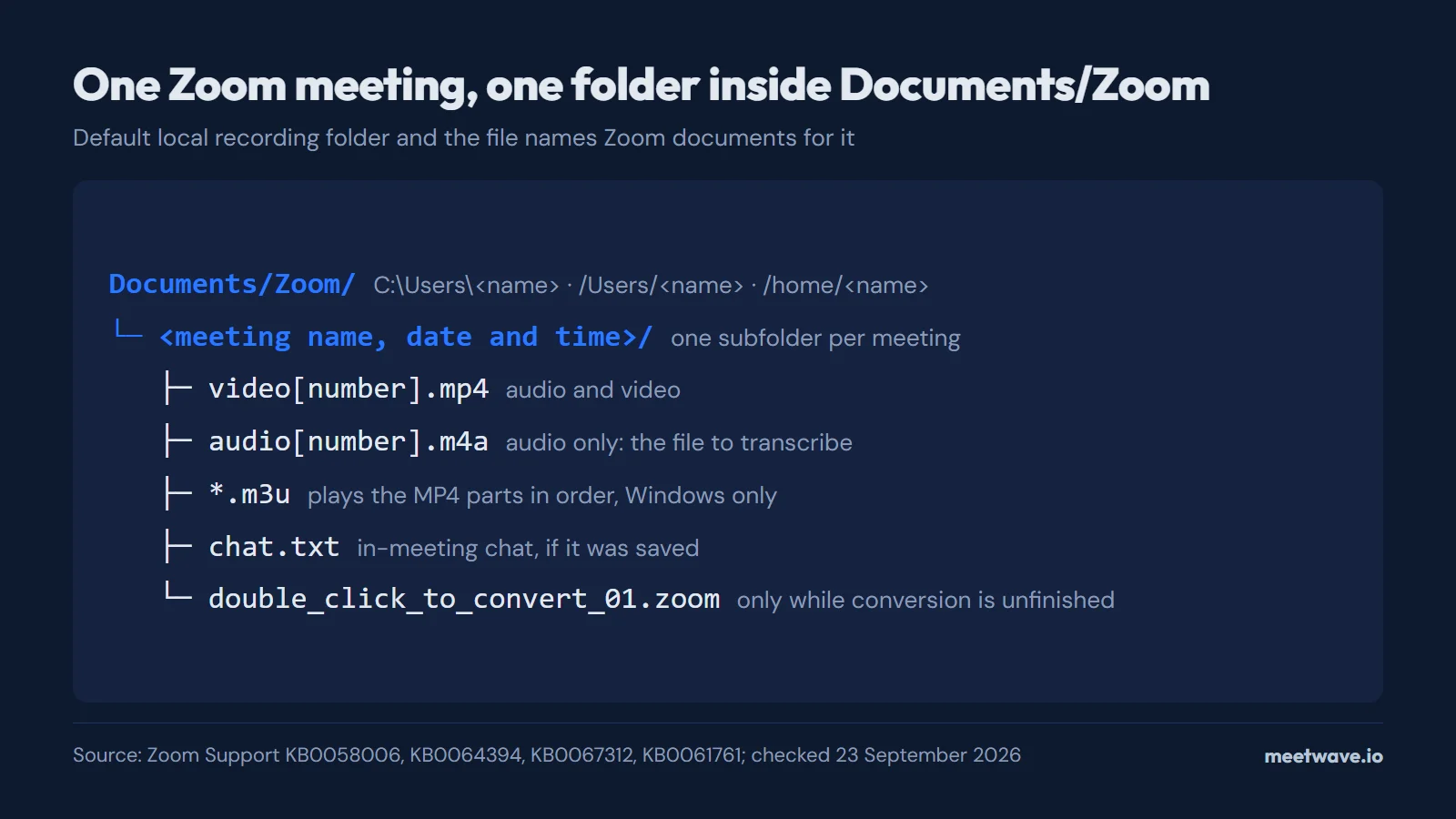
Zoom saves local (computer) recordings in a Zoom folder inside your Documents folder on Windows, macOS and Linux, one subfolder per meeting. Cloud recordings, a paid-plan feature, sit in the Zoom web portal under Recordings & Transcripts, and the phone and tablet apps can record only to the cloud. Zoom estimates that recording uses about 200 MB of storage per hour with video and about 20 MB per hour for screen sharing.
Key numbers
- Zoom estimates recordings at about 200 MB per hour with video and about 20 MB per hour for screen sharing (Zoom Support, Understanding recording file formats, accessed 2026).
- Cloud recordings typically take about twice the recorded duration to process and occasionally up to 24 hours (Zoom Support, Troubleshooting cloud recordings still processing, accessed 2026).
- Zoom Hub, where the desktop app lists computer and cloud recordings in separate tabs, needs Zoom Workplace 6.5.5 or higher on Windows, macOS and Linux (Zoom Support, Getting started with Zoom Hub, accessed 2026).
- Deleted cloud recordings can be recovered from the web portal's trash within 30 days (Zoom Support, Finding your computer and cloud recordings, accessed 2026).
- After a downgrade to a free account, existing cloud recordings are set to be deleted after 30 days (Zoom Support, Troubleshooting missing cloud recordings, accessed 2026).
Where Zoom saves local recordings on Windows, macOS and Linux
By default Zoom writes computer recordings to Documents/Zoom in your user folder, and the path can be changed (Zoom KB0058006). Local recording works on any account, free or paid, in the desktop app (Zoom KB0059856).
| System | Default folder |
|---|---|
| Windows | C:\Users\<name>\Documents\Zoom |
| macOS | /Users/<name>/Documents/Zoom |
| Linux | /home/<name>/Documents/Zoom |
Source: Zoom Support, Finding your computer and cloud recordings (KB0058006), accessed 2026-09-23. Zoom writes the Linux path without the leading slash.
To see the folder your copy of Zoom actually uses, open the desktop app, click your profile picture → Settings → Recording, and read Storage location under Local recording storage; Change moves it (Zoom KB0063423). To open the recordings from the app instead, go to Home → Open recordings → My files → Meeting recordings → Computer recordings. Zoom warns against pointing the storage location at an external or network drive, because that can lose data (Zoom KB0061246).
What is inside a Zoom recording folder
Each meeting gets its own subfolder named with the meeting name, date and time (Zoom KB0067312). Inside, Zoom's help center lists a video file, an audio-only file, a playlist on Windows and the chat, as Figure 1 shows (Zoom KB0064394).
Figure 1. The default local recording folder and the files Zoom documents for it. Source: Zoom Support KB0058006, KB0064394, KB0067312, KB0061761, accessed 2026.
| File | What it is | Open with |
|---|---|---|
video[number].mp4 | Audio and video of the meeting | Any video player |
audio[number].m4a | Audio only | Any audio player, or a transcription tool |
.m3u playlist | Plays the separate MP4 files in order; Windows only | A media player |
chat.txt | In-meeting chat, if it was saved | A text editor |
audio[Name][number].m4a | One audio track per participant, only when separate audio files are turned on | An audio editor |
Source: Zoom Support, Understanding recording file formats (KB0064394), accessed 2026-09-23.
The names are the defaults in Zoom's documentation; older recordings and forum posts show other names for the same files, such as meeting_saved_chat.txt for the chat. What that chat file contains and how to read it is in the Zoom chat transcript guide. Stopping and restarting the recording creates a new video file, while pause and resume keep writing to the same one (Zoom KB0076922).
Where cloud recordings and phone recordings go
Cloud recording is available on paid Pro, Business, Education and Enterprise plans (Zoom KB0059856). Those recordings live in the Zoom web portal on the Recordings & Transcripts page, and a recording started by a co-host appears only in the host's list (Zoom KB0058006).
The Zoom mobile app for iOS, iPadOS and Android does not support computer recording; it records only to the cloud (Zoom KB0061246). Put together with the plan rule above, a free account cannot record a meeting from a phone at all. A participant who is not the host records locally only after the host picks Allow Record in the participant menu (Zoom KB0076922).
Cloud recordings are not instant. Zoom says processing typically takes about twice the recorded duration and occasionally up to 24 hours (Zoom KB0057720). A recording shorter than 2 seconds is deleted automatically (Zoom KB0058550).
If the folder has only double click to convert files
Files named double_click_to_convert_01.zoom and double_click_to_convert_02.zoom mean the conversion did not finish; they are the raw recording, and renaming them while conversion runs can corrupt them (Zoom KB0061761). Closing the laptop or shutting down the computer during conversion stops it. Low disk space shows up as Error Code 614 (Zoom KB0061761).
To convert by hand, try these in order (Zoom KB0063423, Zoom KB0061761):
- In the desktop app, open Computer recordings and click Convert next to the unconverted recording.
- Double-click
double_click_to_convert_01.zoomin the meeting folder. - On Windows, open the file with
zTscoder.exefromC:\Users\<name>\AppData\Roaming\Zoom\bin. - On macOS, set Open with to the Transcode app found in the zoom.us application under Contents → Frameworks, then double-click the file.
How much space an hour of Zoom recording takes
Zoom puts an hour of recording at about 200 MB with video and about 20 MB for screen sharing (Zoom KB0064394). Figure 2 shows both estimates. Real files vary with resolution, length and what is shared: Zoom says some recordings are under 1 GB and others several GB (Zoom KB0061246).
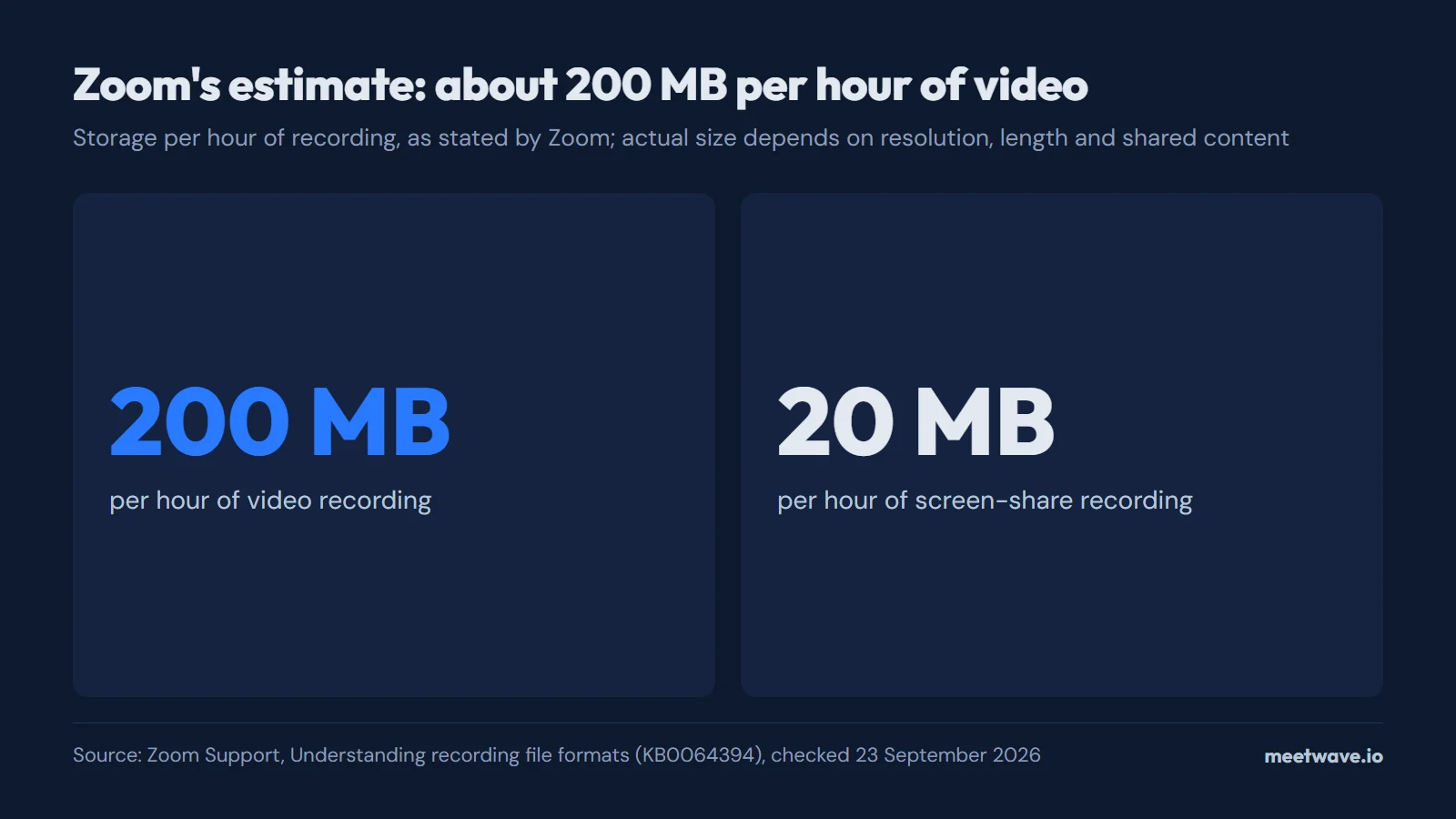 Figure 2. Storage per hour of recording as estimated by Zoom. Source: Zoom Support, Understanding recording file formats (KB0064394), accessed 2026.
For transcription only the sound matters, so the audio[number].m4a file is the one to keep and send; the MP4 carries the same audio plus the picture.
A local recording has no transcript
Zoom produces a transcript only for cloud recordings: the .vtt audio transcript and the .cc.vtt captions file are listed as cloud recording files, and nothing like them appears in the local folder (Zoom KB0064394). Where the cloud transcript shows up is covered in Zoom meeting transcripts, and the ways to transcribe a file you already have are in how to transcribe a Zoom recording.
For a local recording, upload the audio[number].m4a file to our free audio-to-text tool and get the text back. To start the next recording correctly, see how to record online meetings.
How we checked
Every path, file name and number here comes from Zoom's own support articles, each opened on 23 September 2026; the articles carry no publication date, so the year shown is the year we read them. We did not record a meeting ourselves for this version, so the storage figures are Zoom's estimates, not our measurement (Zoom KB0064394).
FAQ
Where do Zoom recordings go on iPhone or iPad?
Nowhere on the device: the mobile apps cannot make a computer recording and record only to the cloud, which needs a paid plan (Zoom KB0061246, Zoom KB0059856). The recording then appears under Recordings & Transcripts in the web portal.
Why is my Zoom recording folder empty?
The meeting was recorded to the cloud, the conversion did not finish, the storage location was changed, or someone else was recording (Zoom KB0063423, Zoom KB0061761). Cloud recordings are visible only to the host (Zoom KB0058550).
How do I change where Zoom saves recordings?
In the desktop app, go to Settings → Recording → Local recording storage → Storage location and click Change (Zoom KB0063423).
Why won't my Zoom recording convert?
The computer was closed or shut down during conversion, the .zoom files were renamed, or the disk ran low on space, which Zoom reports as Error Code 614 (Zoom KB0061761).
How big is a one-hour Zoom recording?
About 200 MB with video and about 20 MB for screen sharing, by Zoom's estimate; real files range from under 1 GB to several GB (Zoom KB0064394, Zoom KB0061246).
Sources
- Zoom Support — Finding your computer and cloud recordings (KB0058006) (undated). Accessed 2026-09-23.
- Zoom Support — Managing computer recordings (KB0063423) (undated). Accessed 2026-09-23.
- Zoom Support — Understanding recording file formats (KB0064394) (undated). Accessed 2026-09-23.
- Zoom Support — Starting a computer recording (KB0076922) (undated). Accessed 2026-09-23.
- Zoom Support — Getting started with computer and cloud recording (KB0059856) (undated). Accessed 2026-09-23.
- Zoom Support — Troubleshooting cloud recordings still processing issues (KB0057720) (undated). Accessed 2026-09-23.
- Zoom Support — Troubleshooting missing cloud recordings (KB0058550) (undated). Accessed 2026-09-23.
- Zoom Support — Troubleshooting computer recording issues (KB0061761) (undated). Accessed 2026-09-23.
- Zoom Support — Frequently asked questions about Zoom recording (KB0061246) (undated). Accessed 2026-09-23.
- Zoom Support — Getting started with Zoom Hub (KB0080737) (undated). Accessed 2026-09-23.
- Zoom Support — Saving in-meeting chat (KB0067312) (undated). Accessed 2026-09-23.
Ready to try AI meeting summaries?
Try MeetWave free — no credit card required.
Still comparing tools?
See how MeetWave stacks up against the tools most teams evaluate alongside it.
- MeetWave vs tl;dvSee how MeetWave compares to tl;dv for meeting intelligence
- MeetWave vs FathomFree AI meeting assistant and note taker focused on sales teams
- MeetWave vs FellowSee how MeetWave compares to Fellow for meeting notes and AI summaries