
Zoom Chat Transcript: Where Zoom Saves Meeting Chat and What the File Holds
Zoom saves the in-meeting chat as a plain-text file in Documents/Zoom, inside a folder named after the meeting's date, time and topic. A cloud recording adds a separate Chat file that keeps only messages sent to everyone while the recording ran. The file format is undocumented: across 214 public Zoom chat files on GitHub dated 2015 to 2026, we found five line layouts, and a median 49.6% of each file's text was timestamps, names and markers rather than what people typed.
Key numbers
- A saved Zoom chat keeps direct messages only for their sender and recipient; a cloud recording's Chat file keeps only messages sent to everyone while the recording was running, per Zoom support as of 2026 (Zoom, Saving in-meeting chat).
- Auto-saved chat is written only for the host, and not at all when the meeting is started from the Zoom mobile app, as of 2026 (Zoom, Enabling auto-saving chats).
- In November 2021 Zoom staff said documentation of the chat file format "does not exist at the moment" (Zoom Developer Forum); in March 2023 Zoom confirmed that one of its releases had replaced the tabs in cloud chat files with spaces (Zoom Developer Forum).
- Meeting chat before and after the meeting, which copies in-meeting messages into a Zoom Chat group, is on by default for most accounts as of 2026 (Zoom, KB0058301).
- Across 214 public Zoom chat files on GitHub dated 2015 to 2026, we found five line layouts, and a median 49.6% of each file's text was timestamps, names and markers rather than what people typed (MeetWave analysis, September 2026, method).
- 46% of the 149 locally saved Zoom chat files in the same sample contained at least one direct message (MeetWave analysis, September 2026, method).
Where Does Zoom Save the Chat?
Each copy of a meeting's chat lives in its own place: a saved or auto-saved copy in Documents/Zoom/<meeting folder> on the computer that saved it, a cloud copy as the Chat file next to the recording in the Zoom web portal, and a live copy in the meeting's group chat in Zoom Chat (Zoom, Saving in-meeting chat; Zoom, KB0058301).
| How the chat was kept | Where it is | Who gets it | Condition |
|---|---|---|---|
| Save Chat during the meeting | Documents\Zoom\<meeting folder> (Windows), ~/Documents/Zoom/<meeting folder> (Mac) | Whoever clicked Save | Allow users to save chats from the meeting is on |
| Auto-save | The same folder, on the host's computer | The host | The host is in the meeting, which was not started from the mobile app |
| Cloud recording | Web portal → Recordings → Cloud Recordings → meeting topic → Chat file | Licensed user with cloud recording | Save chat messages from the meeting is checked |
| Meeting chat in Zoom Chat | The meeting's group chat in Zoom Chat | Set by the account owner or admin | On by default for most accounts |
Source: Zoom KB0067312, KB0062084, KB0064676, KB0058301.
To save the chat by hand, open Chat in the meeting, click the … at the top of the panel and choose Save Chat (Zoom, Saving in-meeting chat). The folder is named after the meeting's date, time and topic. To see which folder your client uses, open the desktop app's Settings → Recording and read the path next to Store my recording at (Zoom, KB0067312).
The file inside is meeting_saved_chat.txt; some recent clients name it meeting_saved_new_chat.txt, and older versions wrote chat.txt (zoomchattr README). If the host unchecks Allow users to save chats from the meeting, nobody can save the chat, the host included (Zoom, KB0067312).
Auto-save is a web portal setting: Settings → Meeting → In Meeting (Basic) → Chat — Auto-save (Zoom, Enabling auto-saving chats). The cloud copy needs Save chat messages from the meeting / webinar under Settings → Recording & Transcript, and Zoom then adds "a TXT file with the transcript of the meeting/webinar chat messages" to the recording (Zoom, Changing cloud recording settings).
Which Messages Each Copy Keeps
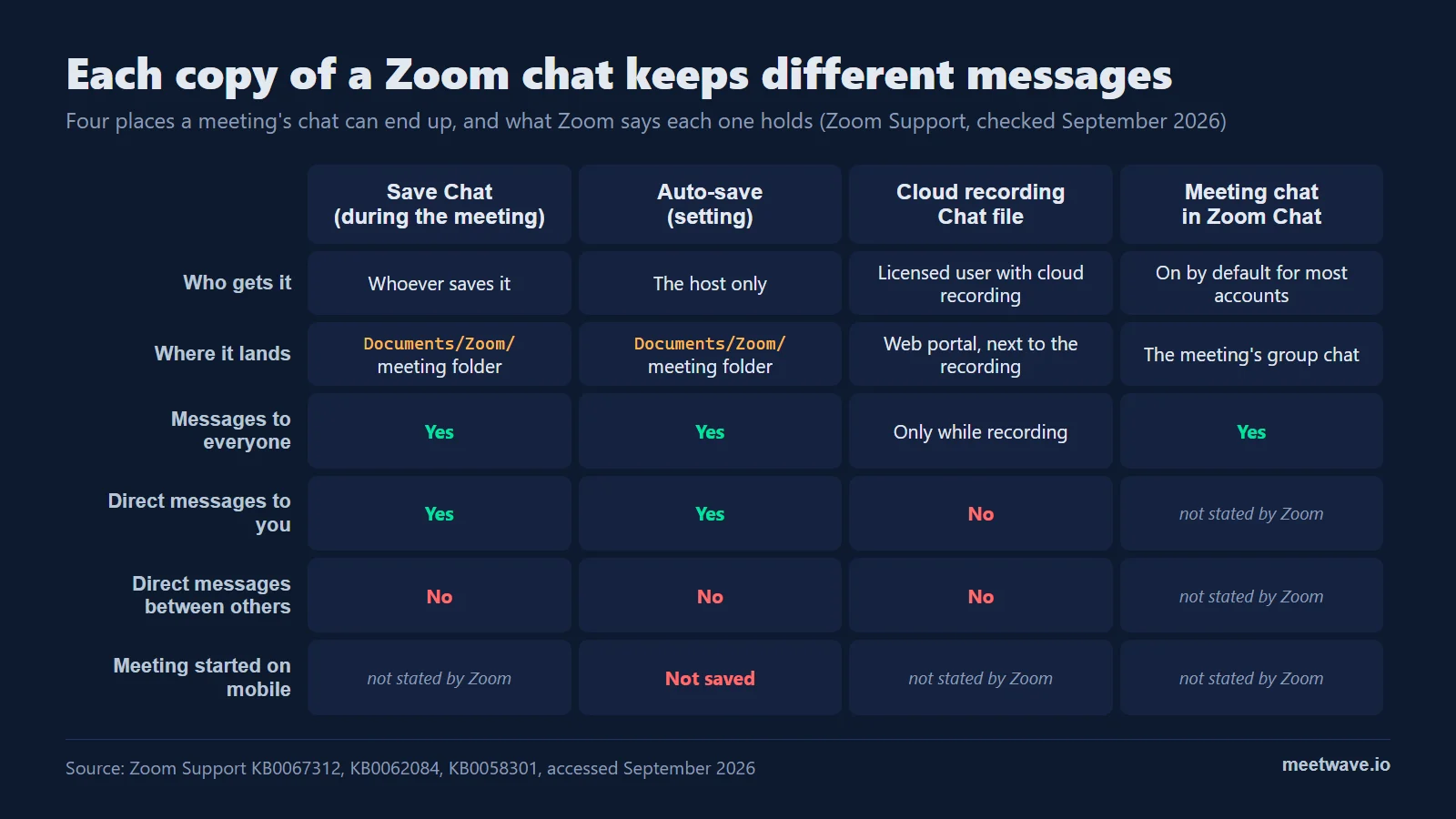
The copies of one chat do not hold the same messages. A locally saved copy holds "chats that you can see—those sent directly to you and those sent to everyone"; an auto-saved copy includes direct messages the host sent or received but "does not include private messages between other participants" (Zoom, KB0067312; Zoom, KB0062084).
The cloud recording's Chat file is narrower still: it keeps "only chats that were sent to everyone and messages sent while you were cloud recording", so a direct message never reaches it and neither does anything typed before the recording started (Zoom, KB0067312). Figure 1 puts the four copies side by side.
Figure 1. Each copy of a Zoom chat keeps different messages; cells Zoom does not document are marked. Source: Zoom Support KB0067312, KB0062084, KB0058301, accessed September 2026.
Whether viewers of a shared cloud recording see its chat is a separate switch, Viewers can see the chat, and it "is only applicable to newly created recordings" (Zoom, KB0066790).
What Does the Zoom Chat File Actually Contain?
The chat file is plain text in a format Zoom does not document: asked for a schema, Zoom staff replied that "The documentation you're seeking does not exist at the moment" (Zoom Developer Forum, 2021). The layout has changed between versions: in 214 public chat files dated 2015 to 2026 we found five line layouts, and files dated 2026 alone come in four of them (Figure 2, method). Zoom itself confirmed in 2023 that one of its releases had changed the cloud file's tabs to spaces (Zoom Developer Forum, 2023).
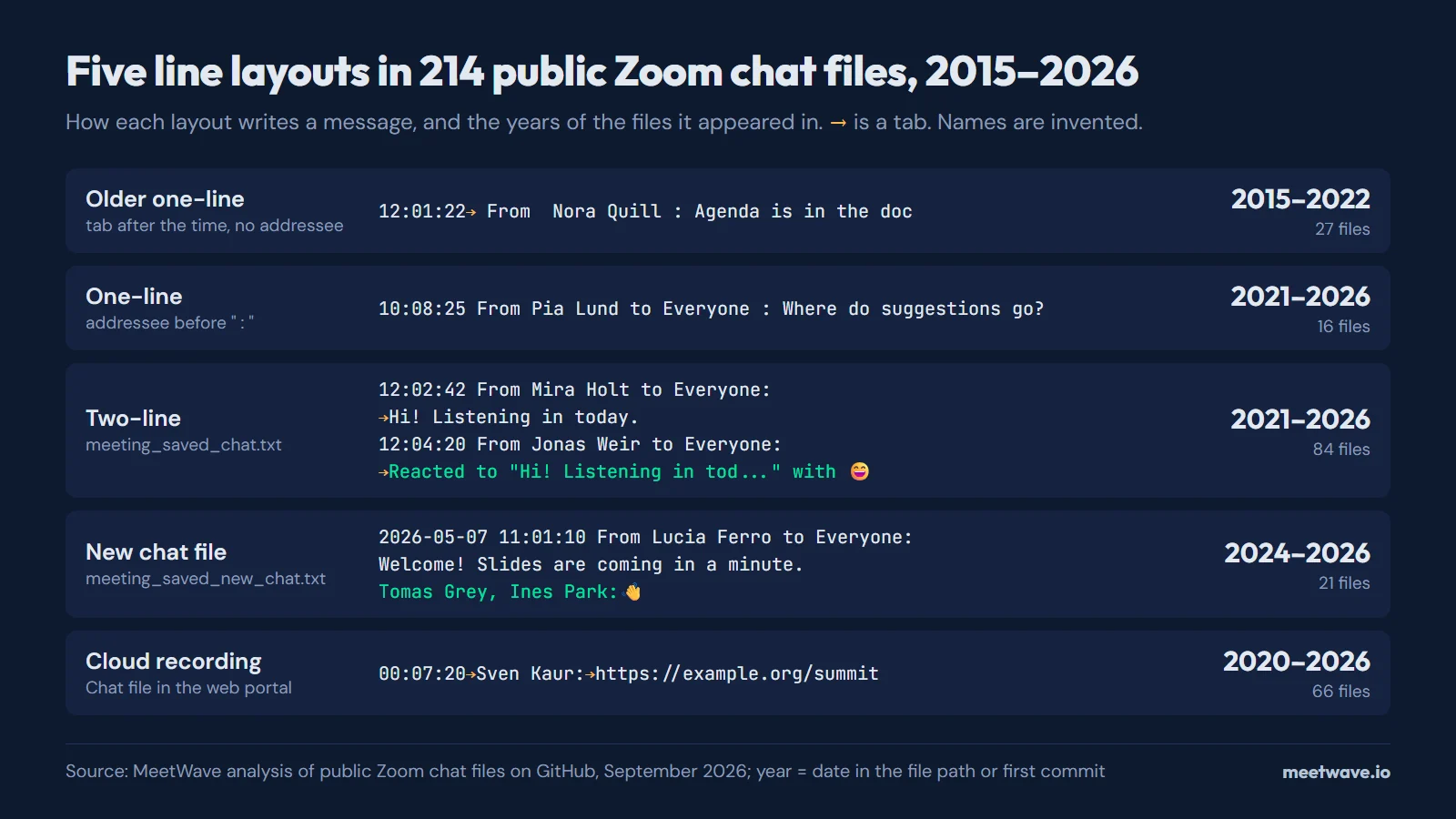 Figure 2. Five line layouts in 214 public Zoom chat files, with the years of the files each appeared in; names are invented. Source: MeetWave analysis of public Zoom chat files on GitHub, September 2026.
In the two-line local layout, each message starts with a header line such as 10:03:05 From Maya Chen to Everyone: and the text follows on the next line, usually after a tab. A direct message names its recipient: From Sam Ortiz to Maya Chen(direct message): in recent files, (Privately) in older ones. The cloud Chat file puts everything on one line — time, tab, name, colon, tab, text — the <timestamp>\t<username>:\t<message> shape developers describe on Zoom's forum.
Threads and reactions make the file longer than the conversation, because each one adds its own lines (Figure 2 layouts):
| What happened in the meeting | How the file writes it |
|---|---|
| A reply in a thread | Replying to "Can we start with the...", a blank line, then the reply |
| A reaction, older layout | A whole entry: header line plus Reacted to "Can we start with the..." with 👍 |
| A removed reaction | Removed a 👍 reaction from "…" |
Reactions in meeting_saved_new_chat.txt | One line under the message: Tomas Grey, Ines Park:👋 |
| A Spanish-language client | De … a Todos: and Respondiendo a "…" |
The time in a locally saved file is the clock on the computer that saved it. Some recent meeting_saved_new_chat.txt files also carry the date in every header (2026-05-07 11:01:10 From …); older files have the date only in the folder name (Zoom, KB0067312).
How Much of the File Is What People Typed
About half of a Zoom chat file is not the conversation. In the 214 files we analysed, a median 49.6% of each file's text was timestamps, names, addressees such as to Everyone, and reply or reaction markers; the middle half of the files fell between 37.0% and 60.8% (method). Figure 3 splits it by layout: 64.0% in the one-line layout, which repeats From … to Everyone : before every message, against 42.4% in the oldest layout, which drops the addressee.
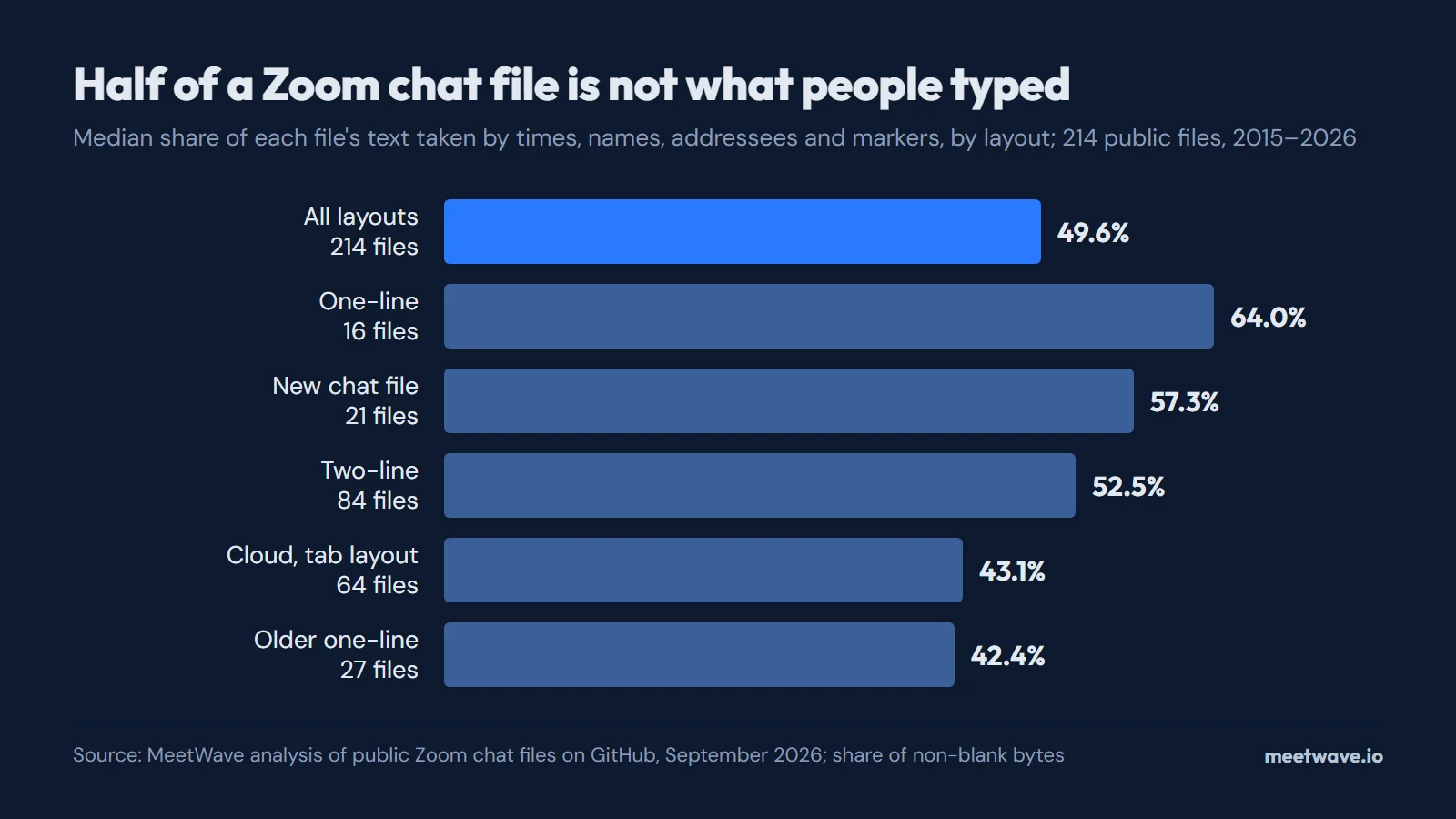 Figure 3. Median share of each file's non-blank text taken by timestamps, names, addressees and markers, by layout. Source: MeetWave analysis of 214 public Zoom chat files on GitHub, September 2026.
Threads and reactions add lines without adding words: 43.5% of the files had at least one reply marker or reaction line, and a median 50% of non-blank lines in the two-line layout, and 49.2% in the new chat file layout, carried no typed text at all (method). Direct messages travel with the file too: 46% of the 149 locally saved files, all of them posted publicly, contained at least one (method).
Turn the Chat File Into Clean Text or a Spreadsheet
The converter above reads every layout in Figure 2, places replies under the message they answer and turns reactions into counts; the full page adds Markdown, a per-person count and filters. Convert a Zoom chat file to clean text or CSV — it runs in your browser, so the file is never uploaded, and direct messages stay out of the result until you switch them on (what each copy holds: Zoom, KB0067312).
Can You Get the Chat After the Meeting Ended?
Yes, if at least one copy was kept. Check three places: the meeting's group chat in Zoom Chat, where in-meeting messages "show up … as they are sent in the meeting" when meeting chat before and after the meeting is on (Zoom, KB0058301); the Chat file of the cloud recording; and the host's Documents/Zoom folder if auto-save was on (Zoom, KB0067312).
If none of the three was on, the chat was not kept anywhere you can open. The before-and-after meeting chat cannot be turned on for accounts with Advanced Chat Encryption, and the setting used to be called Enable Continuous Meeting Chat (Zoom, KB0058301; Zoom, KB0085162).
The Chat Is Not the Meeting Transcript
The chat file holds what people typed; the audio transcript is a separate .vtt file of what they said, which Zoom produces for cloud recordings — see how to get a Zoom meeting transcript, and turn a .vtt into plain text once you have it. Without a cloud recording, MeetWave records the meeting's audio on your own computer, with no bot joining, and writes the transcript and a summary with action items; for a recording you already have, see how to transcribe a Zoom recording.
How We Calculated
On 23 September 2026 we searched GitHub code by file name: meeting_saved_chat.txt returned 214 results, RecordingnewChat.txt 147 and meeting_saved_new_chat.txt 27, together 394 distinct files in 135 repositories (GitHub REST API, Search code).
- Sample. At most 5 files per repository, chosen by a seeded shuffle, so that one project's archive cannot set the result: 240 files. We dropped 8 whose layout was not recognised, 17 with fewer than 3 messages and 1 that failed to download, which left 214 (Zoom chat converter).
- Layout. Each file went through the parser of our Zoom chat converter, which knows five layouts. The cloud layout includes its space variant, which Zoom attributed to one of its releases; 2 of the 66 cloud files used it (Zoom Developer Forum).
- Year. The date in the file's path when it had one, otherwise the date of the file's first commit, which is the latest the meeting can have taken place. The five 2015 files come from one project's meeting archive (GitHub REST API).
- Share. For each file, the bytes of message and reply text divided by the bytes of all non-blank lines; the rest is timestamps, names, addressees, reply markers and reaction lines. We report the median across files and, for Figure 3, per layout (Zoom chat converter).
Limits: these are files people chose to publish, mostly from open-source project meetings and online classes, not a random sample of Zoom meetings. Files were read in memory only; we kept counts and no names, messages, repositories or paths (method).
FAQ
Where are Zoom chats saved?
A chat saved during the meeting goes to Documents/Zoom, into a folder named after the meeting's date, time and topic; a cloud recording keeps its own Chat file in the web portal (Zoom, KB0067312). With meeting chat before and after the meeting on, the messages are also in the meeting's group chat in Zoom Chat (Zoom, KB0058301).
Does Zoom save chat automatically?
Only if something was set up: auto-save for the host (not for meetings started from the mobile app), a cloud recording with chat saving checked, or meeting chat before and after the meeting (Zoom, KB0062084; Zoom, KB0058301).
Can the host see private messages in a saved Zoom chat?
No. The host's saved or auto-saved copy includes only the direct messages the host sent or received, not "private messages between other participants" (Zoom, KB0062084).
Does cloud recording save the chat?
Yes, when Save chat messages from the meeting / webinar is checked in the recording settings; the Chat file then holds messages sent to everyone while the recording ran (Zoom, KB0064676; Zoom, KB0067312).
Why do the times in a cloud recording chat start near 00:00?
In public cloud Chat files the timestamps count from the start of the recording rather than the time of day, while a locally saved chat uses the saving computer's clock; Zoom documents only the <timestamp>\t<username>:\t<message> shape (Zoom Developer Forum).
Is the chat file the meeting transcript?
No. The chat holds typed messages, and the spoken-word transcript is a separate .vtt file of a cloud recording (Zoom meeting transcript guide).
Sources
- Zoom Support — Saving in-meeting chat (KB0067312) (undated). Accessed 2026-09-23.
- Zoom Support — Enabling meeting and webinar auto-saving chats (KB0062084) (undated). Accessed 2026-09-23.
- Zoom Support — Enabling or disabling meeting chat before and after the meeting (KB0058301) (undated). Accessed 2026-09-23.
- Zoom Support — Enable Continuous Meeting Chat setting renamed (KB0085162) (undated). Accessed 2026-09-23.
- Zoom Support — Changing basic and advanced cloud recording settings (KB0064676) (undated). Accessed 2026-09-23.
- Zoom Support — Changing cloud recording chat and transcript visibility (KB0066790) (undated). Accessed 2026-09-23.
- Zoom Developer Forum — Archive chat file format (2021). Accessed 2026-09-23.
- Zoom Developer Forum — Chat file download format (2023). Accessed 2026-09-23.
- Kieran Healy — zoomchattr README (undated README). Accessed 2026-09-23.
- GitHub Docs — REST API endpoints for search: Search code (2026). Accessed 2026-09-23.
Next time, the notes are waiting when the call ends.
Includes 14 days of Pro. No card.
Still comparing tools?
See how MeetWave stacks up against the tools most teams evaluate alongside it.
- MeetWave vs NottaSee how MeetWave compares to Notta for meeting transcription
- MeetWave vs KrispSee how MeetWave compares to Krisp for meeting notes
- MeetWave vs JamieSee how MeetWave compares to Jamie AI for bot-free meeting notes