
How to Record a Zoom Meeting on a Chromebook (and Google Meet or Teams)
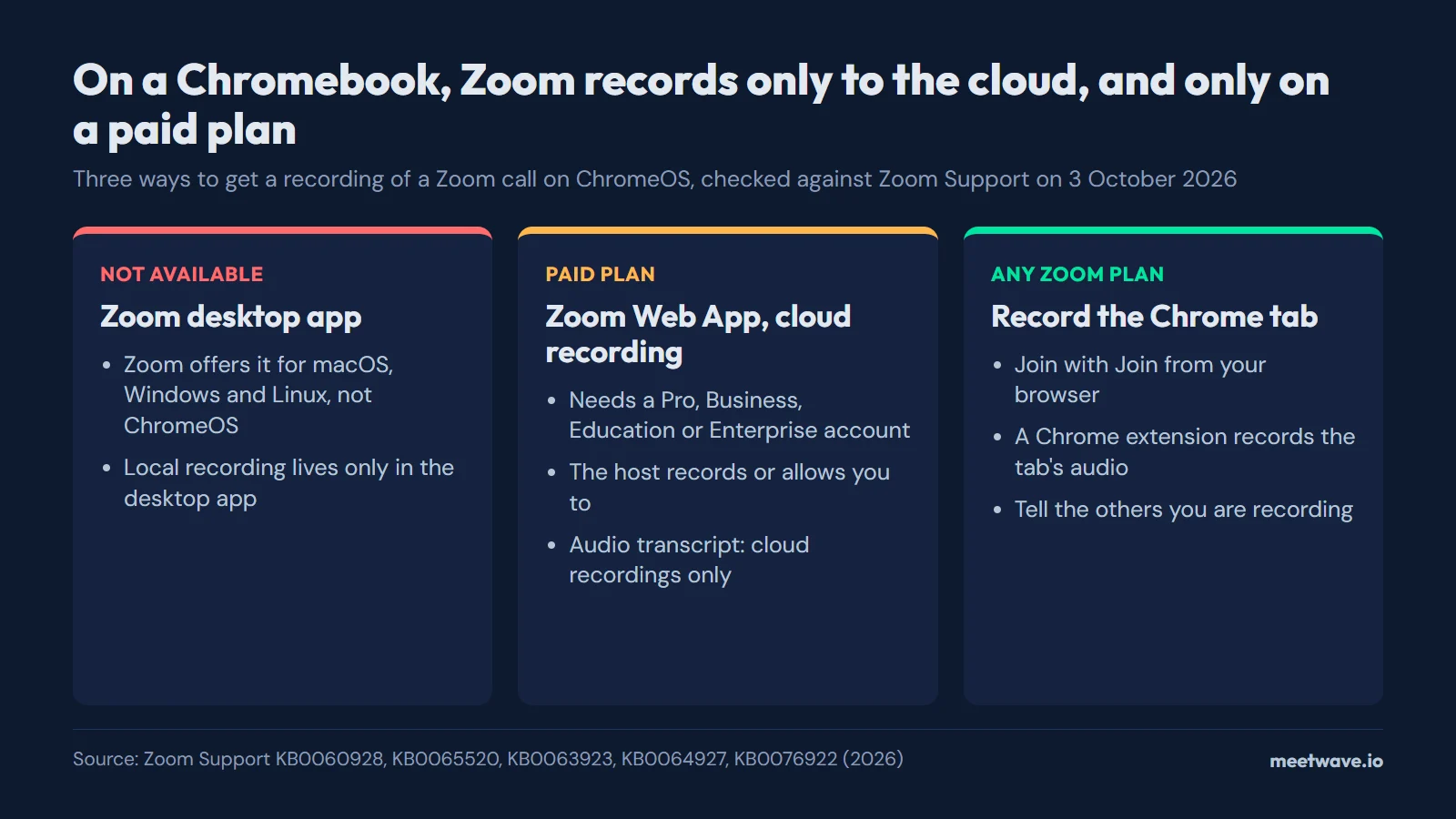
On a Chromebook, Zoom saves recordings only to the cloud, and cloud recording needs a paid Zoom plan: Pro, Business, Education or Enterprise (checked 2026-10-03). There is no Zoom desktop app for ChromeOS, and the Zoom Web App cannot make a local recording. On a free plan, open the call in Chrome with Join from your browser and record the tab with a Chrome extension, after telling the others. Google Meet and Microsoft Teams also run in a Chrome tab on a Chromebook, so the same tab recording works for them.
Key numbers
- Zoom's feature comparison, updated 25 September 2026, marks local recording as available in the desktop app for Windows, macOS and Linux and not available in the Zoom Web App in desktop browsers (Zoom Support, KB0065520).
- Zoom cloud recording requires a Pro, Business, Education or Enterprise account, so 4 paid account types and not the free Basic plan (Zoom Support, KB0063923, checked 2026-10-03).
- Zoom's Download Center offers the desktop app for 3 desktop systems in 2026, macOS, Windows and Linux, and none for ChromeOS (Zoom Support, KB0060928, updated 28 September 2026).
- Zoom recommends 4GB or more of RAM for the Zoom Web App on ChromeOS devices (Zoom Support, KB0058323, updated 26 March 2026).
- Of the 12 bot-free note takers in our census of 25 September 2026, 1 names ChromeOS for recording without a meeting bot (AI notetaker bots census).
Why Zoom on a Chromebook records only to the cloud
A Chromebook runs Zoom as the Zoom Web App, and the Web App has no local recording. Zoom says that on Chromebooks the Web App is available through the Google Play Store, the browser and an admin deployment (Zoom Support, KB0064261, updated 30 September 2026). The desktop app, which is the only place Zoom offers recording to the computer, comes for macOS, Windows and Linux (Zoom Support, KB0060928).
Figure 1 shows the two rows of Zoom's own comparison table that decide this. "Start cloud recording" is ticked for the Web App in desktop browsers; "Start local recording" is ticked only for the Windows, macOS and Linux apps (Zoom Support, KB0065520, updated 25 September 2026).
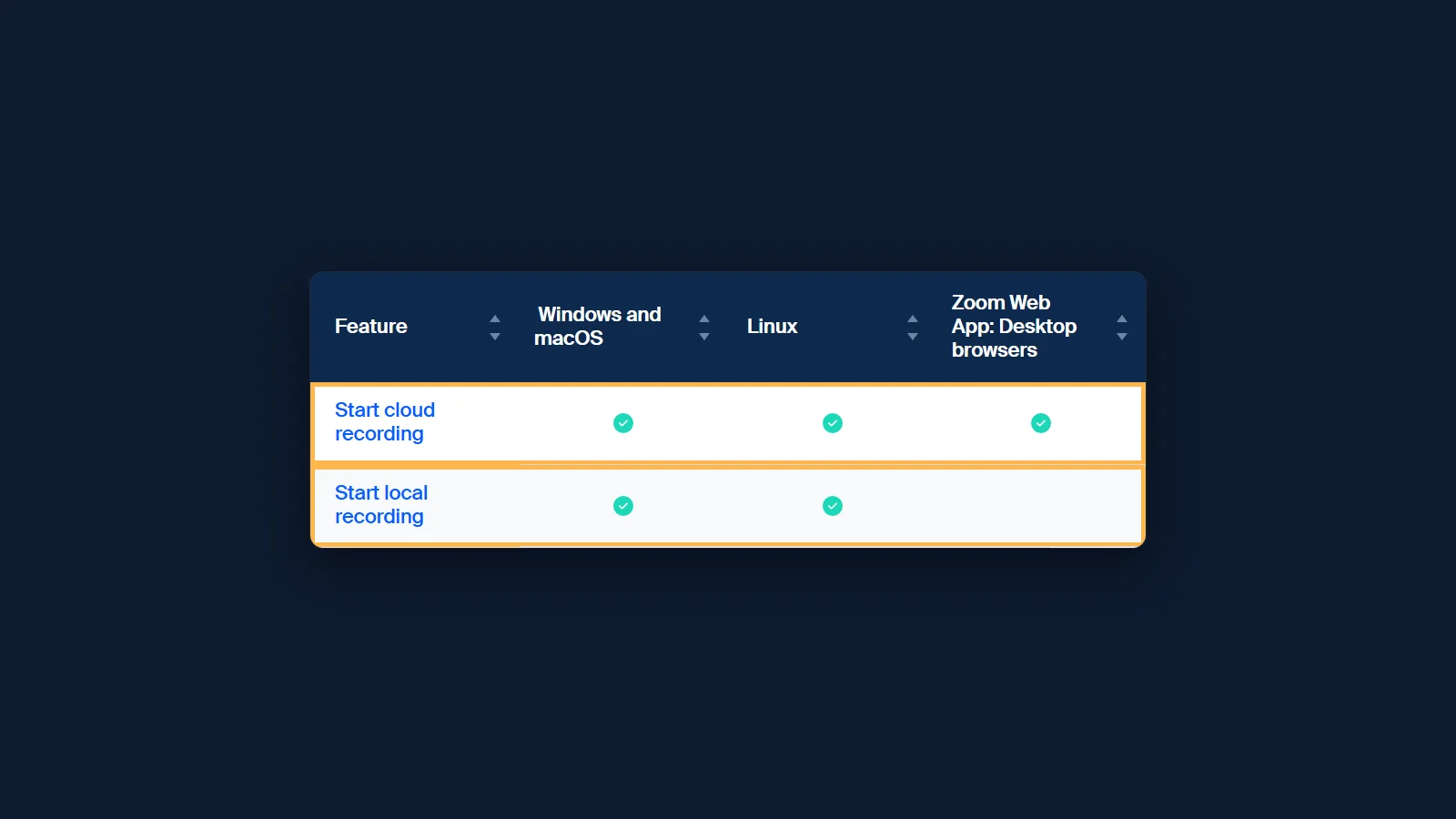 Figure 1. Zoom's comparison table: the Web App records to the cloud only. Rows between the header and these two are hidden, and so are the VDI and mobile browser columns. Source: screenshot of Zoom Support KB0065520, 3 October 2026.
Recording Zoom on a Chromebook with Zoom's own recorder
Zoom's own recorder works on a Chromebook when the account is paid and the host records. Cloud recording needs a Pro, Business, Education or Enterprise account and a licensed user (Zoom Support, KB0063923). The host must record the meeting or grant the ability to record to a participant: in the Participants panel, More next to the name, then Allow Record (Zoom Support, KB0076922).
The transcript comes from the same cloud recording. Zoom's audio transcript needs a Pro, Business, Education or Enterprise account with cloud recording and audio transcription turned on, and it arrives as a separate VTT file in the list of recorded meetings after processing (Zoom Support, KB0064927, updated 22 August 2026). Where to find it, and why it sometimes does not appear, is in our guide to Zoom transcripts.
Recording Zoom on a Chromebook on a free plan
On a free plan the path is a Chrome tab. A tab recorder captures what plays in the tab, so it does not depend on Zoom's plan or cloud storage. Figure 2 compares the three paths.
- Open the meeting link in Chrome on the Chromebook.
- On the page that offers to launch the Zoom app, click Join from your browser (Zoom Support, KB0060732). Zoom names the browser meeting addresses as zoom.us/wc/…/join and zoom.us/wc/…/start (Zoom Support, KB0064261).
- Allow the microphone when Chrome asks; on a Chromebook, microphone access is under Settings, Security and Privacy, Privacy controls (Zoom Support, KB0078476).
- Tell the others you are recording, then start the extension.
MeetWave works this way. No bot joins your calls: the Chrome extension records web calls on macOS, Windows, Linux and ChromeOS. It detects a Zoom meeting by itself on a zoom.us/wc/ address, and on any other tab you start it from the extension's toolbar button. Recordings are uploaded to your MeetWave account and transcribed on our servers; the audio, transcript and summary are stored encrypted in your account, so you can reopen them on any computer at app.meetwave.io. If you already have a transcript from Zoom, the meeting transcript summarizer turns it into notes without installing anything.
Figure 2. Three ways to record Zoom on a Chromebook. Source: Zoom Support KB0060928, KB0065520, KB0063923, KB0064927, KB0076922, checked 3 October 2026.
Use a Chrome tab rather than the Zoom app from the Google Play Store. A tab recorder hears Chrome tabs; Zoom does not document which address its Play Store version runs at (Zoom Support, KB0064261).
Google Meet on a Chromebook
On a computer, Google Meet runs in the browser, so on a Chromebook it is already a Chrome tab. Meet's own recorder needs an eligible Google Workspace edition, such as Business Standard, Business Plus or Education Plus, or a Google One plan with 2 TB or more of storage; personal accounts without such a plan cannot record (Google Meet Help, checked 2026-10-03). The path is Meeting tools, then Recording, then Start recording, and the file goes to the organizer's Google Drive. A recording stops by itself after 8 hours (Google Meet Help).
Without recording rights, a tab recorder captures the Meet tab the same way as Zoom, and the extension described above detects meet.google.com by itself. What Meet's transcript contains and who gets it is in our Google Meet transcript guide (Google Meet Help).
Microsoft Teams on a Chromebook
Microsoft's list of Teams clients has no ChromeOS app, so on a Chromebook Teams runs at teams.microsoft.com in Chrome. Microsoft lists the web version as supported in Edge, Chrome, Firefox and Safari (Microsoft Learn, updated July 2026).
Teams' recorder has its own rules: in Microsoft's table, people from another organization, guests and anonymous users cannot start a recording, and the person recording needs a qualifying license with recording allowed by the admin (Microsoft Support, checked 2026-10-03). Without those rights, record the Teams tab in Chrome; the extension detects teams.microsoft.com and teams.live.com by itself. The same steps on a Linux computer are in how to record a Teams meeting on Linux, and what the Teams transcript file holds is in our Teams transcript guide.
Which bot-free note takers name ChromeOS
Few note takers say they work on a Chromebook. In our census of 25 September 2026, 1 of the 12 bot-free note takers names ChromeOS for recording without a bot, and 2 name Linux (AI notetaker bots census). Figure 3 shows the count by system, and the table below lists all 12 tools. A Chrome extension may work on a Chromebook without the vendor saying so; the count includes only what vendors write.
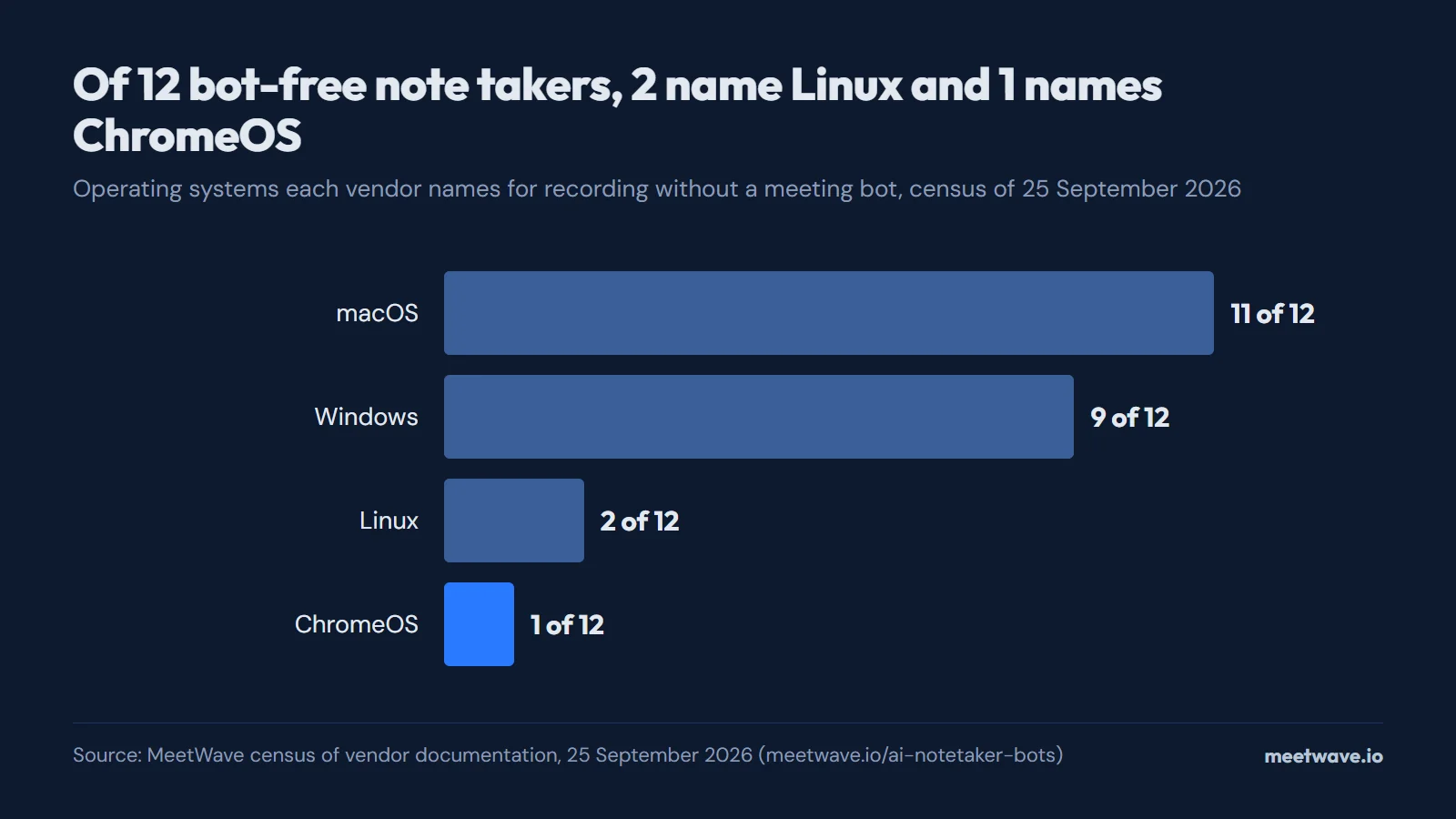 Figure 3. Operating systems vendors name for bot-free recording. Source: MeetWave census of vendor documentation, 25 September 2026.
| Tool | How it records without a bot | OS named for the bot-free mode | Free plan | Cheapest paid plan |
|---|---|---|---|---|
| Bluedot | Chrome extension or desktop app: "Record every meeting without bots using the Bluedot desktop app"checked 25 Sep 2026 | macOS, Windows (macOS 12.3+ on Apple Silicon, Windows 10+)checked 25 Sep 2026 | 5 meetings, lifetimechecked 25 Sep 2026 | Basic $14/user/mo billed annually, audio onlychecked 25 Sep 2026 |
| Fathomvs MeetWave | Bot-free capture is Mac-only and in beta; on Windows, Fathom records through its bot todaychecked 3 Oct 2026 | macOS (beta)checked 25 Sep 2026 | Unlimited recordings and basic AI summarieschecked 24 Sep 2026 | Premium $20/mo, or $16/mo billed annuallychecked 24 Sep 2026 |
| Fellowvs MeetWave | Bot for Zoom, Teams and Google Meet, or bot-free desktop app (Mac, Windows) and iOS app that capture audio from your devicechecked 25 Sep 2026 | macOS, Windowschecked 25 Sep 2026 | 5 AI notes (lifetime), 5 AI recordings (lifetime)checked 24 Sep 2026 | Team $7/user/mo billed annually ($11/user/mo billed monthly); Business $15/user/mo billed annually ($23/user/mo billed monthly)checked 24 Sep 2026 |
| Fireflies (Chrome extension)vs MeetWave | Bot for Zoom and Teams; bot-free Chrome extension for Google Meet in Chrome onlychecked 25 Sep 2026 | None named (names Chrome, not an operating system)checked 25 Sep 2026 | Not shown: its pricing page returned no plan limits on this checkchecked 25 Sep 2026 | Not shown: its pricing page returned no prices on this checkchecked 25 Sep 2026 |
| Granolavs MeetWave | Bot-free desktop app for Mac and Windows, using your computer audio; the Chrome extension "Granola Companion" works with the desktop appchecked 25 Sep 2026 | macOS, Windows, iOS, Androidchecked 25 Sep 2026 | Basic (free): 30 days of meeting historychecked 25 Sep 2026 | Business $14/user/mo; Enterprise $35/user/mochecked 25 Sep 2026 |
| Jamievs MeetWave | Bot-free: runs on your device, no meeting bot joins the callchecked 25 Sep 2026 | macOS, Windows, iOS (iPhone)checked 25 Sep 2026 | Free: 10 notes/month, 30 min per meetingchecked 24 Sep 2026 | Plus €21/mo billed annually, 20 meetings/month, up to 2h per meeting; Pro €39/mo, unlimited meetings, up to 5h per meetingchecked 25 Sep 2026 |
| Krispvs MeetWave | Works at the audio level on your device, so no bot joins the meetingchecked 25 Sep 2026 | macOS, Windowschecked 25 Sep 2026 | Meeting AI: 7-day free trial, no ongoing free tierchecked 24 Sep 2026 | Core $8/mo billed annually ($16/mo billed monthly); Advanced $15/mo billed annually ($30/mo billed monthly)checked 24 Sep 2026 |
| Meetily | Desktop app that captures audio from your device; open source under the MIT licensechecked 25 Sep 2026 | macOS, Windows, Linux (Linux: build from source)checked 25 Sep 2026 | Community Edition: free and open sourcechecked 25 Sep 2026 | Pro $10/user/mo billed annuallychecked 25 Sep 2026 |
| MeetWave | No bot joins your calls: the Chrome extension records web calls on macOS, Windows, Linux and ChromeOS, and the Windows desktop app also captures system audio from any app. | macOS, Windows, Linux, ChromeOS (Chrome extension); Windows (desktop app) | 10h of recording analysis/month, 25 AI summaries/month | Pro $16.00/mo, or $11.00/mo billed annually (up to 5 prior meetings in memory; 20 on Pro+) |
| Nottavs MeetWave | Notta Bot for Zoom, Google Meet, Teams and Webex, or bot-free Notta Desktop on Windows 10 (1903+) and macOS 13+checked 25 Sep 2026 | macOS, Windows (macOS 13+, Windows 10 (1903+) and 11)checked 25 Sep 2026 | 120 min/month, 3 min per recordingchecked 24 Sep 2026 | Pro $8.17/mo billed annually (1,800 min/month, 5h per recording); Business $16.67/mo billed annually, unlimited (annual price only — its page did not show a verified monthly figure)checked 24 Sep 2026 |
| Tactiqvs MeetWave | Live capture via Chrome/Edge browser extension, no bot; native macOS app in beta for Zoom desktop callschecked 24 Sep 2026 | macOS (beta app for Zoom and Teams desktop; the extension names browsers only)checked 25 Sep 2026 | 10 transcripts/month, 5 AI creditschecked 24 Sep 2026 | Pro $8/user/mo billed annually; Team $16.67/user/mo; Business $29.17/user/mochecked 24 Sep 2026 |
| Wispr Flow Notetaker | Records on your device, so nothing joins the callchecked 25 Sep 2026 | macOS, Windowschecked 25 Sep 2026 | Flow Free, "with generous weekly usage"checked 25 Sep 2026 | Pro $12/user/mo billed annuallychecked 25 Sep 2026 |
Read on each vendor’s own pages; the dates show when. Prices are US list prices in the vendor’s currency, as its page shows them. An OS counts only where the vendor names it for recording without a bot. Found something out of date? Tell us.
What a tab recorder does not do on a Chromebook
A Chrome extension records Chrome tabs, not apps installed from the Google Play Store. The note taker described above has no ChromeOS app beyond the extension: its desktop app, which captures system audio, runs only on Windows. If a call opens in an Android app, reopen the meeting link in a Chrome tab (Zoom Support, KB0060732).
Tell people you are recording
Rules on recording apply to the act of recording, whichever tool you use, and they differ by country and state, so check the law where you and the other people are. Say at the start that you are recording and why. Want everyone on the call to know? The Chrome extension can post a recording notice in the meeting chat, one switch in its settings. What other people see in the participant list is in do AI note takers show in participants, and every platform side by side is in how to record online meetings.
FAQ
Can you record a Zoom meeting on a Chromebook for free?
Not with Zoom's own recorder: on a Chromebook it records only to the cloud, which needs a Pro, Business, Education or Enterprise account (Zoom Support, KB0063923). A Chrome extension that records the tab works on a free Zoom plan.
Why is there no "Record on this Computer" option on my Chromebook?
That option belongs to the Zoom desktop app for Windows, macOS and Linux (Zoom Support, KB0076922). A Chromebook runs the Zoom Web App, which offers cloud recording only (Zoom Support, KB0065520).
Does a Zoom recording on a Chromebook come with a transcript?
Only a cloud recording on a paid plan with audio transcription turned on; the transcript arrives as a VTT file after processing (Zoom Support, KB0064927).
Can I record Google Meet on a Chromebook with a free Gmail account?
Not with Meet's recorder: it needs an eligible Workspace edition or a Google One plan with 2 TB or more (Google Meet Help). A tab recorder in Chrome does not depend on the plan.
Does a meeting tab recorder show up in the participant list?
No. A Chrome extension adds no one to the meeting; telling people is up to you, and the details are in do AI note takers show in participants.
Sources
- Zoom Support — Comparing Zoom Meetings and Webinars features by platform (KB0065520) (2026). Accessed 2026-10-03.
- Zoom Support — Enabling cloud recording (KB0063923) (2026). Accessed 2026-10-03.
- Zoom Support — Downloading the Zoom Workplace desktop or mobile app (KB0060928) (2026). Accessed 2026-10-03.
- Zoom Support — Zoom system requirements: Zoom Web App (KB0058323) (2026). Accessed 2026-10-03.
- Zoom Support — Getting started with the Zoom Web App (KB0064261) (2026). Accessed 2026-10-03.
- Zoom Support — Starting a computer recording (KB0076922) (2026). Accessed 2026-10-03.
- Zoom Support — Using audio transcription for cloud recordings (KB0064927) (2026). Accessed 2026-10-03.
- Zoom Support — Joining a Zoom meeting (KB0060732) (2026). Accessed 2026-10-03.
- Zoom Support — Allowing microphone, camera, and screen share permissions in the Zoom Web App (KB0078476) (2025). Accessed 2026-10-03.
- Google Meet Help — Record a video meeting (2026). Accessed 2026-10-03.
- Microsoft Learn — Overview of the Microsoft Teams client (2026). Accessed 2026-10-03.
- Microsoft Support — Record a meeting in Microsoft Teams (2026). Accessed 2026-10-03.
- MeetWave — AI notetaker bots and bot-free note takers, census of 25 September 2026 (2026). Accessed 2026-10-03.
Next time, the notes are waiting when the call ends.
Includes 14 days of Pro. No card.
Still comparing tools?
See how MeetWave stacks up against the tools most teams evaluate alongside it.
- MeetWave vs FathomFree AI meeting assistant and note taker focused on sales teams
- MeetWave vs FellowSee how MeetWave compares to Fellow for meeting notes and AI summaries
- MeetWave vs GranolaSee how MeetWave compares to Granola for bot-free meeting notes