
SharePoint & Stream Video Transcript: How to Download It
A SharePoint or Stream video transcript downloads from the video's player page: Video settings → Transcript and captions → … → Download, as a WebVTT (.vtt) file. Only people with edit permission on the video get that option; anyone else who can open the video can only read the Transcript pane. That is why a Teams meeting recording's transcript often won't download for attendees (Microsoft docs, checked 10 October 2026).
Already have the .vtt? Turn it into readable text ↓ — the converter sits right after the download steps.
Key numbers
- Videos uploaded to SharePoint are transcribed automatically in 8 languages and locales, for files up to 1GB and 4 hours, unless the tenant turns the feature off (2026, Microsoft Support).
- The transcript downloads in 1 format, WebVTT (.vtt), and only for people with edit permission on the video (2026, Microsoft Support).
- In a scheduled Teams meeting recorded by the organizer, 2 roles can edit the recording, the organizer and co-organizers; other members from the organizer's organization have "read access, but no sharing and download permissions" (2026, Microsoft Learn).
How to download the SharePoint or Stream video transcript
- Open the video in SharePoint or OneDrive. For a Teams meeting, look in the organizer's OneDrive Recordings folder, or the channel's Documents → Recordings (Microsoft Learn).
- Select Video settings on the right-hand side of the video's player page (Microsoft Support).
- Expand Transcript and captions if the section is closed (Microsoft Support).
- Open the "…" menu next to the transcript you want (Microsoft Support).
- Select Download. The option is there only if you have edit permission on the video (Microsoft Support). No Download option? Here is why.
- Keep the .vtt file and drop it into the converter below: it strips the time lines and joins the captions into readable text, the same as the VTT to text converter.
Where the transcript lives
The transcript is not a file you can find in a folder. Microsoft stores it with the video in OneDrive or SharePoint, it inherits the video's permissions, and there is no direct access to it in the file explorer: you see and manage it only through the video player (Microsoft Support).
Two kinds of video carry one. A video uploaded to SharePoint gets an automatic transcript; a Teams meeting recording gets the transcript from Teams Live Transcription copied onto the recording file (Microsoft Support). A meeting recording sits in the organizer's OneDrive, in the Recordings folder; a channel meeting's sits in the channel's SharePoint site under Documents → Recordings (Microsoft Learn).
What has to be true first
| Requirement | What Microsoft's docs say |
|---|---|
| A transcript exists | Uploads are transcribed automatically unless the tenant turns it off; an owner can also select Generate in Video settings |
| The video fits the limits | Automatic: up to 1GB and 4 hours. Generate: under 4GB and 4 hours |
| The language is supported | Automatic transcripts cover 8 languages and locales; Generate covers 28 |
| You can edit the video | Download is offered only with edit permission |
| A Teams meeting was transcribed | A recording has captions only if transcription was on while it was recorded |
| No licence is named | The video transcript page names no Microsoft 365 plan for any of this |
Source: Microsoft Support — View, edit, and manage video transcripts and captions (2026); Microsoft Learn — Teams meeting recording and transcript storage and permissions (2026).
Why the transcript won't download
The Download option is missing because you can view the video but not edit it. That is the usual case for a Teams meeting recording: the organizer and co-organizers have edit permissions, and everyone else from the same organization only reads it (Microsoft Learn).
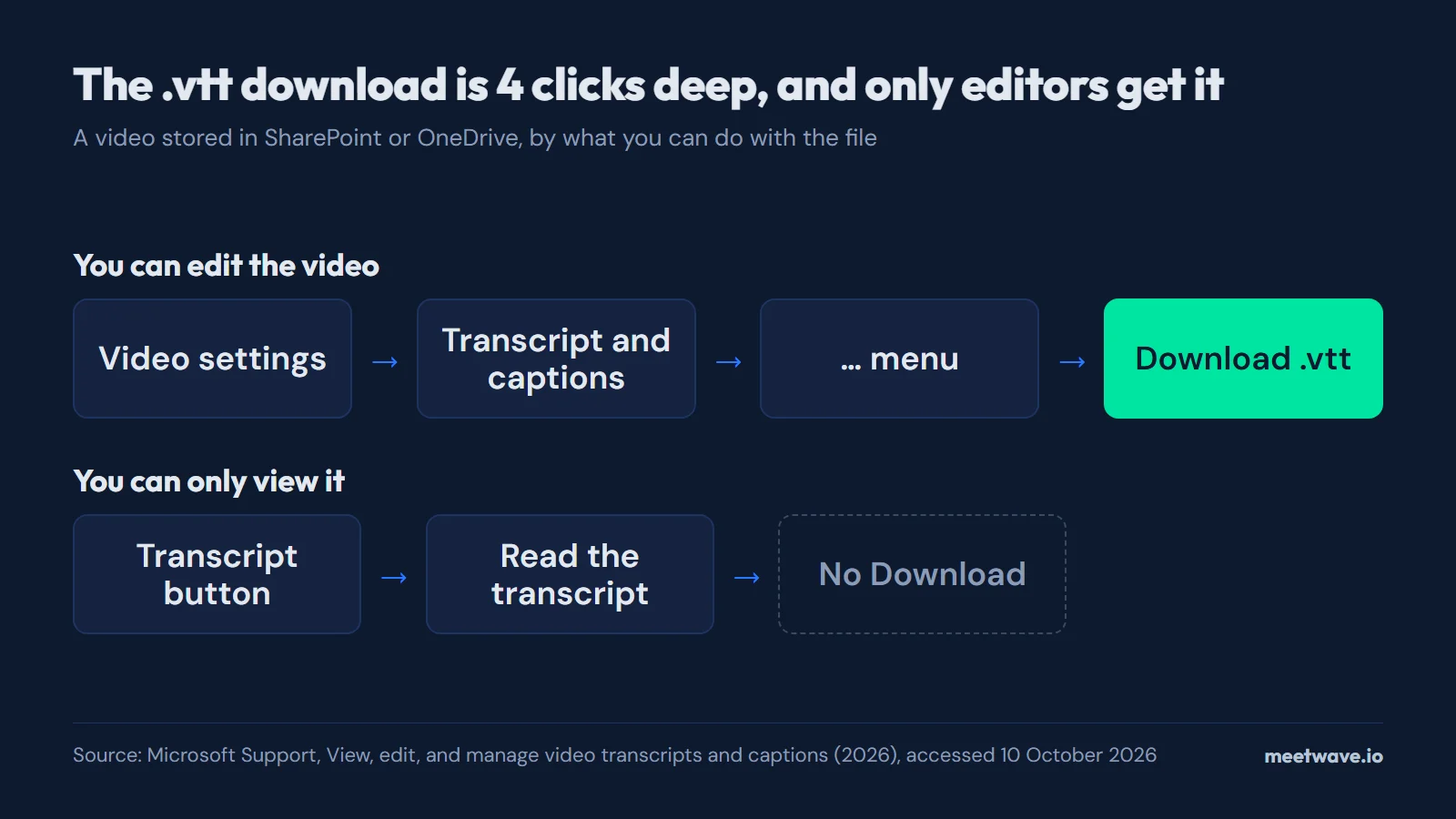 Figure 1. Where the Download option is, and who sees it. Source: Microsoft Support (2026), accessed 2026-10-10.
Figure 1 shows the two paths: an editor reaches Download in 4 clicks from Video settings, while a viewer gets the Transcript button and the text, but no Download option (Microsoft Support). Who counts as an editor depends on how the recording was made:
| Your situation | What you get |
|---|---|
| Member of a scheduled meeting the organizer recorded | Read access, no sharing and no download |
| Other person in a 1:1 call between colleagues | Read-only access, no sharing or download |
| External participant | No access until the organizer shares the recording |
| Channel meeting | Whatever the channel's SharePoint permissions give you |
| Organizer or co-organizer | Edit permissions, so Download is there |
Source: Microsoft Learn — Teams meeting recording and transcript storage and permissions (2026).
An admin can also block the download of Teams meeting recording and transcript files across the organization. With that policy on, people can still play the recording and read the transcript in the browser, but cannot download it; it needs a SharePoint Advanced Management licence and covers recordings saved after it was turned on (Microsoft Learn).
The fix is the person who owns the video. Ask the organizer or the video's owner to download the .vtt for you, or to give you edit permission on the file (Microsoft Support). If your organization blocks downloads, the owner cannot download it either: only members of the security groups your admin exempted can, so ask IT (Microsoft Learn).
When someone sends you the .vtt, drop it into the converter above.
Why there is no transcript at all
When the Transcript button is missing, nothing was generated. Automatic transcription skips files over 1GB or 4 hours, can fail when the spoken language is not supported or not recognized, and is off where the tenant turned it off (Microsoft Support). An owner can still select Generate under Video settings.
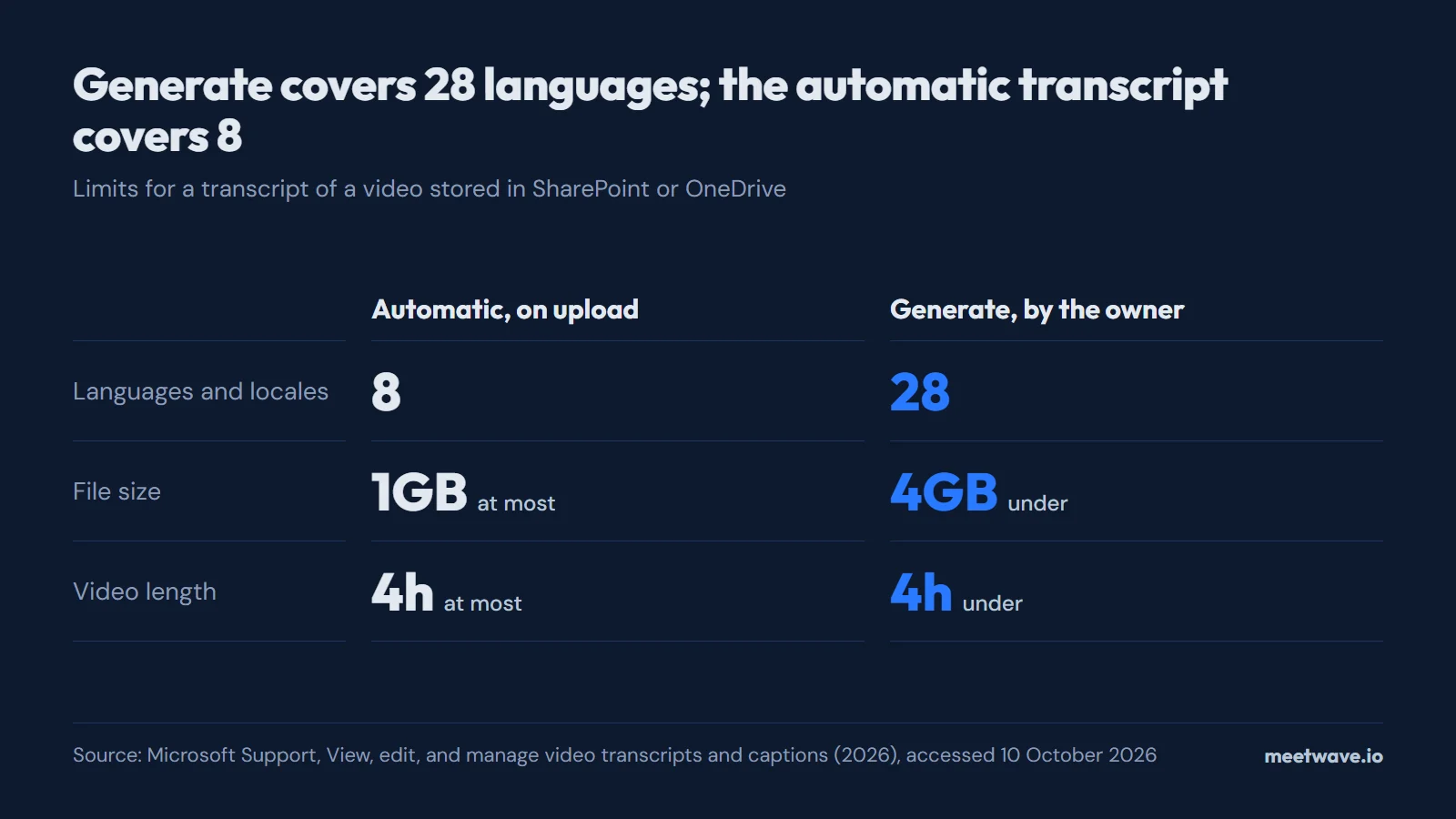 Figure 2. Limits of the automatic and the generated transcript. Source: Microsoft Support (2026), accessed 2026-10-10.
Figure 2 shows why Generate is worth a try: it covers 28 languages and locales against 8, and videos up to 4GB instead of 1GB (Microsoft Support).
A Teams meeting recording has captions only if transcription was turned on while it was recorded, and closed captions are not fully supported once the recording is moved or copied from its original OneDrive or SharePoint location (Microsoft Learn). For meetings themselves rather than stored videos, see how to get a Teams meeting transcript.
What the downloaded file looks like
The file is WebVTT as Microsoft describes it: a first line that reads WEBVTT, then cues, each a time marker with a start and end time separated by -->, and up to three lines of text (Microsoft Support). A short example in that shape:
WEBVTT

00:00:02.000 --> 00:00:06.480
Let's start with the budget review.

00:00:06.900 --> 00:00:11.250
The vendor quote came in lower than
we expected, so we can keep the pilot.
A transcript copied from a Teams meeting recording also records who said what. Microsoft warns that this speaker attribution is lost if you edit the downloaded file and upload it again (Microsoft Support).
When nothing was saved
If there is no recording and no transcript, Microsoft has nothing to give you. A recording you make yourself is a file you own, so nobody has to grant you download rights. For the next call, MeetWave records it itself. No bot joins your calls: the Chrome extension records web calls on macOS, Windows, Linux and ChromeOS, and the Windows desktop app also captures system audio from any app. Check the law where you and the other people are, and tell everyone on the call that you are recording.
The other platforms keep their transcripts in different places and files: see where each meeting platform saves your transcript.
FAQ
How do I download a transcript from a SharePoint video?
Open the video, select Video settings, expand Transcript and captions, then select Download from the "…" menu next to the transcript. You get a WebVTT (.vtt) file (Microsoft Support).
Why can't I download the transcript from Microsoft Stream?
You do not have edit permission on the video. Download is offered only to people who can edit it, and Teams meeting members other than the organizer and co-organizers usually get read access only (Microsoft Learn).
Can I download the transcript as a Word file?
Not from the video's page in SharePoint or OneDrive: Microsoft documents the download there as a WebVTT file only (Microsoft Support).
Can I find the transcript file in OneDrive or SharePoint?
No. The transcript is stored with the video, but there is no direct access to it in the file explorer for OneDrive or SharePoint; you see and manage it only through the video player (Microsoft Support).
Does SharePoint transcribe uploaded videos automatically?
Yes, by default, in 8 languages and locales and for files up to 1GB and 4 hours; a tenant admin can turn it off (Microsoft Support).
What happens to the transcript if the video is deleted?
It is deleted too. It also moves when the video moves, and a retention policy on the video applies to it. A transcript from a Teams meeting recording deleted here is still available in Teams unless it is also deleted from the meeting there (Microsoft Support).
Sources
- Microsoft Support — View, edit, and manage video transcripts and captions (2026). Accessed 2026-10-10.
- Microsoft Learn — Teams meeting recording and transcript storage and permissions in OneDrive and SharePoint (2026). Accessed 2026-10-10.
- Microsoft Learn — Block the download of Teams meeting recording and transcript files from SharePoint or OneDrive (2025). Accessed 2026-10-10.
Next time, the notes are waiting when the call ends.
Includes 30 days of Pro. No card.
Still comparing tools?
See how MeetWave stacks up against the tools most teams evaluate alongside it.
- MeetWave vs tl;dvSee how MeetWave compares to tl;dv for meeting intelligence
- MeetWave vs FathomFree AI meeting assistant and note taker focused on sales teams
- MeetWave vs FellowSee how MeetWave compares to Fellow for meeting notes and AI summaries