How to Get a YouTube Transcript (3 Ways, With and Without Timestamps)
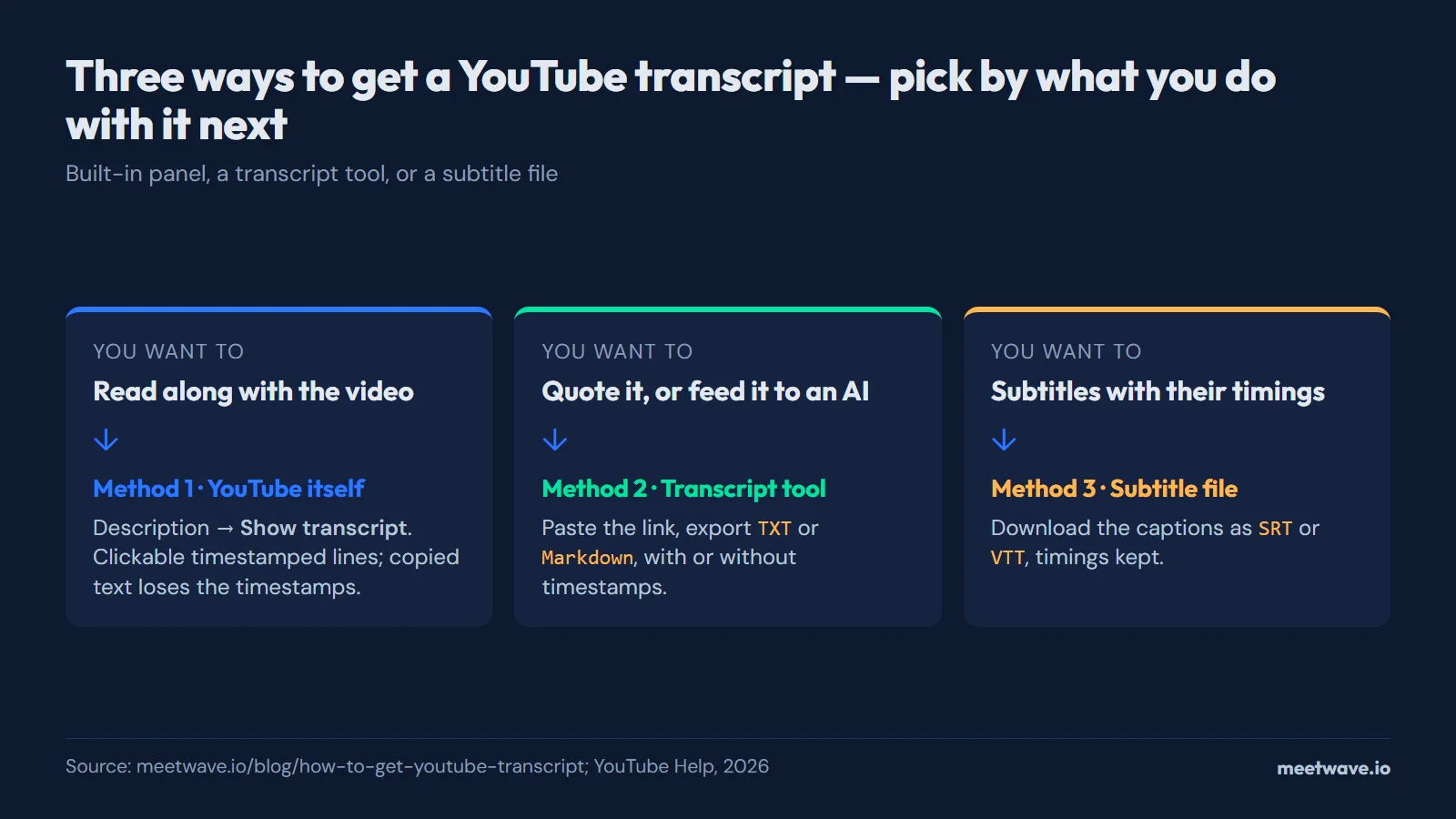
The transcript for a YouTube video is built into YouTube itself: open the video, expand the description below the player, and click "Show transcript." If that option is missing, or you need a downloadable file with timestamps instead of a scrolling panel, there are three practical ways to get one — YouTube's own panel, a free transcript tool, or downloading the caption file directly.
Every YouTube video with captions already has a transcript sitting behind the scenes — you just need to know where to look. This guide covers the built-in method, what to do when it's not available, and how to get a proper timestamped file instead of copy-pasted text.
How to Get a YouTube Transcript
- Open the video on YouTube.
- Expand the description below the video title.
- Click "Show transcript" in the description.
- Read or copy the transcript from the panel that opens beside the video, split into timestamped lines.
- Click any line to jump the video to that exact moment.
Method 1: Get the Transcript From YouTube Itself
YouTube shows the transcript for any video that has captions, whether creator-uploaded or auto-generated. Here's how to find it:
- Open the video on YouTube
- Below the video title, expand the description
- In the description, click "Show transcript" (YouTube Help)
- A panel opens on the right with the full transcript, split into clickable timestamped lines
- Click any line to jump the video to that moment
This works for any video that has captions, creator-uploaded or automatic, and YouTube makes automatic captions in 67 languages (YouTube Help, checked September 23, 2026). A video with no caption track has no "Show transcript" button — the reasons are in why a YouTube video has no transcript.
Why the Copy-Pasted Text Loses Its Timestamps
The transcript panel is convenient for reading along, but copying the text out of it strips the timestamps — you get one long block of text with no way to tell which line corresponds to which moment in the video. For quoting a specific point, syncing the text with the video for editing, or generating subtitles, plain copy-paste isn't enough. That's what the next two methods solve. If your copy did keep its times — the panel was showing them, or you exported [mm:ss] lines from a transcript tool — and you only want them gone, remove the timestamps from a YouTube transcript in your browser.
Method 2: Use a Free YouTube Transcript Tool
A dedicated transcript tool reads the same caption data YouTube's own panel does, but returns it as text you can copy, search, or download in multiple formats — with timestamps intact if you want them.
The free YouTube Transcript Generator works this way: paste the video URL, and it pulls the full transcript in seconds. Toggle timestamps on or off, then copy it to your clipboard or download it as plain text, Markdown, JSON, or PDF. No account is required, and it works on videos of any length.
| Situation | Best method |
|---|---|
| Reading along with the video | YouTube's built-in transcript panel |
| Quoting exact text for an article | Transcript tool with timestamps |
| Need the full text with no formatting | Transcript tool, plain text export |
| Feeding the transcript to an AI model | Transcript tool, TXT or Markdown export |
Method 3: Download the Transcript as SRT or VTT
If you need a proper subtitle file rather than plain text — for a video editor, for uploading captions elsewhere, or for archiving — download the caption track directly as SRT or VTT. Both are standard subtitle formats: SRT works with nearly every video editor and offline player, VTT is the web-native format used by HTML5 video and most streaming platforms.
The free YouTube Subtitles Downloader does exactly this: paste the link, pick the language if the video has more than one caption track, and download the SRT or VTT file. Each line keeps its start and end time, so it drops straight into Premiere, DaVinci Resolve, VLC, or any editor that accepts subtitle files.
YouTube Transcript to SRT
Converting a YouTube transcript to SRT specifically means you need the timestamp-per-line structure that a subtitle format requires — not just the text. Copying from the on-page transcript panel won't give you this, since it discards the timing data on copy. Two options get you there:
- Download directly as SRT using the YouTube Subtitles Downloader — the fastest path if all you need is the .srt file.
- Extract the transcript first, then convert it using the YouTube Transcript Generator, which exports SRT among its other formats, useful if you also want to review or edit the text before exporting.
Either way, the resulting SRT file has the standard structure: a sequence number, a timestamp range in HH:MM:SS,mmm --> HH:MM:SS,mmm format, and the subtitle text, repeated for every caption cue.
What If the Video Has No Captions at All?
If a video has neither a creator-uploaded track nor an automatic one, none of the methods above will produce a transcript, because there is no caption data to read. YouTube names six reasons automatic captions fail, and we measured how often our own tools meet such videos — see why a YouTube video has no transcript.
FAQ
How do I see the transcript of a YouTube video?
Open the video, expand the description below the title, and click "Show transcript" (YouTube Help). A scrollable panel with timestamped lines opens next to the video. This works for any video with captions, whether automatic or uploaded by the creator.
Why doesn't a video have a "Show transcript" option?
The button appears only on videos that have a caption track, and the six reasons a video ends up without one are in why a YouTube video has no transcript.
Can I get a YouTube transcript with timestamps as a downloadable file?
Yes. YouTube's own transcript panel shows timestamps on screen but strips them if you copy the text. To get a file with timestamps preserved, use the YouTube Transcript Generator with timestamps toggled on, or download the caption track directly as SRT or VTT with the YouTube Subtitles Downloader.
How do I convert a YouTube transcript to SRT?
Use the YouTube Subtitles Downloader to get an SRT file directly from the video URL, or extract the transcript first with the YouTube Transcript Generator and export it as SRT from there. Both preserve the per-line timing that plain copy-paste loses.
Is it legal to download a YouTube transcript?
Downloading the caption data for a video you're viewing for personal use, research, note-taking, or accessibility is standard practice and mirrors what YouTube's own transcript panel already displays. Republishing someone else's video content at length, including its transcript, without permission is a separate copyright question — when in doubt, credit the source and check the video's license.
Does this work for auto-generated captions, not just manually uploaded ones?
Yes. Both YouTube's built-in transcript panel and third-party transcript tools read whichever caption track is available, whether it was uploaded by the creator or automatically generated by YouTube's speech recognition. Auto-generated captions are typically accurate for clear speech in common languages but can have errors on technical terms or strong accents.
A Faster Way to Get What You Need
For most people, the fastest path is skipping YouTube's own panel entirely and going straight to a purpose-built tool. If you want the readable text, the YouTube Transcript Generator gets you a copy-paste-ready transcript in any format in one step. If you specifically need a subtitle file, the YouTube Subtitles Downloader skips straight to SRT or VTT. And if you don't need the full text at all — just the gist — the YouTube Video Summarizer turns a video into a short summary with timestamped key points instead.
If the content you're transcribing is your own meetings rather than YouTube videos, MeetWave applies the same idea to live calls: it records the call without a bot joining the meeting, then produces a full transcript plus an AI summary. The MeetWave Chrome extension records web calls from the browser tab on any OS with Chrome; the native desktop app is Windows-only.
Still comparing tools?
See how MeetWave stacks up against the tools most teams evaluate alongside it.
- MeetWave vs Otter AISee how MeetWave compares to Otter AI for meeting intelligence
- MeetWave vs Fireflies.aiSee how MeetWave compares to Fireflies.ai for meeting intelligence
- MeetWave vs tl;dvSee how MeetWave compares to tl;dv for meeting intelligence
More on this: Subtitle converter