Best Note Taker for Google Meet in 2026
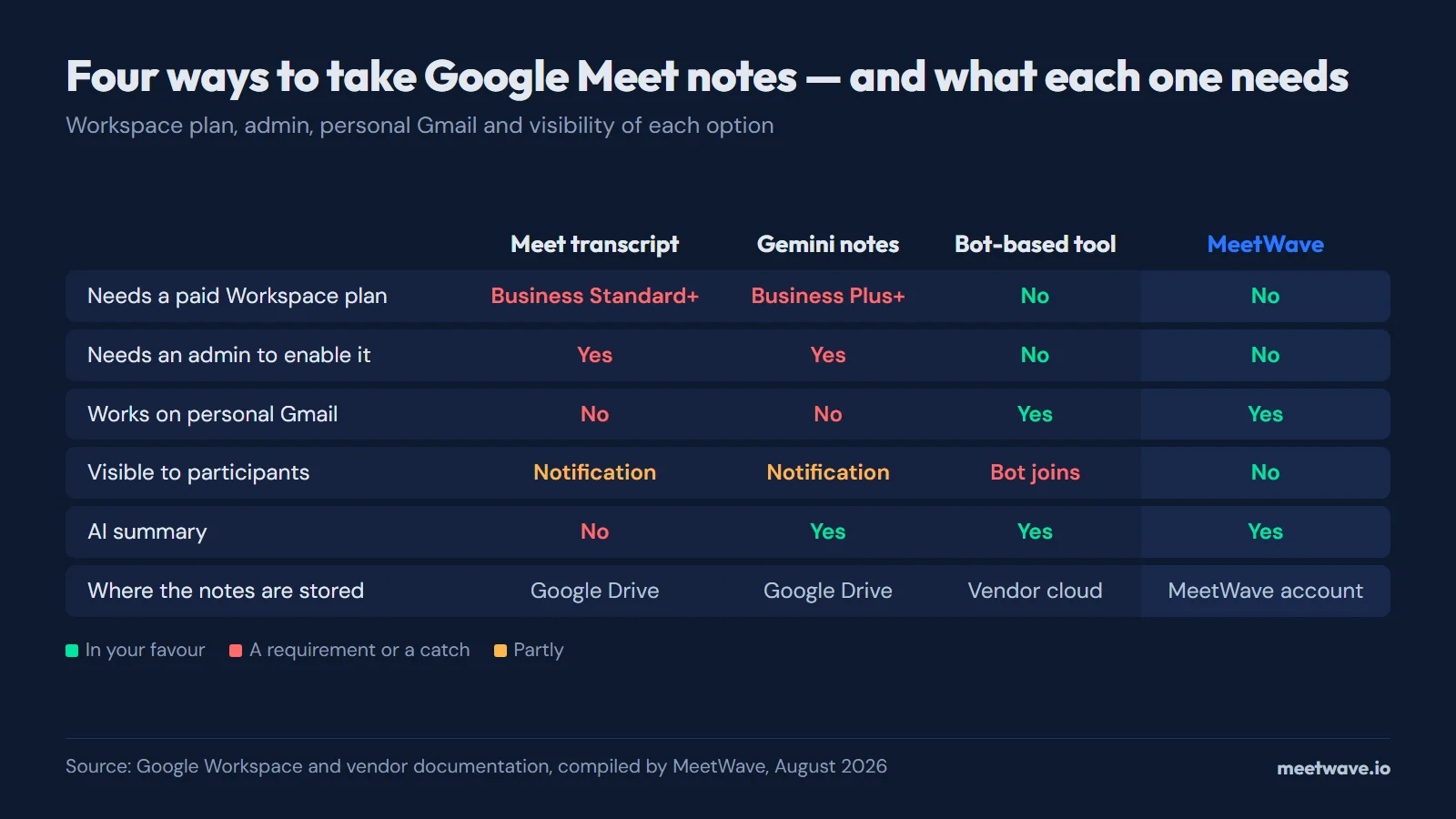
The best Google Meet note taker depends on your plan: native transcripts need Workspace Business Standard or higher and give a raw log, Gemini notes are the strongest AI option but only exist on Gemini-included tiers, and third-party bots work on any plan but join as a visible participant. Recording the call yourself — from the browser tab with a Chrome extension, or through system audio on Windows — produces structured notes on any Google account, including personal Gmail, without a bot.
How to Set Up a Bot-Free Note Taker for Google Meet
- Add the MeetWave Chrome extension. One click from the Chrome Web Store, on any OS running Chrome — no installer.
- Grant microphone access. The extension records the Meet tab's audio plus your own microphone; Google Meet never sees the permission.
- Join Google Meet as you normally would. Nothing appears in the participant list.
- Click Record in the extension when the call begins.
- Stop the recording when the meeting ends. Upload and analysis start on their own.
- Review the structured summary at app.meetwave.io and act on the action items it surfaces.
Prefer a desktop app on Windows? MeetWave for Windows does the same through system audio capture, and covers Meet calls in the desktop client as well as any other application.
Getting useful notes out of a Google Meet is harder than it should be. Native Meet features are plan-gated. Gemini's AI notes are locked behind Google's premium tiers. And most third-party bots show up in your meeting as a visible participant, which changes the dynamic with clients or candidates. This guide covers what each option actually delivers, the real cost to access it, and the clearest path to structured meeting notes regardless of which Google Workspace plan you are on.
What Google Meet Gives You Natively
Google Meet has two built-in documentation features: transcripts and recordings. Neither is available on all accounts.
Google Meet Transcripts
Native Meet transcription produces a Google Doc with speaker labels and timestamps. It requires Google Workspace Business Standard, Business Plus, Enterprise Standard, Enterprise Plus, or Google One AI Premium. It is not available on personal Gmail accounts or Business Starter.
When enabled, the host (or a co-host) starts transcription manually during the meeting. All participants see a notification. The transcript saves to the organizer's Google Drive after the call ends and links to the original Calendar event.
The output is a raw text log. It documents what was said. It does not identify decisions, extract action items, or produce a summary. That interpretation work is still yours to do.
For the full setup guide, see Google Meet transcripts.
Google Meet Recordings
Recordings save the video as an MP4 to Google Drive. Same plan requirements as transcripts. Participants see a banner notification during the recording. The host controls recording permissions.
Gemini Notes in Google Meet
Google Workspace plans that include Gemini (Business Plus, Enterprise Standard, Enterprise Plus, and Google One AI Premium) add AI-generated meeting notes. Gemini can produce:
- A summary of key discussion points
- Suggested action items
- A shareable recap document linked to the Calendar event
This is the most capable native option. But it comes with real constraints.
Plan gating. Gemini-powered notes are only available on plans that include Gemini. Many organizations are on Business Standard or Business Starter, which do not include it. Upgrading to access Gemini adds meaningful cost per user per month.
Admin enablement. Your Workspace admin must enable Gemini in the Admin console before it is available to users. In many organizations this has not been deployed universally.
Visible to participants. When Gemini is generating notes, participants see a notification. There is no way to run it without the meeting knowing.
Google ecosystem only. Gemini notes work in Google Meet. If you also have Zoom calls, Teams standups, or meetings on other platforms, Gemini does not cover those — the Zoom calls fall back to Zoom's own post-meeting transcript.
Generic output. Gemini summaries are helpful but not role-specific. A sales discovery call and a quarterly planning session receive similar treatment. There is no configuration for extracting the specific signals that matter for your role.
Third-Party Bot-Based Note Takers for Google Meet
Apps like Otter.ai, Fireflies, tl;dv, and Fathom join your Google Meet as a visible bot participant in bot mode (Fireflies also has a bot-free Chrome extension for Meet, and Fathom a Mac-only bot-free beta; what each bot is called). They transcribe in real time and produce summaries after the meeting. Most integrate with Google Calendar to automatically join scheduled meetings.
These tools work well when live transcript visibility is valuable or when CRM auto-logging is a requirement. The trade-off is that all audio is uploaded to the tool's cloud, and the bot is visible to every participant. For some conversations, particularly with candidates, clients, or in sensitive discussions, a visible recording bot changes how people communicate.
For a comparison of the top tools in this category, see best AI meeting notes tools.
The Local Recording Alternative
There is a different approach that avoids the plan requirements and the visible bot: recording system audio on your device and uploading it for transcription — no bot, no Workspace plan required.
The MeetWave Chrome extension records Google Meet calls directly from the browser tab — no desktop install, on any OS running Chrome. Since Meet is a web call anyway, the extension captures the tab's audio along with your microphone and feeds it straight into the transcription and summary pipeline.
On Windows, MeetWave's desktop app does the same at the operating system level, which also covers Meet in the desktop client and any other application that plays audio. Either way, it does not connect to Google Meet, does not join as a participant, and no notification appears in the meeting.
This works regardless of your Google Workspace plan. Personal Gmail account, Business Starter, Business Standard — the approach is identical. You do not need admin enablement. You do not need to upgrade your Workspace tier.
After the meeting ends:
- MeetWave transcribes the audio automatically, with no bot and no Workspace feature involved.
- You select a summary format: sales call, consulting session, job interview, team standup, executive brief, or general.
- Structured meeting notes are ready in minutes, including action items with owners, decisions made, open questions, and a narrative summary.
The output is meaningfully different from a raw transcript. Rather than a chronological text log you need to process manually, you get organized documentation that maps directly to what you need to do next.
Comparing Your Options for Google Meet Note Taking
| Feature | Native Meet Transcript | Gemini Notes | Bot-Based Tool | MeetWave |
|---|---|---|---|---|
| Requires paid Workspace plan | Yes (Business Standard+) | Yes (Business Plus+) | No | No |
| Requires admin enablement | Yes | Yes | No | No |
| Works on personal Gmail | No | No | Yes | Yes |
| Visible to participants | Yes (notification) | Yes (notification) | Yes (bot) | No |
| Raw transcript | Yes | Yes | Yes | Yes |
| AI-generated summary | No | Yes | Yes | Yes |
| Role-specific formats | No | No | Partial | Yes |
| Works on Zoom and Teams too | No | No | Usually | Yes |
| Data storage | Google Drive | Google Drive | Vendor's cloud | In your MeetWave account |
When Each Approach Makes Sense
Native Meet transcription is the right choice when your organization already pays for a qualifying Workspace plan, your admin has enabled transcription, and you want documentation that lives natively in Google Drive alongside the Calendar event.
Gemini notes make sense when your organization has deployed it, you are on a qualifying plan, and you primarily attend meetings in Google Meet. It is the best native option when accessible.
Bot-based tools make sense when you need live transcripts visible to participants during the meeting, CRM integration is a hard requirement, or your team wants centralized shared access to recordings.
MeetWave makes sense when you do not have a qualifying Workspace plan, your organization has not enabled Gemini, you attend meetings across multiple platforms, you want role-specific structured summaries, or you are recording conversations where participant awareness of recording would be a problem.
Setting Up a Note-Taking Workflow for Google Meet
Using MeetWave with Google Meet:
- Add the MeetWave Chrome extension, or install the desktop app if you are on Windows and want system-wide capture.
- Grant microphone access when prompted (plus system audio, on the desktop app).
- Select the microphone you use for your Meet calls.
- Join Google Meet as you normally would. Nothing shows up in the meeting.
- Click Record when the call begins.
- When the meeting ends, stop the recording. Processing starts immediately.
- Review the structured summary and act on the action items.
For typical 30-45 minute meetings, the summary is ready before you have finished your first post-meeting task.
Frequently Asked Questions
Does Google Meet have AI note taking?
Yes, for users on qualifying Google Workspace plans that include Gemini. Gemini in Google Meet can generate meeting summaries and suggested action items after the meeting ends. This feature requires Business Plus or higher, must be enabled by an admin, and shows a notification to all participants when active.
Can I take Google Meet notes without participants knowing?
Native Meet transcription and Gemini notes both display notifications to all participants. Bot-based tools join as visible participants. MeetWave captures the browser tab's audio in the extension, or system audio in the Windows desktop app, without ever connecting to Google Meet, so no notification appears in the meeting.
What is the best free note taker for Google Meet?
MeetWave offers a free tier that includes basic recording and transcription. Otter.ai also has a free plan with 300 minutes of transcription per month. Native Google Meet transcription is not available on free or low-tier Workspace plans.
Do I need a Google Workspace account to use a note taker for Meet?
No. Third-party tools including MeetWave work regardless of your Google account type. MeetWave captures system audio without any Google account integration, so it functions identically on personal Gmail and Workspace accounts.
Why do Gemini meeting notes not work for me?
Gemini meeting notes require a Google Workspace plan that includes Gemini (Business Plus, Enterprise Standard, Enterprise Plus, or Google One AI Premium). If you are on a lower-tier plan or your admin has not enabled Gemini for your organization, the feature is not available. Check with your Workspace admin or review your current plan in the Google Admin console.
Is it legal to record Google Meet without informing participants?
Recording consent laws vary by jurisdiction. Many regions require at least one-party consent, while others require all-party consent. Google Meet's native recording and transcription notify all participants by default, satisfying consent requirements in most cases. If you use a local recording tool that does not notify participants, you are responsible for understanding and following the laws in your region and the regions of your participants. When in doubt, inform participants before recording.
For a deeper look at what native Google Meet transcription provides, see Google Meet transcripts: what you actually get. To start capturing Google Meet calls with structured AI summaries on any account, the MeetWave Chrome extension handles the full workflow from the browser tab, with a Windows desktop app for system-wide capture.
Still comparing tools?
See how MeetWave stacks up against the tools most teams evaluate alongside it.
- MeetWave vs Otter AISee how MeetWave compares to Otter AI for meeting intelligence
- MeetWave vs Fireflies.aiSee how MeetWave compares to Fireflies.ai for meeting intelligence
- MeetWave vs tl;dvSee how MeetWave compares to tl;dv for meeting intelligence
More on this: Alternatives