Slack Huddle Transcript: How to Get One
Slack generates a huddle transcript through its AI notes feature, available on paid plans, and someone in the huddle has to switch it on by clicking "AI notes: Off" and choosing "Start AI notes & transcription". Afterward the notes and embedded transcript are posted as a canvas in the huddle thread, readable by anyone in that channel or DM. It does not work in huddles with external people or guests.
Key numbers
- A Slack huddle holds a maximum of 2 participants on the Free plan and up to 50 on paid plans (Slack Help Center — Use huddles in Slack, checked 2026-10-03).
- On paid plans, only 25 of those 50 people can turn on video at the same time (Slack Help Center — Use huddles in Slack, 2026).
- Huddle live captions exist in 1 language, English, and are not saved once the huddle ends (Slack Help Center — Use huddles in Slack, 2026).
- AI notes, the only native source of a huddle transcript, run on paid plans and cannot be used in huddles with external people or guests (Slack Help Center — Use AI to take huddle notes, checked 2026-10-03).
How to Get a Slack Huddle Transcript
- Start or join the huddle. Transcription runs through Slack's AI notes feature, which works per huddle rather than automatically.
- Turn on AI notes. Click AI notes: Off in the huddle controls, then select Start AI notes & transcription.
- Make it automatic for a channel, if you want. Open that channel's settings and enable Always start AI notes so every huddle there begins with notes running.
- Let the huddle run. Slack transcribes in real time from the audio and messages shared in the thread, then organizes topics, action items, and shared files.
- After the huddle ends, open the channel or DM thread. Slack posts a canvas there containing the notes with the transcript embedded.
- Open the canvas. Anyone in that channel or DM can view or share it. Note that the embedded transcript does not show up in Slack search results, so you have to find the huddle thread first rather than searching for a phrase someone said.
Huddles are Slack's lightweight audio and video call feature, meant for quick conversations without leaving a channel or DM. Transcription arrived as part of Slack's AI tooling, which means it sits behind the paid tiers and behind a per-huddle toggle rather than running by default.
Does Slack Transcribe Huddles?
Yes, through AI notes. Slack's documentation explains that when invited into a huddle, Slack AI creates a transcript based on real-time audio and messages shared in the thread, then organizes topics, action items, and shared files into a canvas. The feature is available on paid plans and to members but not guests.
The important detail is that it is opt-in per huddle. By default, someone in the huddle needs to turn AI notes on. Everyone in the huddle is notified when notes are started, stopped, or canceled.
What You Need for Slack to Transcribe a Huddle
| Requirement | Detail |
|---|---|
| Paid Slack plan | AI notes and huddle transcription are documented as available on paid plans, not the free tier |
| Member, not guest | All members can use AI notes; guests cannot |
| Turned on for the huddle | Someone starts it via "Start AI notes & transcription", or a channel is set to always start AI notes |
| No external participants | AI notes cannot be used in huddles that include external people or guests |
| Admin has not restricted it | Owners and admins can limit who has access to the feature |
Slack's pricing page lists huddle notes with transcripts as included in Pro, Business+ and Enterprise+, and not in Free, where huddles are 1:1 only. Slack's huddles article puts the same limit in numbers: 2 participants on Free, up to 50 on paid plans.
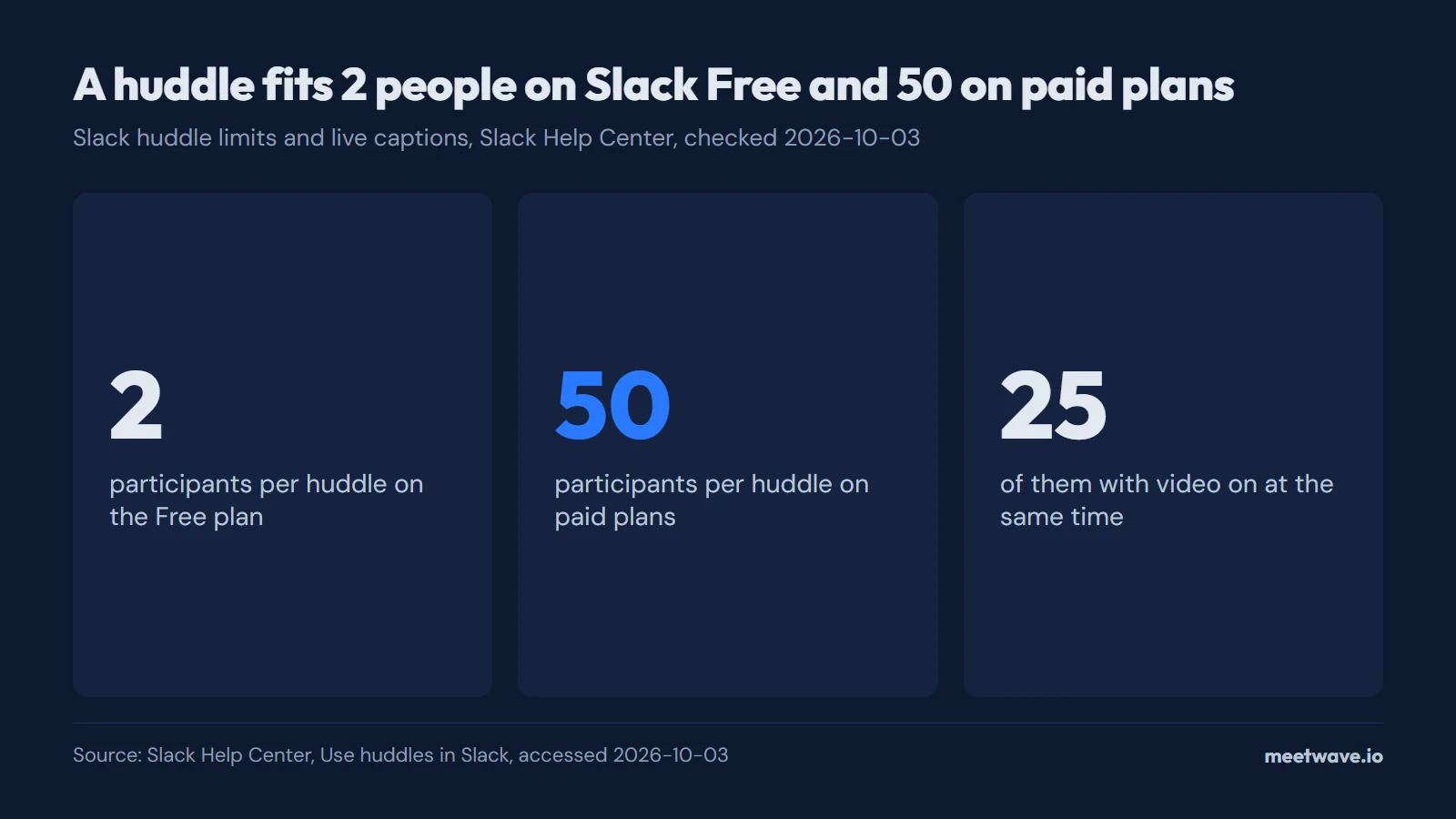 Figure 1. A huddle fits 2 people on Slack Free and up to 50 on paid plans, 25 of them with video. Source: Slack Help Center, Use huddles in Slack, accessed 2026-10-03.
Figure 1 puts the plan limits side by side: AI notes and bigger huddles arrive together, with the paid plan.
Can You Record a Slack Huddle?
No — Slack has no built-in way to record a huddle on any plan, Free, Pro, Business+, or Enterprise Grid. AI notes produce a text canvas, not a recording; live captions vanish when the huddle ends. To keep the audio or video of a huddle, you have to record it yourself at the screen or system level.
This surprises people because Slack's paid plans do record other things — clips, for example, are recorded video messages. But those are asynchronous recordings you create deliberately. A live huddle has no record button anywhere in its controls, and no admin setting adds one. The three things that can survive a huddle are the AI notes canvas (paid plans, internal huddles only), messages and files shared in the huddle thread, and whatever you capture yourself.
Captions vs Transcript vs Recording
These three get conflated constantly, so here is the clean split:
| What | Survives the huddle? | Where it lives |
|---|---|---|
| Live captions | No — never saved, English only | On screen during the huddle only |
| AI notes transcript | Yes, on paid plans, internal huddles only | Canvas in the huddle thread |
| Audio/video recording | Only if you record it yourself | Wherever your recorder saves it |
Source: Slack Help Center — Use huddles in Slack; Use AI to take huddle notes.
Live Captions Are a Separate Thing
Slack also offers live captions during a huddle, and they are not the same as a transcript. Slack's huddles documentation states plainly that captions are currently only available in English and will not be saved once the huddle ends. They help you follow a call in the moment and leave nothing behind afterward.
If you want a record, AI notes is the feature that produces one. Turning on captions does not create a transcript.
Why the Transcript Sometimes Doesn't Appear
- Nobody turned on AI notes before or during the huddle, and it cannot be applied retroactively
- The workspace is on Slack's free plan
- The huddle included external people or guests, which blocks the feature
- You joined as a guest rather than a member
- An owner or admin has restricted access to AI notes
- You are looking for captions rather than notes, and captions are never saved
Slack's transcription cannot be triggered after a huddle ends, so a huddle that ran without AI notes leaves no text behind. The same applies if your plan does not include the feature or the huddle involved someone outside your workspace. In those cases the only route is a recording you make yourself, next time.
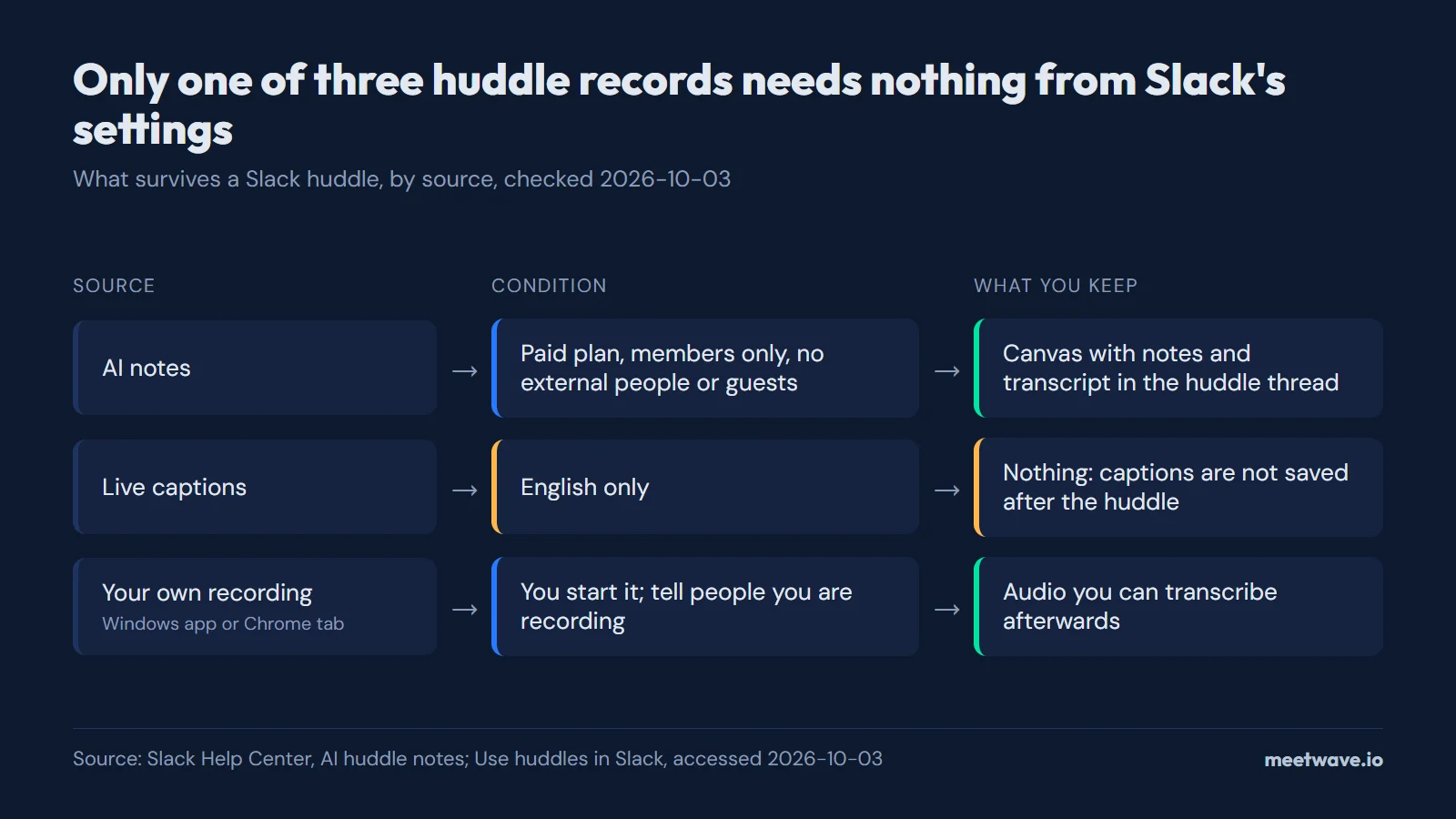 Figure 2. Of the three possible huddle records, only your own recording depends on no Slack setting. Source: Slack Help Center, AI huddle notes; Use huddles in Slack, accessed 2026-10-03.
As Figure 2 shows, the AI notes canvas depends on plan, membership and guests, captions leave nothing, and only your own recording depends on none of Slack's settings.
Record It Yourself on Windows or in Chrome
The most dependable way to keep a huddle you cannot transcribe in Slack is on Windows: the Slack desktop app plays the huddle's audio through your computer, so a recorder that captures system audio and your microphone gets both sides, and nothing joins the huddle. Bot note takers are no option here, because a huddle has no way to admit a bot. On a Mac, Linux or a Chromebook, open Slack at app.slack.com in Chrome, join the huddle there, and record the browser tab.
On Windows (Slack desktop app):
- Start a system-audio recorder before you join the huddle.
- Join the huddle in the Slack app as usual; the recorder captures what your speakers play plus your microphone.
- Stop the recording when the huddle ends, then transcribe the file; the audio-to-text converter works if you only have the audio.
In Chrome (app.slack.com, any operating system):
- Open app.slack.com in Chrome and start or join the huddle there instead of in the desktop app.
- Open your recording extension's popup and start recording that tab. A tab recorder captures the tab's audio and your microphone.
- Stop the recording when you leave the huddle.
MeetWave covers both routes. No bot joins your calls: the Chrome extension records web calls on macOS, Windows, Linux and ChromeOS, and the Windows desktop app also captures system audio from any app. That includes the Slack desktop app. The extension can record any Chrome tab from its popup, but it detects calls on its own only on Google Meet, Teams and the Zoom web client, so on app.slack.com you press record yourself. On the Free plan you get the summary and action items of each call (600 minutes a month); the full transcript needs a paid plan.
Rules on recording apply to the act of recording: check the law where you and your colleagues are, follow your company's policy, and tell everyone in the huddle that you are recording. Whether AI note takers show up in the participant list covers what others can see.
FAQ
Does Slack transcribe huddles automatically?
Not by default. Someone in the huddle needs to start AI notes and transcription, unless the channel has been set to always start AI notes for every huddle. The feature requires a paid plan.
Where does the Slack huddle transcript appear?
In a canvas posted to the huddle thread, in the channel or DM where the call took place. Anyone in that channel or DM can open it.
How do I turn on huddle transcription in Slack?
During the huddle, click "AI notes: Off" and select "Start AI notes & transcription". To make it automatic for a channel, enable "Always start AI notes" in that channel's settings.
Why didn't my huddle generate a transcript?
The most common reasons are that nobody turned AI notes on, the workspace is on the free plan, the huddle included external people or guests, or an admin has restricted access to the feature.
Can I get a huddle transcript for a call with external people?
Not from Slack. Slack states that AI notes cannot be used in huddles with external people or guests, so those huddles produce no native transcript regardless of your plan. A recording you make yourself, on Windows or in a Chrome tab, is the remaining route.
Can you record a Slack huddle?
Not with Slack itself: no plan, including Business+ and Enterprise Grid, has a record button for huddles, and huddles cannot admit recording bots. To keep the audio, record it on your own computer, with a system-audio recorder on Windows or a tab recording of app.slack.com in Chrome, and tell the people in the huddle that you are recording.
Related Reading
For the full picture by platform and operating system, start with how to record online meetings. For a chat-and-call platform that has no transcription at all, see our Discord call transcript guide. If your team also uses Loom for async video, check out how Loom's transcript feature works.
Sources
- Slack Help Center — Use AI to take huddle notes in Slack (2026). Accessed 2026-10-03.
- Slack Help Center — Use huddles in Slack (2026). Accessed 2026-10-03.
- Slack — Pricing (2026). Accessed 2026-10-03.
Still comparing tools?
See how MeetWave stacks up against the tools most teams evaluate alongside it.
- MeetWave vs FellowSee how MeetWave compares to Fellow for meeting notes and AI summaries
- MeetWave vs GranolaSee how MeetWave compares to Granola for bot-free meeting notes
- MeetWave vs TactiqSee how MeetWave compares to Tactiq for meeting transcripts
More on this: Meeting transcripts by platform