Webex Meeting Transcript: How to Get One After the Call
A Webex meeting transcript is created automatically for any meeting you record to the Webex cloud, because automatic transcription of MP4 recordings is turned on by default at the site level. The transcript appears next to the recording in User Hub, where you can read it, search it, edit it, and download it. Local recordings and unrecorded meetings produce no transcript at all.
Key numbers
- A Webex recording transcript usually appears within twice the duration of the meeting, and in rare cases can take up to 24 hours (Webex Help Center — Turn on recording transcripts, 2025).
- Automatic transcription of all recorded meetings, webinars and events is on by default, and covers English audio only (Webex Help Center — Turn on recording transcripts, 2025).
- The Webex Free plan allows meetings of up to 40 minutes with up to 100 attendees, and offers local recording only, so there is no cloud recording to transcribe (Webex pricing, checked 2026-10-03).
- Webex Assistant's post-meeting transcript page supports all spoken languages, while the transcript embedded with the video is English only (Webex Help Center — Webex Assistant transcripts, 2024).
The part most guides get wrong is the requirement. You do not need Webex Assistant switched on to get a post-meeting transcript. You need the meeting recorded to the cloud, and you need your site administrator to have left the transcription setting enabled, which is its default state.
How to Get a Webex Meeting Transcript
- Record the meeting to the Webex cloud — Local-only recordings never generate a transcript; the recording has to be an MP4 saved to the Webex cloud.
- Sign in to User Hub and open Recordings — Find the cloud recording for the meeting you want.
- Start playback — The transcript panel appears alongside the recording automatically, no separate step needed.
- Search the transcript — Use the keyword search box to jump to a specific moment in the conversation.
- Edit and download it — As the host, click the pencil icon to correct a line, then use the download option to save the transcript.
Does Webex Provide Meeting Transcripts?
Yes. Cisco's documentation states that automatic transcription of the audio for all recorded meetings, webinars, and events is turned on by default. An administrator can turn it off site-wide, enable it only for specific hosts, or let hosts control it themselves, but out of the box a cloud recording gets a transcript.
Two separate mechanisms are worth keeping apart. Recording transcripts are generated after the fact from the audio of an MP4 cloud recording. Webex Assistant is the real-time layer that shows live captions and flags highlights during the call, and it keeps its own transcripts as well. Losing access to Assistant does not cost you the recording transcript.
Where to Find the Webex Transcript
The transcript sits next to the cloud recording in User Hub → Recordings, where the host can edit and download it. Cisco notes that transcripts appear during recording playback and can be searched, edited, downloaded, and shared. In the Webex App, you can also get a transcript without recording the meeting.
What Has to Be True Before the Meeting
| Requirement | What it means |
|---|---|
| Recorded to the Webex cloud | Only MP4 cloud recordings get transcribed. A recording saved locally to your computer produces a video file and nothing else |
| Transcription setting left on | The site setting is "Create recording transcripts for all hosts' MP4 recordings", on by default, controllable in Site Administration or Control Hub |
| Not on the free plan | The Webex Free plan offers local recording only, and local recordings are not transcribed |
| English audio | Recording transcripts are currently produced in English only |
Source: Webex Help Center — Turn on recording transcripts (2025); Webex pricing, checked 2026-10-03.
How Long It Takes
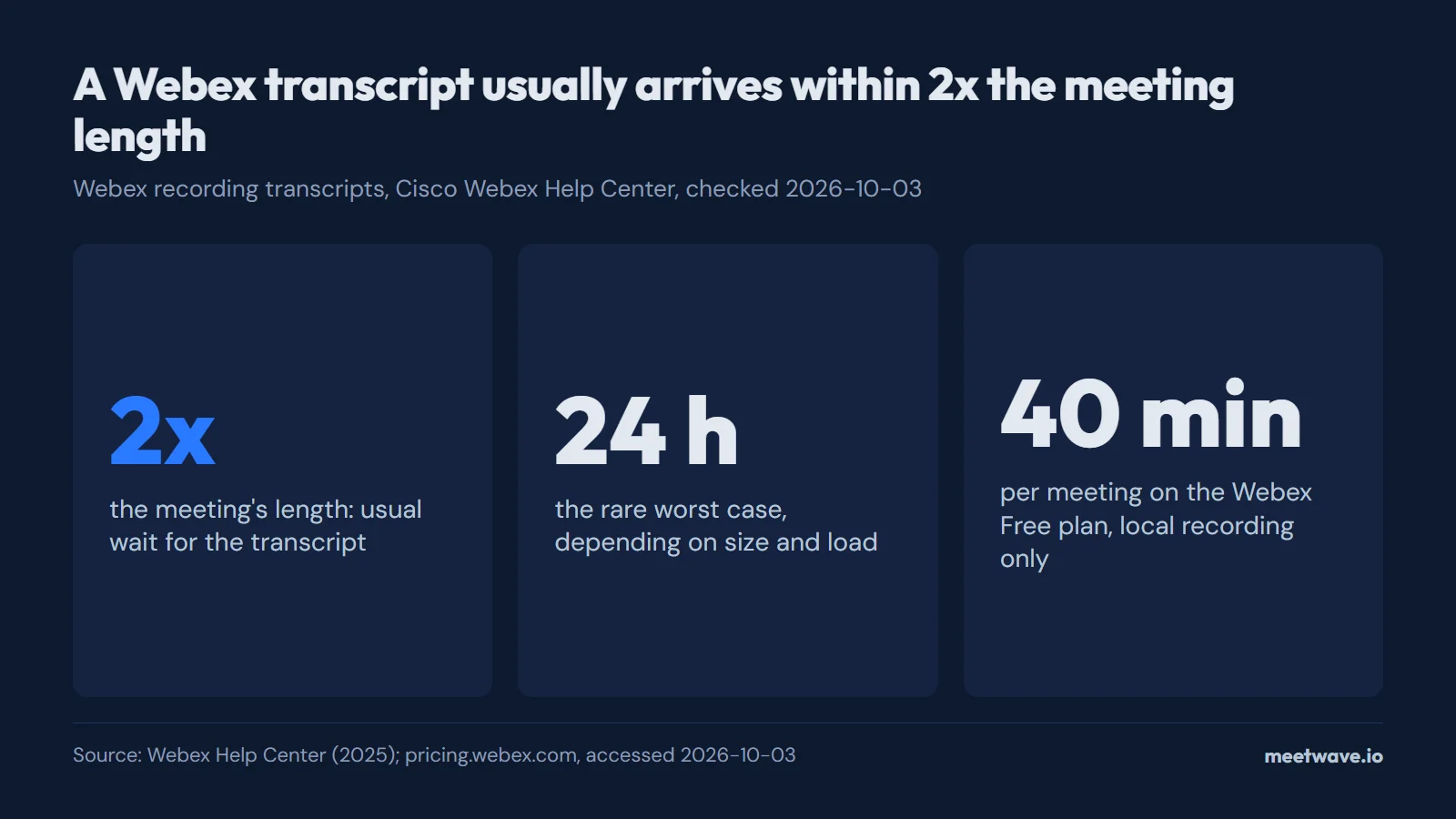
The transcript is not instant. Cisco's guidance is that a transcript usually appears within twice the duration of the meeting, and in rare cases, depending on meeting size and system load, it can take up to 24 hours. If a recording from an hour-long call has no transcript twenty minutes later, that is normal rather than a sign something failed.
Figure 1. A Webex recording transcript usually arrives within twice the meeting's length, rarely up to 24 hours. Source: Webex Help Center (2025); pricing.webex.com, accessed 2026-10-03.
Figure 1 sets the timing next to the Free plan limit: on Free there is no cloud recording, so there is nothing to wait for.
Why Is My Webex Transcript Missing?
A missing Webex transcript almost always traces to one of six causes: the meeting was recorded locally instead of to the cloud, it was not recorded at all, an admin turned transcription off, the account is on the free plan, the meeting was not in English, or the transcript is simply still processing — which can take up to twice the meeting's length.
Check them in this order:
- The meeting was recorded locally rather than to the cloud
- The meeting was not recorded at all, so there is no audio for Webex to transcribe
- An administrator turned the transcription setting off site-wide or for your host account
- The account is on the Webex free plan, which records locally only
- The meeting was in a language other than English
- The transcript is still processing, which can run to twice the meeting length
If none of those apply and the transcript is still missing, your site administrator is the person who can confirm whether the transcription service is enabled for your account.
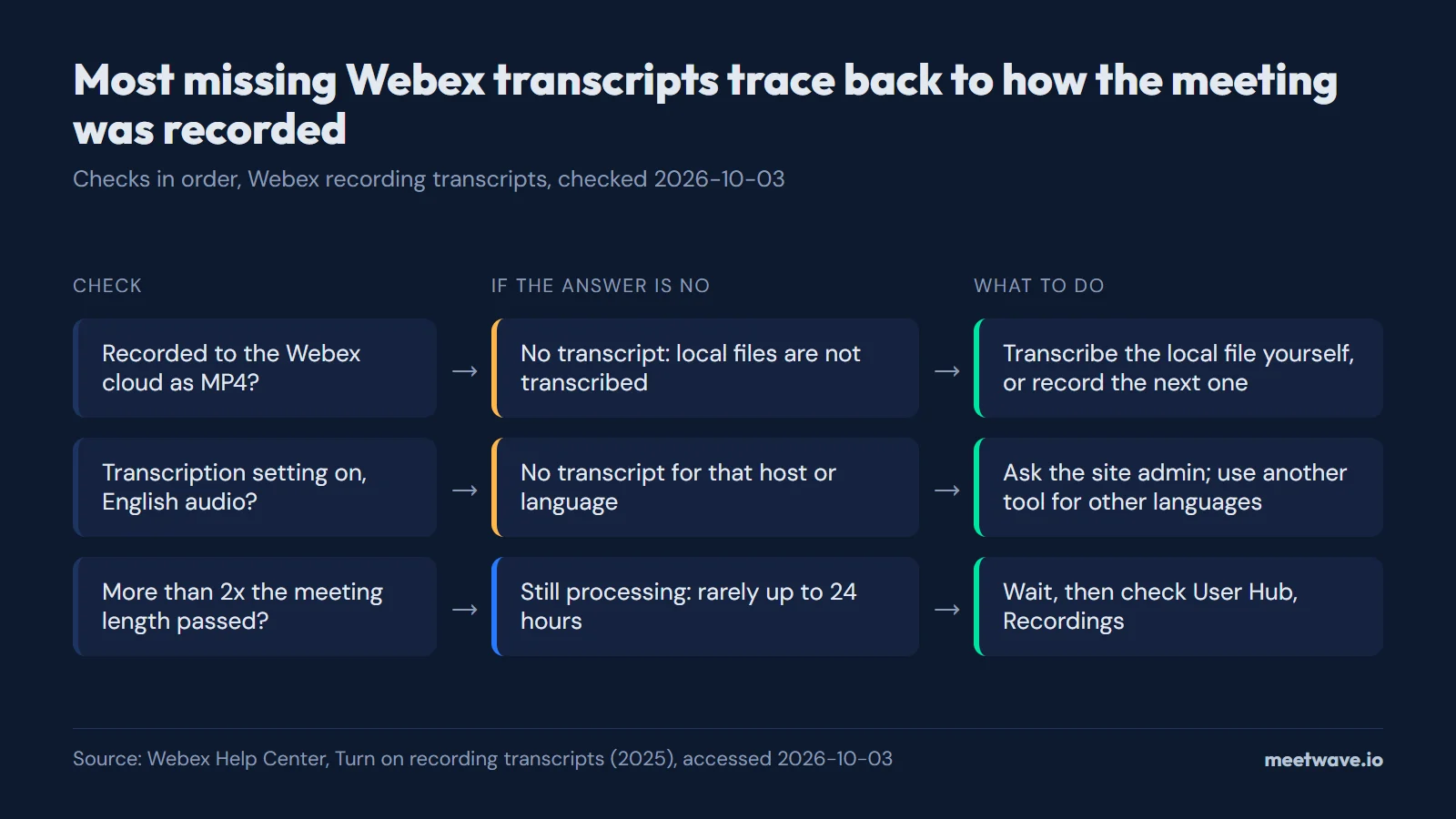 Figure 2. Most missing Webex transcripts trace back to how the meeting was recorded. Source: Webex Help Center, Turn on recording transcripts (2025), accessed 2026-10-03.
Figure 2 turns the list into three checks: how the meeting was recorded, whether the setting and language allow a transcript, and whether processing time has run out.
Can You Get a Webex Transcript After the Meeting Already Ended?
Yes — if the meeting was recorded to the Webex cloud, the transcript is generated from that recording and waits for you in User Hub under Recordings, whether you look an hour or a month later. If the meeting was not cloud-recorded, Webex kept no audio, and no setting can produce a transcript retroactively.
This is the same fork as Zoom's after-the-meeting transcript: everything hinges on what was captured while the meeting was live. The one Webex-specific wrinkle is timing — a transcript that is not there yet is not necessarily missing. Processing can run up to twice the meeting's duration, so for a two-hour all-hands, checking four hours later is reasonable rather than pessimistic. If the recording exists but the transcript never appears, run through the checklist in the previous section, then ask your site administrator whether transcription is enabled for your host account.
If the meeting was recorded only locally — an MP4 on the host's computer — the recording itself can still be transcribed, just not by Webex. Any transcription tool that accepts an audio or video file will do it; the practical options are the same as for transcribing a downloaded Zoom recording.
Record It Yourself on Windows or in Chrome
Every path above depends on someone recording to the cloud, on a paid plan, in English. If you are a participant rather than the host, or the meeting will not be cloud recorded, record it yourself. The most dependable route is on Windows: the Webex desktop app plays the meeting audio through your computer, so a recorder that captures system audio and your microphone gets both sides, and nothing joins the meeting. On a Mac, Linux or a Chromebook, join the meeting from the browser in Chrome and record the tab.
On Windows (Webex desktop app):
- Start a system-audio recorder before you join the meeting.
- Join in the Webex app as usual; the recorder captures what your speakers play plus your microphone.
- Stop the recording when the meeting ends, then transcribe the file; the audio-to-text converter works if you only have the audio.
In Chrome (Webex in the browser, any operating system):
- Open the meeting link in Chrome and choose to join from the browser instead of the app.
- Open your recording extension's popup and start recording that tab. A tab recorder captures the tab's audio and your microphone.
- Stop the recording when you leave the meeting.
MeetWave covers both routes. No bot joins your calls: the Chrome extension records web calls on macOS, Windows, Linux and ChromeOS, and the Windows desktop app also captures system audio from any app. That includes the Webex desktop app. The extension can record any Chrome tab from its popup, but it detects calls on its own only on Google Meet, Teams and the Zoom web client, so in Webex in the browser you press record yourself. On the Free plan you get the summary and action items of each call (600 minutes a month); the full transcript needs a paid plan.
Rules on recording apply to the act of recording: check the law where you and the other participants are, and tell everyone in the meeting that you are recording. Whether AI note takers show up in the participant list covers what others can see.
Related Reading
Webex's transcript model is closer to Zoom's cloud transcription than to Microsoft Teams', in that it hangs off a cloud recording rather than a separately started transcription session. For a broader look at what to expect across platforms, see our meeting transcription guide, and for every platform and operating system, how to record online meetings.
FAQ
Does Webex automatically transcribe every meeting?
It automatically transcribes every meeting recorded to the Webex cloud, since automatic transcription of MP4 recordings is on by default at the site level. Meetings that are not recorded, or recorded locally instead of to the cloud, produce no transcript.
Do I need Webex Assistant to get a transcript?
No. Recording transcripts are generated from the audio of a cloud recording and do not depend on Webex Assistant. Assistant is a separate real-time feature that adds live captions and highlights during the meeting and keeps transcripts of its own.
How do I turn on transcription in Webex?
It is on by default. If it has been turned off, a site administrator re-enables it by toggling "Create recording transcripts for all hosts' MP4 recordings" in Site Administration or Control Hub, or enables it per user under that user's privileges.
Where do I download a Webex transcript?
Sign in to User Hub, open Recordings, select the recording, and the transcript appears alongside playback with options to edit, download, and share it.
Can I get a transcript of a Webex meeting after it's already happened?
Only if the meeting was recorded to the cloud, since the transcript is generated from that recording's audio. If the meeting was not recorded, or was recorded only to a local file, Webex has no audio to work from and you would need a separate recording to transcribe elsewhere.
What languages does Webex transcribe?
Recording transcripts are currently produced in English only. Meetings held in other languages need either Webex Assistant's post-meeting transcript, which supports all spoken languages, or an external transcription tool.
Does Webex transcription require a paid plan?
In practice, yes. The Webex Free plan offers local recording only, and only cloud MP4 recordings are transcribed, so recording transcripts need a paid Webex plan.
How long does a Webex transcript take to appear?
Usually within twice the duration of the meeting — a one-hour meeting's transcript typically shows up within two hours. In rare cases, depending on meeting size and system load, it can take up to 24 hours. A transcript that has not appeared twenty minutes after a long meeting is processing normally, not failing.
Why does my Webex recording have no transcript?
Work through the causes in order: the recording was saved locally instead of to the cloud, an administrator turned off the site's transcription setting, the account is on the free plan, the meeting audio was not in English, or the transcript is still processing. If none apply, your site administrator can confirm whether the transcription service is enabled for your host account.
Can I transcribe a Webex meeting that was never recorded?
Not from Webex — with no recording there is no audio for Webex to transcribe. Going forward, either record to the cloud, or record the meeting yourself on Windows or in a Chrome tab, as described in the "Record It Yourself" section above.
Sources
- Webex Help Center — Turn on recording transcripts in Webex Meetings, Webex Webinars, and Webex Events (classic) (2025). Accessed 2026-10-03.
- Webex Help Center — Get a post-meeting transcript by recording your meeting or event (2024). Accessed 2026-10-03.
- Webex Help Center — Review and manage meeting transcripts created by Webex Assistant for Meetings (2024). Accessed 2026-10-03.
- Webex — Pricing (2026). Accessed 2026-10-03.
Still comparing tools?
See how MeetWave stacks up against the tools most teams evaluate alongside it.
- MeetWave vs tl;dvSee how MeetWave compares to tl;dv for meeting intelligence
- MeetWave vs FathomFree AI meeting assistant and note taker focused on sales teams
- MeetWave vs FellowSee how MeetWave compares to Fellow for meeting notes and AI summaries
More on this: Meeting transcripts by platform